---
title: Add Users in Otuvy Frontline
description: "Add Users in Otuvy Frontline In this article, we'll show you how to add new users in Otuvy Frontline. There are two ways to add new users: one at a time o…"
---
[Skip to content](https://help.otuvy.com/kb/add-users-in-otuvy-frontline#main-content)
[More support](https://help.otuvy.com/kb/kb-tickets/new?hsLang=en)

Open main navigation
Close main navigation
- [More support](https://help.otuvy.com/kb/kb-tickets/new)
- [Contact us](mailto:vip@otuvy.com)
[Contact us](mailto:vip@otuvy.com)
How can we help you?
- There are no suggestions because the search field is empty.
1. [Otuvy Knowledge Base](https://help.otuvy.com/kb?hsLang=en)
2. [Otuvy Frontline](https://help.otuvy.com/kb/otuvy-frontline?hsLang=en)
3. [Admin Portal](https://help.otuvy.com/kb/otuvy-frontline?hsLang=en#admin-portal)
# Add Users in Otuvy Frontline
Add Users in Otuvy Frontline
In this article, we'll show you how to add new users in Otuvy Frontline. There are two ways to add new users: one at a time or copy/paste from excel.
One User At a Time
In Otuvy Frontline's Admin Portal you can add users one person at a time. To do this:
1. Login to the Otuvy Frontline admin portal at [https://admin.otuvyfrontline.com](https://admin.otuvyfrontline.com)
2. When you first log in, you are brought to the **People** page
3. If you need to you can navigate to this page by clicking **People** in the main navigation to the left of the screen
4. From this screen we can add users one at a time by clicking the **Add a Person** button
5. When adding people one at a time, be sure to add their
6. **First Name**
7. **Last Name**
8. **Email Address**
9. Email addresses need to be unique in Otuvy Frontline
10. **Preferred Language**
11. English
12. Spanish
13. French
14. Portuguese
15. Then click the **Add** button
> When you first add a user, they will be given the Employee permissions level which only grants them access to the mobile app. If you need to increase the user's access to that of an admin you can do that from the admin portal. Learn how in [Edit Users in Otuvy Frontline](https://help.otuvy.com/kb/edit-users-in-otuvy-frontline?hsLang=en)
Mass Upload Users
If you want to create several new users you can do this by clicking on **Add Multiple People** and fill out the information on the screen. You can even copy excel data in the same format to this page. The data will be pasted starting with the blue highlighted cell. Make sure you don’t double click on a cell before pasting in data as this will put the data in that single cell rather than across the table.
> Be sure to spell out the languages **English** or **Spanish**
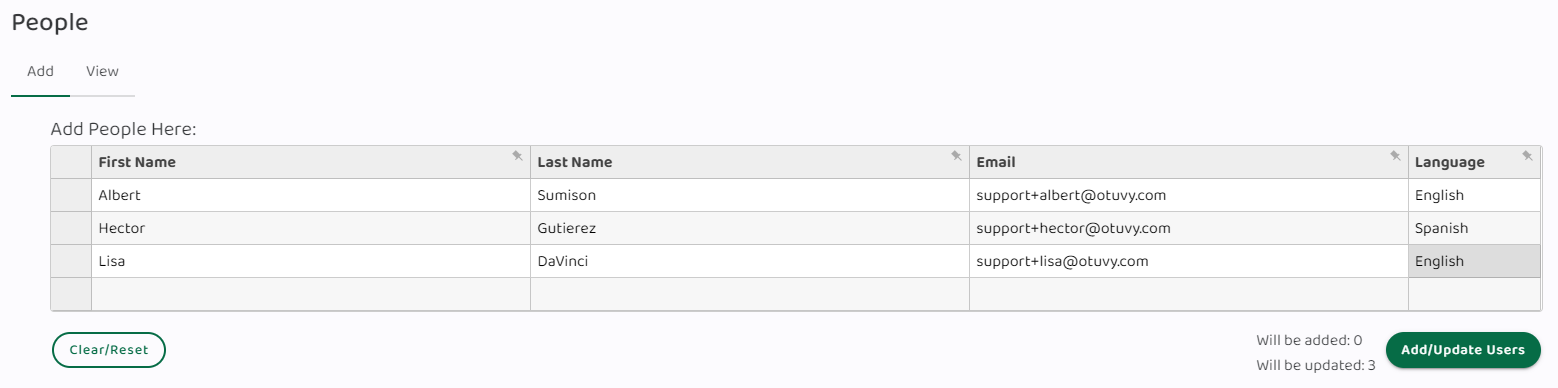
Once you've got all the information in the sheet, click **Add/Update Users**.
> When you first add a user, they will be given the Employee permissions level which only grants them access to the mobile app. If you need to increase the user's access to that of an admin user you can do that from the admin portal. Learn how in [Edit Users in Otuvy Frontline](https://help.otuvy.com/kb/edit-users-in-otuvy-frontline?hsLang=en)
Troubleshooting
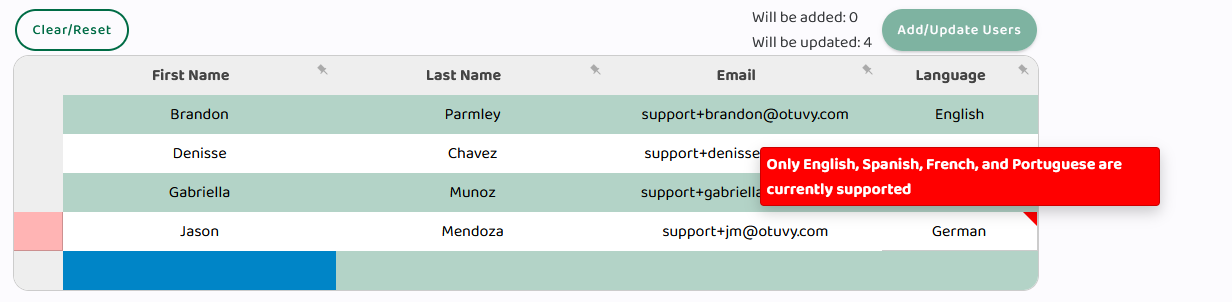
When errors occur you will be prompted with a red arrow in the top-right corner of the cell. Hover your cursor over that cell to see what is going wrong and how to correct it. Once all errors have been corrected, you will be able to click **Add/Update Users** again.
If you accidentally double-click into a cell before you paste in your copied excel data, all of that information will be pasted into that cell and you won't be able to proceed with the upload.

To fix this, refresh the page, single click on the first cell so it is highlighted blue and then paste the data.

- [Otuvy QM - Getting Started](https://help.otuvy.com/kb/otuvy-qm-getting-started?hsLang=en)
- [Otuvy QM - Setup & Administration](https://help.otuvy.com/kb/otuvy-qm-setup-administration?hsLang=en)
- [Otuvy QM - Contact Access](https://help.otuvy.com/kb/otuvy-qm-contact-access?hsLang=en)
- [Otuvy QM - Inspections](https://help.otuvy.com/kb/otuvy-qm-inspections?hsLang=en)
- [Otuvy QM - Work Orders](https://help.otuvy.com/kb/otuvy-qm-work-orders?hsLang=en)
- [Otuvy QM - Mobile App](https://help.otuvy.com/kb/otuvy-qm-mobile-app?hsLang=en)
- [Otuvy QM - Reports & Dashboards](https://help.otuvy.com/kb/otuvy-qm-reports-dashboards?hsLang=en)
- [Otuvy QM - Advanced Features](https://help.otuvy.com/kb/otuvy-qm-advanced-features?hsLang=en)
- [Otuvy Frontline](https://help.otuvy.com/kb/otuvy-frontline?hsLang=en#main-content)
- [Getting Started](https://help.otuvy.com/kb/otuvy-frontline?hsLang=en#getting-started)
- [Mobile App](https://help.otuvy.com/kb/otuvy-frontline?hsLang=en#mobile-app)
- [Admin Portal](https://help.otuvy.com/kb/otuvy-frontline?hsLang=en#admin-portal)
- [Uncategorized](https://help.otuvy.com/kb/uncategorized?hsLang=en)
[](https://www.otuvy.com/)
[mailto:email@email.com](mailto:email@email.com)
Copyright © 2026, Otuvy, Inc.