---
title: Archive Lists in Otuvy Frontline Mobile
description: Archive lists in the Otuvy Frontline mobile app one at a time or in bulk, stop recurring tasks, and unarchive a list when you need it back.
---
[Skip to content](https://help.otuvy.com/kb/archive-lists-in-otuvy-frontline-mobile#main-content)
[More support](https://help.otuvy.com/kb/kb-tickets/new?hsLang=en)

Open main navigation
Close main navigation
- [More support](https://help.otuvy.com/kb/kb-tickets/new)
- [Contact us](mailto:vip@otuvy.com)
[Contact us](mailto:vip@otuvy.com)
How can we help you?
- There are no suggestions because the search field is empty.
1. [Otuvy Knowledge Base](https://help.otuvy.com/kb?hsLang=en)
2. [Otuvy Frontline](https://help.otuvy.com/kb/otuvy-frontline?hsLang=en)
3. [Mobile App](https://help.otuvy.com/kb/otuvy-frontline?hsLang=en#mobile-app)
# Archive Lists in Otuvy Frontline Mobile
# Archive Lists in Otuvy Frontline Mobile
Archiving lists is a common need, and Otuvy Frontline provides two convenient methods to achieve this task: archiving one list at a time and multi-selecting lists. In this article, we will guide you through the step-by-step process for archiving lists using both methods.
> 
>
> Whichever method you chose, archiving a list will remove it from view and stop any recurring tasks in that list from reappearing. You will still be able to run reports on archived lists and if you need to, you can choose to **Show Archived Lists** from the More menu at the top of the home page (the 3 dots next to the search button).
## Archiving One List at a Time
1. **Navigate to the Home Page**: Open the Otuvy Frontline mobile application and ensure you are on the home page by tapping on **Home** at the bottom 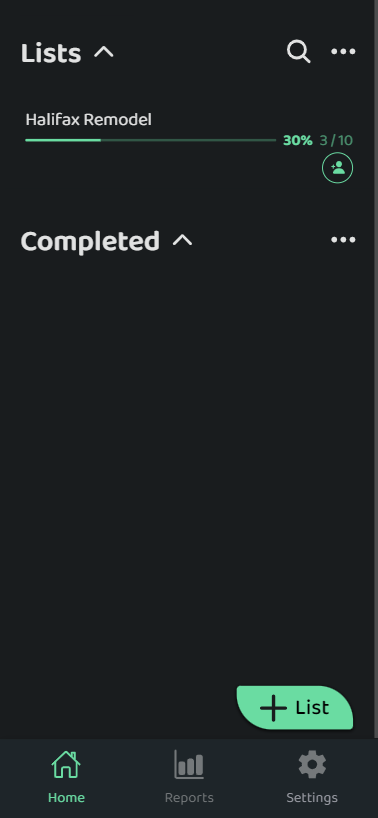
2. **Swipe Left**: Find the one list you want to archive and swipe left on it to open the drawer menu. 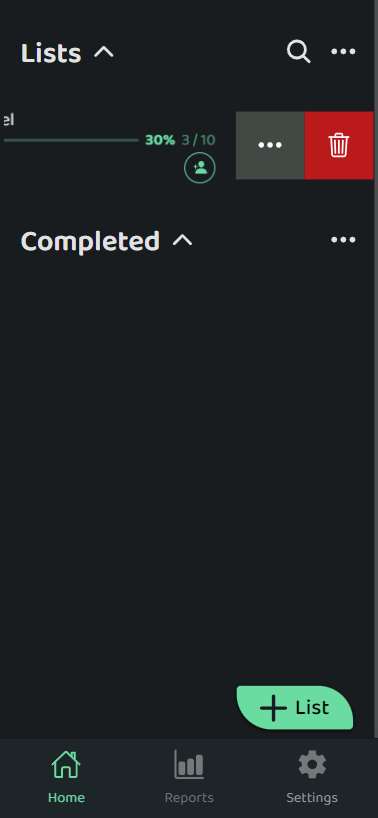
3. **Tap the Three Dots**: In the drawer menu for this list tap the three dots next to the delete option.
4. **Archive List:** From the menu, choose Archive List 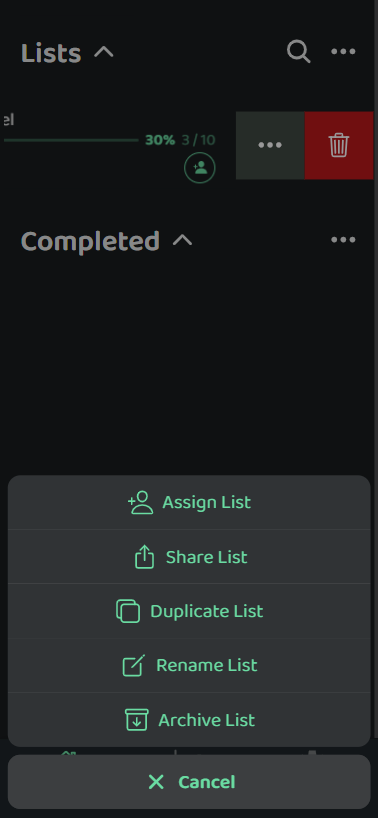
## Archiving Multiple Lists
1. **Navigate to the Home Page**: Open the Otuvy Frontline application and ensure you are on the home page
2. **Tap the Three Dots**: On the top right corner of the home page, you will find three dots next to the search option. Tap on these three dots to reveal a menu of options 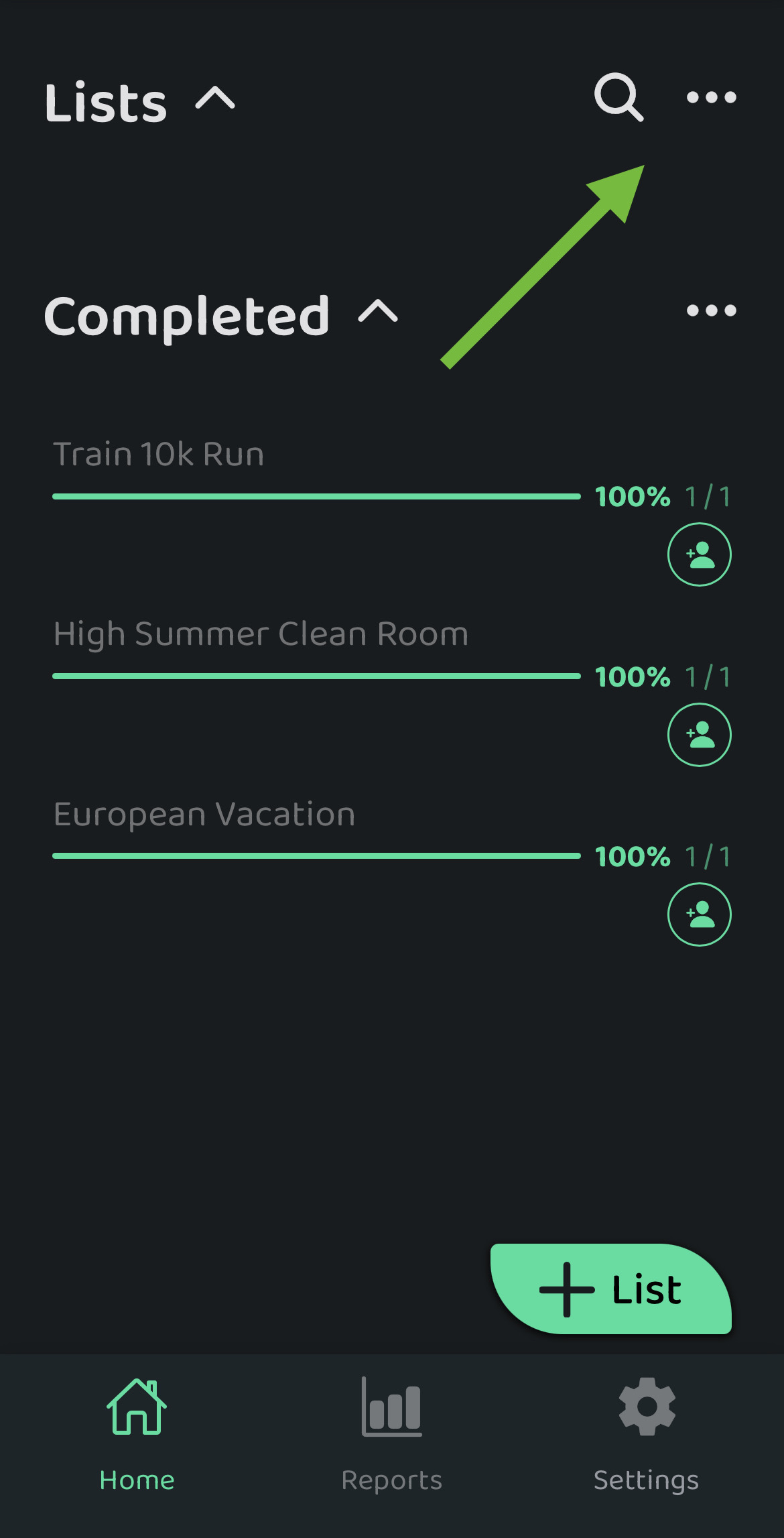
3. **Tap "Select Lists"**: From the menu, choose the **Select Lists** option. This will allow you to choose one or more lists for archiving 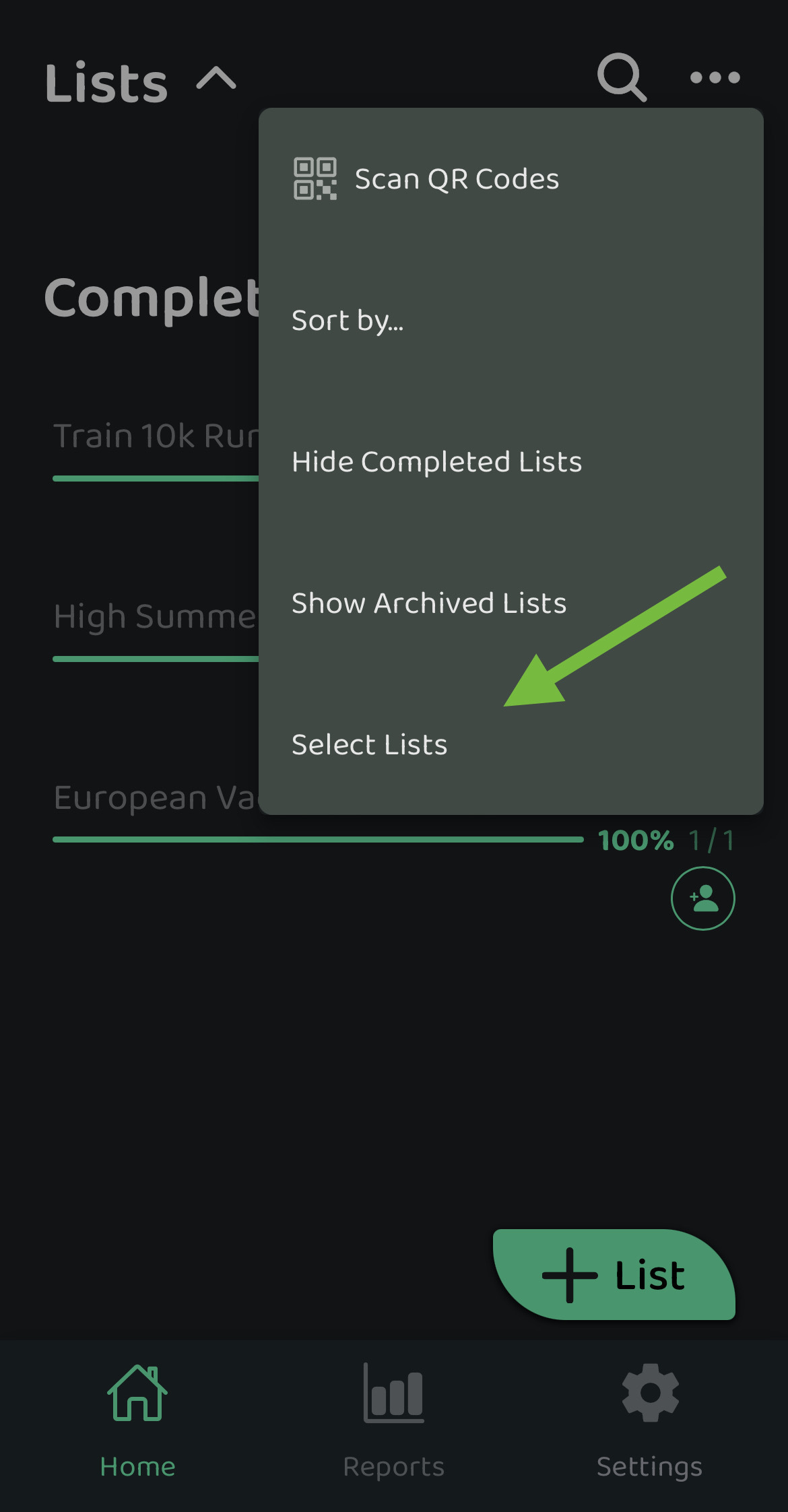
4. **Choose Lists for Archiving**: A list of available lists will appear, and you can now select the list(s) you wish to archive
5. **Access Additional Options**: After selecting the desired list(s), at the bottom of the screen, tap the **three dots** that represent additional options 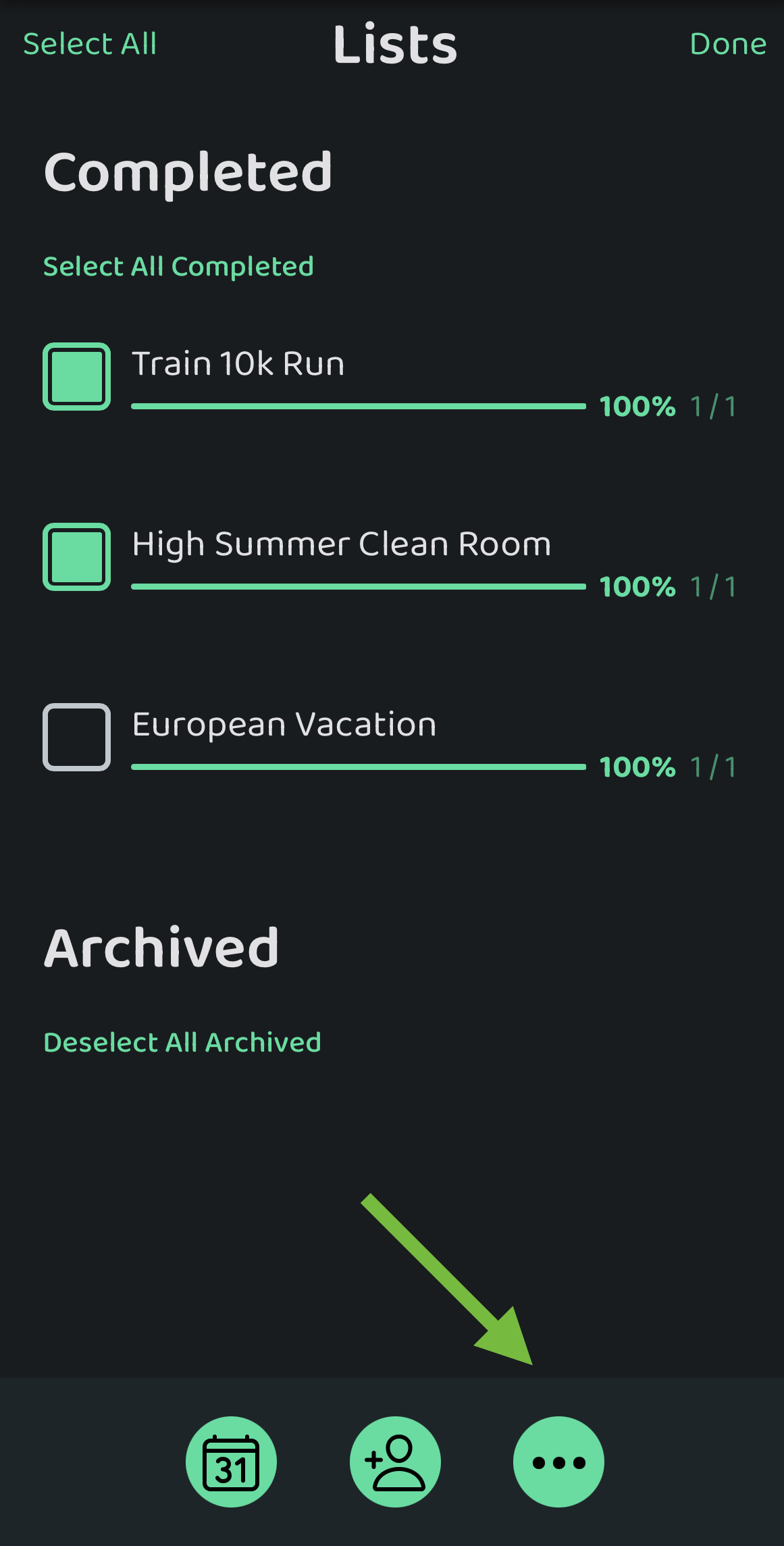
6. **Select "Archive Lists"**: Click on the three dots, and a menu will appear. Choose the option that says "Archive lists" to complete the archiving process 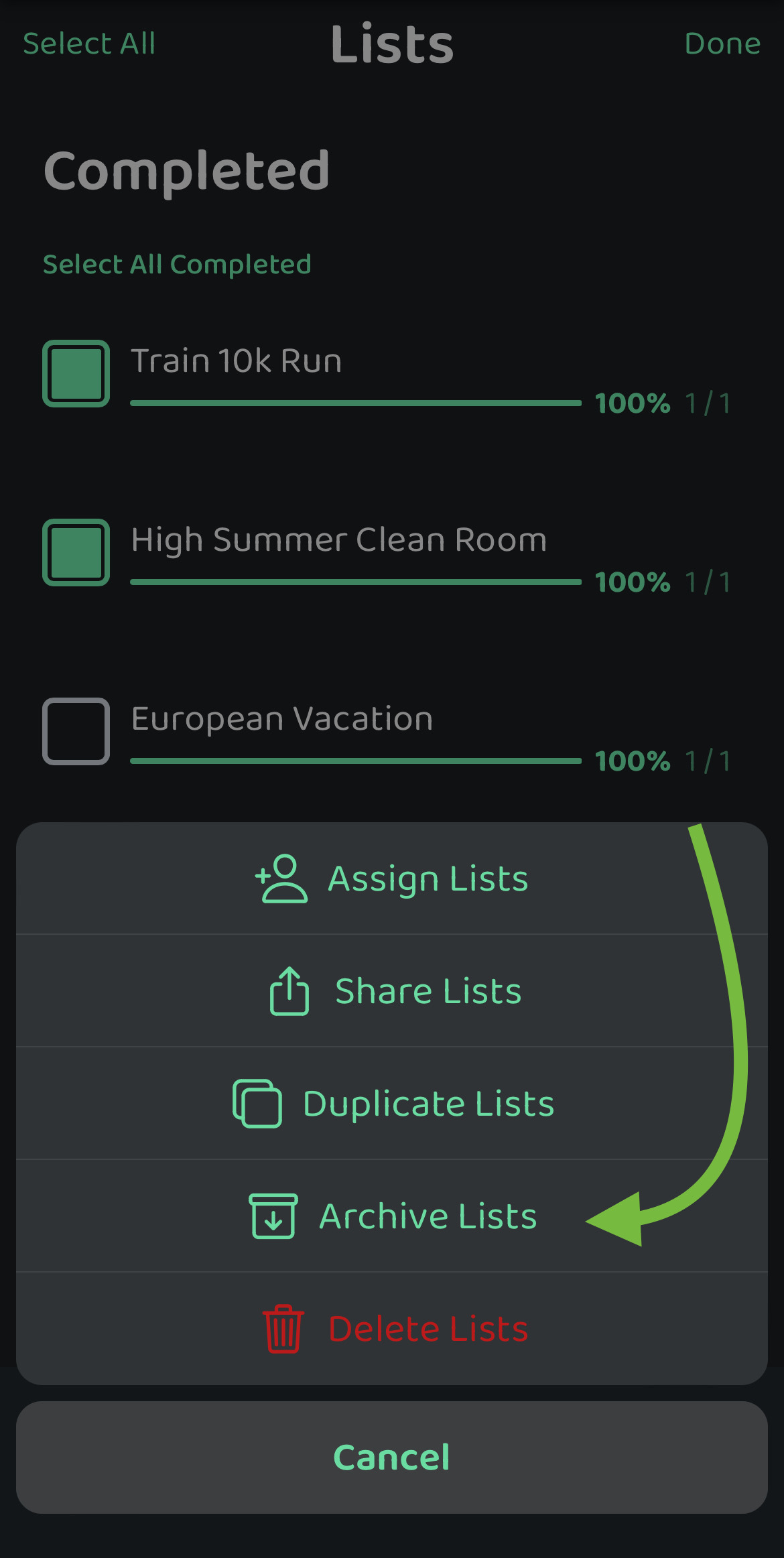
## Unarchiving Lists
Unarchiving lists needs to be done one list at a time. To begin:
1. **Navigate to the Home Page**: Open the Otuvy Frontline application and ensure you are on the home page
2. **Tap the Three Dots**: On the top right corner of the home page, you will find three dots next to the search option. Tap on these three dots to reveal a menu of options 
3. **Show Archived Lists**: You guessed it, if you don't see archived lists you will need to tap **Show Archived Lists 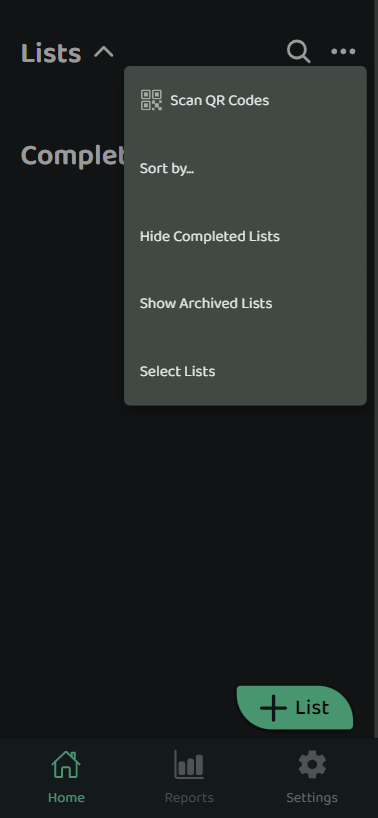**
4. **Swipe Left**: Find the one list you want to unarchive and **swipe left** on it to open the drawer menu
5. **Tap the Three Dots**: In the drawer menu for this list tap the **three dots** next to the delete option 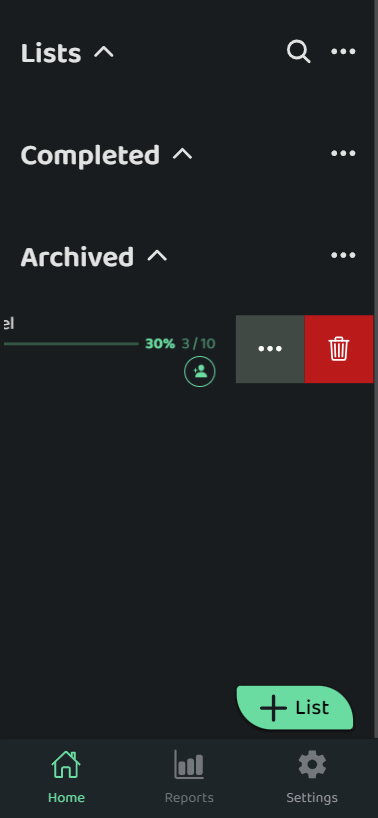
6. **Unarchive List:** From the menu, choose **Unarchive List** 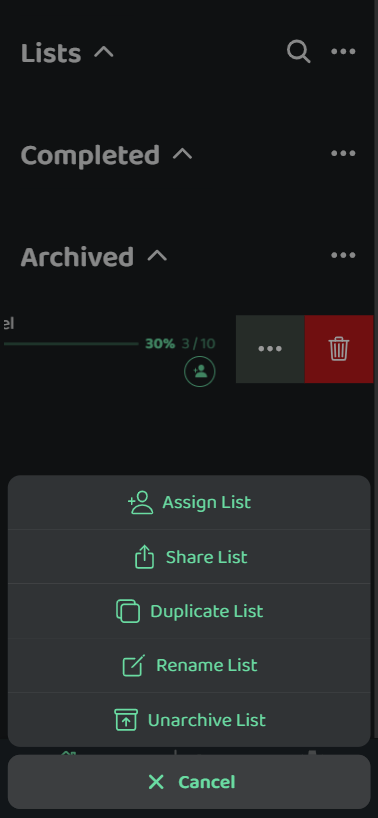
- [Otuvy QM - Getting Started](https://help.otuvy.com/kb/otuvy-qm-getting-started?hsLang=en)
- [Otuvy QM - Setup & Administration](https://help.otuvy.com/kb/otuvy-qm-setup-administration?hsLang=en)
- [Otuvy QM - Contact Access](https://help.otuvy.com/kb/otuvy-qm-contact-access?hsLang=en)
- [Otuvy QM - Inspections](https://help.otuvy.com/kb/otuvy-qm-inspections?hsLang=en)
- [Otuvy QM - Work Orders](https://help.otuvy.com/kb/otuvy-qm-work-orders?hsLang=en)
- [Otuvy QM - Mobile App](https://help.otuvy.com/kb/otuvy-qm-mobile-app?hsLang=en)
- [Otuvy QM - Reports & Dashboards](https://help.otuvy.com/kb/otuvy-qm-reports-dashboards?hsLang=en)
- [Otuvy QM - Advanced Features](https://help.otuvy.com/kb/otuvy-qm-advanced-features?hsLang=en)
- [Otuvy Frontline](https://help.otuvy.com/kb/otuvy-frontline?hsLang=en#main-content)
- [Getting Started](https://help.otuvy.com/kb/otuvy-frontline?hsLang=en#getting-started)
- [Mobile App](https://help.otuvy.com/kb/otuvy-frontline?hsLang=en#mobile-app)
- [Admin Portal](https://help.otuvy.com/kb/otuvy-frontline?hsLang=en#admin-portal)
- [Uncategorized](https://help.otuvy.com/kb/uncategorized?hsLang=en)
[](https://www.otuvy.com/)
[mailto:email@email.com](mailto:email@email.com)
Copyright © 2026, Otuvy, Inc.