---
title: Assigning or Unassigning a Job Template
description: Assign or unassign job templates in Otuvy QM from the Job Template list or a Service Location record so your inspections use the right template.
---
[Skip to content](https://help.otuvy.com/kb/assigning-or-unassigning-a-job-template#main-content)
[More support](https://help.otuvy.com/kb/kb-tickets/new?hsLang=en)

Open main navigation
Close main navigation
- [More support](https://help.otuvy.com/kb/kb-tickets/new)
- [Contact us](mailto:vip@otuvy.com)
[Contact us](mailto:vip@otuvy.com)
How can we help you?
- There are no suggestions because the search field is empty.
1. [Otuvy Knowledge Base](https://help.otuvy.com/kb?hsLang=en)
2. [Otuvy QM - Inspections](https://help.otuvy.com/kb/otuvy-qm-inspections?hsLang=en)
# Assigning or Unassigning a Job Template
# Assigning or Unassigning a Job Template
Job Templates are needed to perform inspections. After creating or loading your Job Template, the final step is to assign it to a Service Location.
## Assigning Job Templates
### Assigning a Job Template from the Job Template List
From the Admin page, click Job Templates in the Job Configuration section. Use the Job Template search bar or navigate to the specific job template you want to assign.
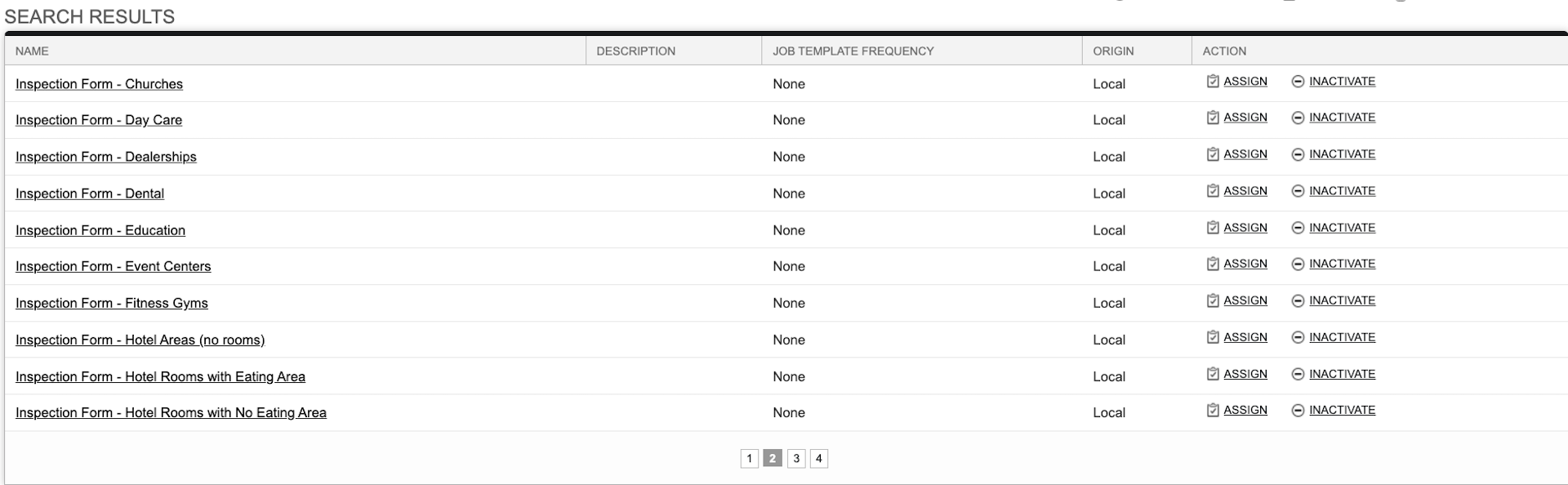
When you have located your job template, click the **Assign** button in the Action column on the right.
On the Assignment page, you will see up to three different sections, **Service Locations Not Assigned to a Job Template**, **Current Service Locations**, and **Service Locations Currently Assigned to Other Job Templates**. If the selected Job Template has been assigned to any locations, those locations will be listed in the **Current Service Locations** section. Locations that have any other Job Templates assigned to them will be listed in the **Service Locations Currently Assigned to Other Job Templates** section. Any locations listed in the **Service Locations Not Assigned to a Job Template** section do not have any Job Templates assigned to them.
 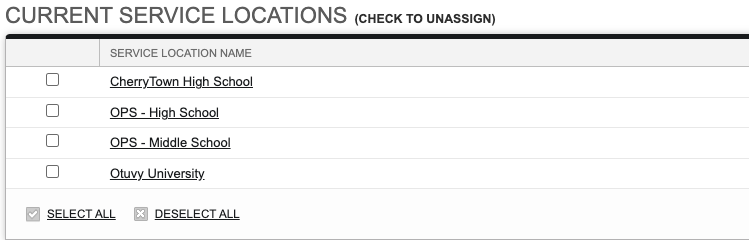 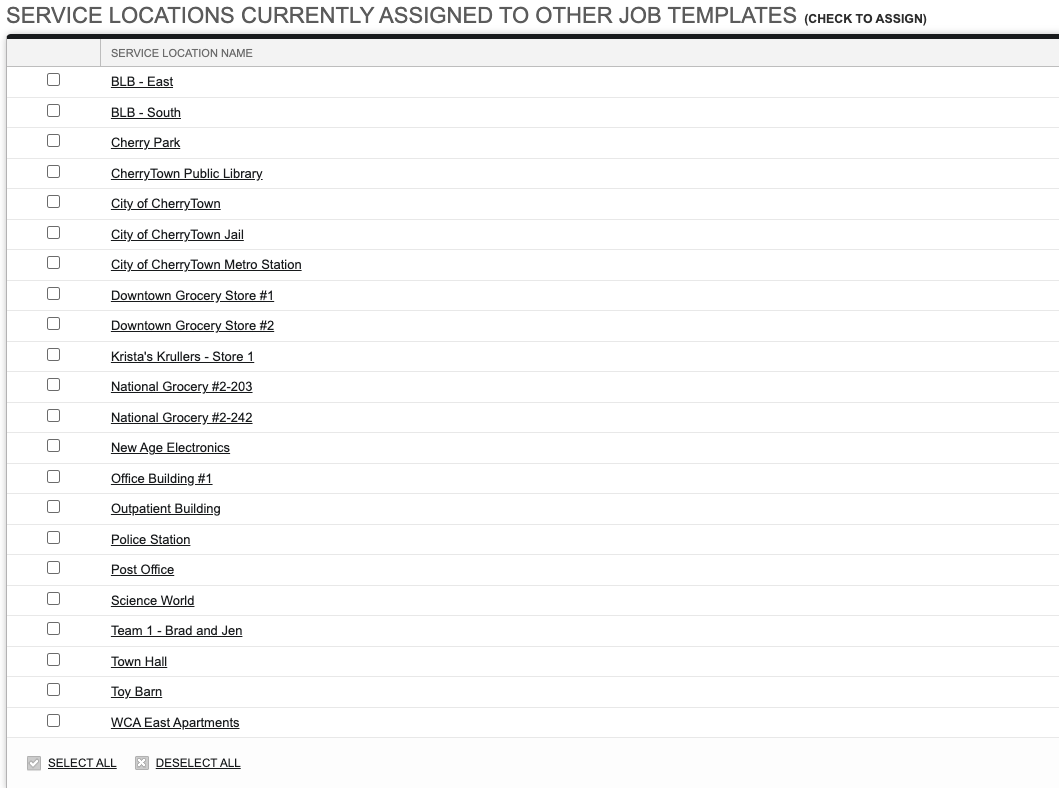
A Job Template can be assigned to many locations at a time, and locations can have multiple job templates assigned to them. To assign your selected template to a location, find that location in one of the sections and place a **check mark** in the box next to it. After adding a check mark to the box for one or many locations, click **Save** in the upper or bottom right corner. The selected location(s) will be moved to the **Current Service Locations** section.
> 
>
> Placing a check mark in the box next to the location when it is in the **Current Service Locations** section will **REMOVE** the selected Job Template from that location.
### Assigning a Job Template from the Service Location Record
Job Templates can also be assigned to a location from the **Service Location record**. To start, open the Service Location record by clicking the **Locations tab**, then clicking the name of the location you will be adding a job template to. Once on the record, scroll down to the **Inspections** section.
> 
>
> To navigate quickly through a Service Location Record, use the **Expand All** and **Collapse All** buttons below the *Main Information* area.
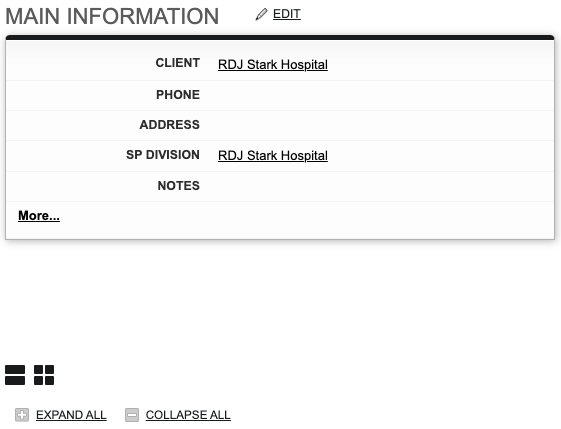
In the **Inspections** section, the Job Templates assigned to the location are listed under the **Job Templates** header.
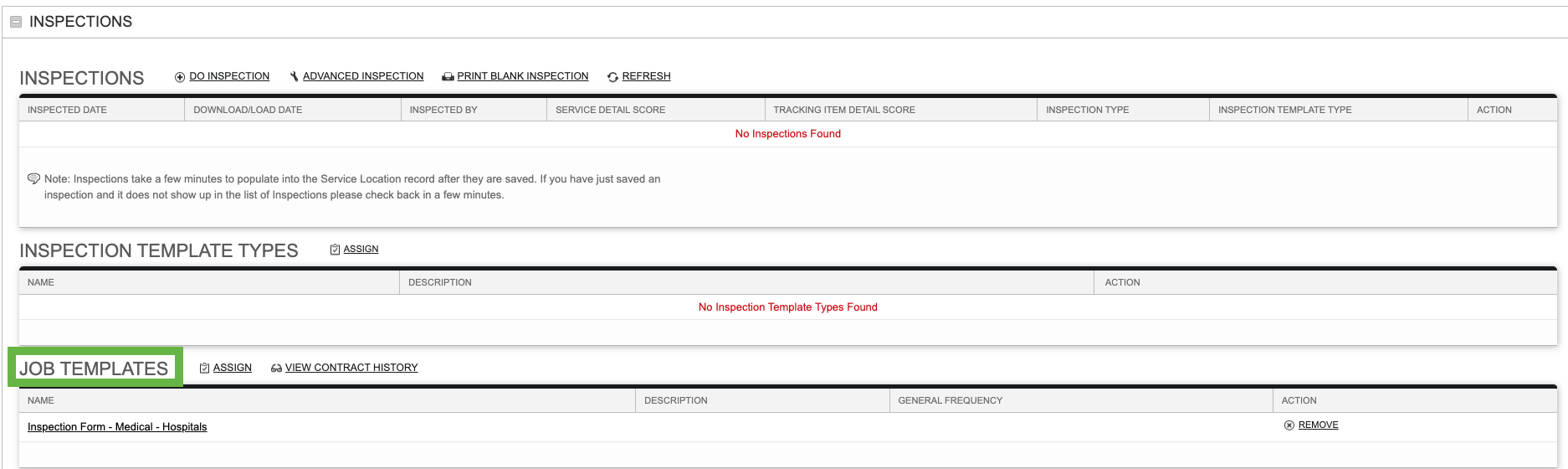
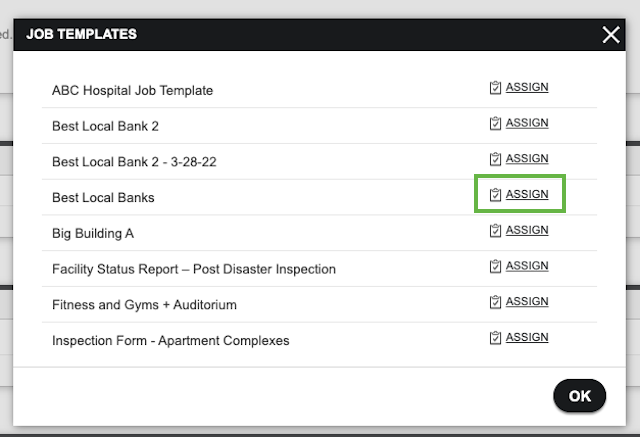
To add a job template to the location, click the **Assign** button. A box will pop up in the middle of your screen listing the active job templates in your system. Scroll through to find the job template you wish to use and click the **Assign** button next to it. Click **Ok** to finish.
The assigned Job Template will now be listed on the record in the Job Templates list. Repeat the process to add other Job Templates, if needed.
## Unassigning Job Templates
### Unassigning a Job Template from the Job Template List
To remove a job template from multiple locations at a time, it is easier to go to the Job Template list. Start by clicking the **Admin tab**, then click **Job Templates** in the *Job Configuration* section.
From the list of job templates, locate the job template you will be removing and click the **Assign** button in the *Action* column. Locations that have the selected job template are listed in the **Current Service Locations** Section. Place a check mark next to each location you wish to remove the selected job template from and click **Save**.
### Unassigning a Job Template from the Service Location Record
From the **Service Location record**, you can remove job templates one at a time. Start by clicking the **Locations tab** in the navigation bar. Click the name of the location to open the Service Location Record. Scroll down through the record to the **Inspection** section and find the assigned Job Templates under the Job Template header. In the *Action* column, click **Remove** for the job template that you wish to remove. From the Service Location record, only one job template can be removed at a time.
- [Otuvy QM - Getting Started](https://help.otuvy.com/kb/otuvy-qm-getting-started?hsLang=en)
- [Otuvy QM - Setup & Administration](https://help.otuvy.com/kb/otuvy-qm-setup-administration?hsLang=en)
- [Otuvy QM - Contact Access](https://help.otuvy.com/kb/otuvy-qm-contact-access?hsLang=en)
- [Otuvy QM - Inspections](https://help.otuvy.com/kb/otuvy-qm-inspections?hsLang=en)
- [Otuvy QM - Work Orders](https://help.otuvy.com/kb/otuvy-qm-work-orders?hsLang=en)
- [Otuvy QM - Mobile App](https://help.otuvy.com/kb/otuvy-qm-mobile-app?hsLang=en)
- [Otuvy QM - Reports & Dashboards](https://help.otuvy.com/kb/otuvy-qm-reports-dashboards?hsLang=en)
- [Otuvy QM - Advanced Features](https://help.otuvy.com/kb/otuvy-qm-advanced-features?hsLang=en)
- [Otuvy Frontline](https://help.otuvy.com/kb/otuvy-frontline?hsLang=en#main-content)
- [Getting Started](https://help.otuvy.com/kb/otuvy-frontline?hsLang=en#getting-started)
- [Mobile App](https://help.otuvy.com/kb/otuvy-frontline?hsLang=en#mobile-app)
- [Admin Portal](https://help.otuvy.com/kb/otuvy-frontline?hsLang=en#admin-portal)
- [Uncategorized](https://help.otuvy.com/kb/uncategorized?hsLang=en)
[](https://www.otuvy.com/)
[mailto:email@email.com](mailto:email@email.com)
Copyright © 2026, Otuvy, Inc.