---
title: Completing Inspection Deficiencies in Work Orders
description: "Mark inspection deficiencies complete in Otuvy QM work orders: one at a time, all at once from the Completion tab, or by updating the work order status."
---
[Skip to content](https://help.otuvy.com/kb/completing-inspection-deficiencies-in-work-orders#main-content)
[More support](https://help.otuvy.com/kb/kb-tickets/new?hsLang=en)

Open main navigation
Close main navigation
- [More support](https://help.otuvy.com/kb/kb-tickets/new)
- [Contact us](mailto:vip@otuvy.com)
[Contact us](mailto:vip@otuvy.com)
How can we help you?
- There are no suggestions because the search field is empty.
1. [Otuvy Knowledge Base](https://help.otuvy.com/kb?hsLang=en)
2. [Otuvy QM - Work Orders](https://help.otuvy.com/kb/otuvy-qm-work-orders?hsLang=en)
# Completing Inspection Deficiencies in Work Orders
# Completing Inspection Deficiencies in Work Orders
If you have work orders being generated from your inspections, any deficiencies found will show up as items to be completed for that work order. (To learn how to set that up, check out [SP Info Overview)](https://help.otuvy.com/kb/sp-info-overview?hsLang=en)
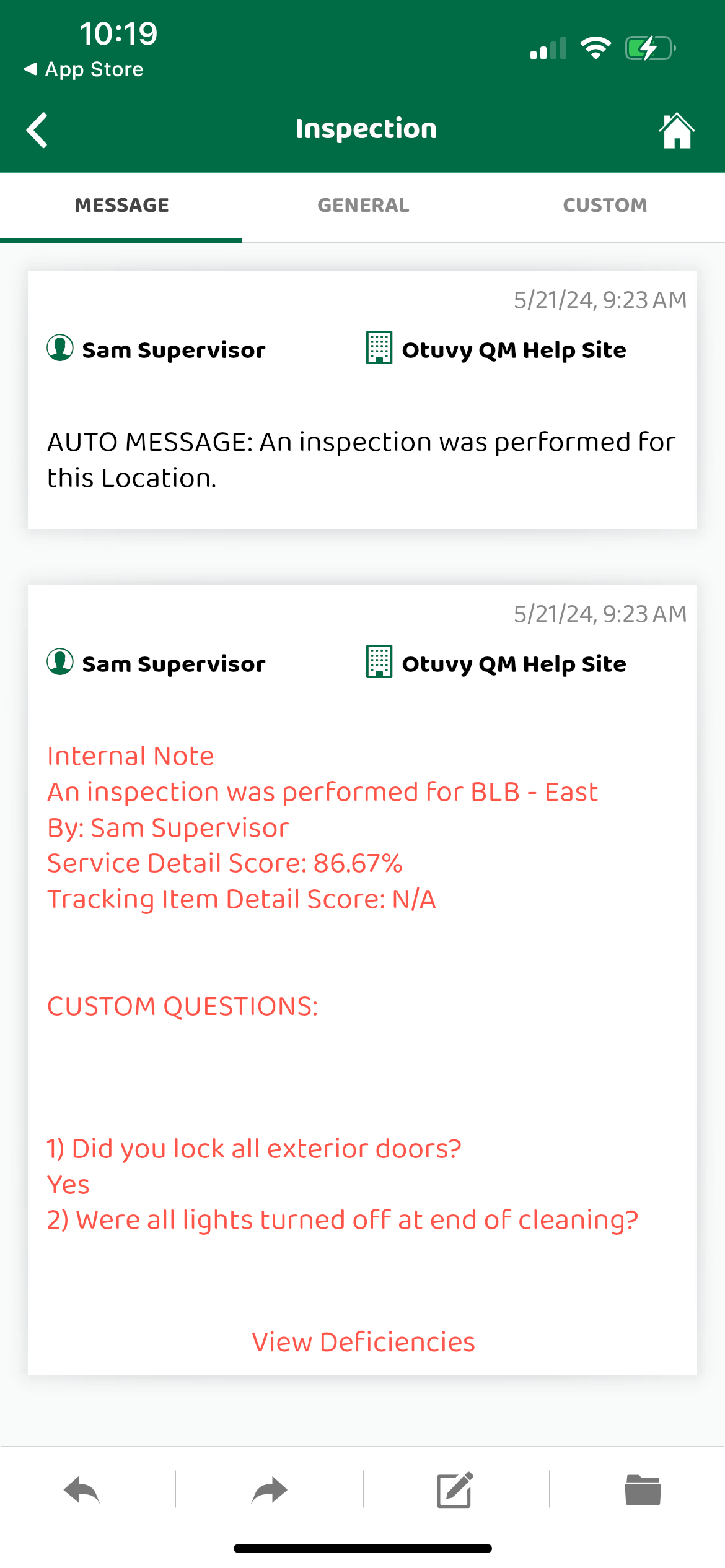
You can find these deficiencies on the mobile app by tapping on **View Deficiencies** at the bottom of the initial message generated by the inspection.
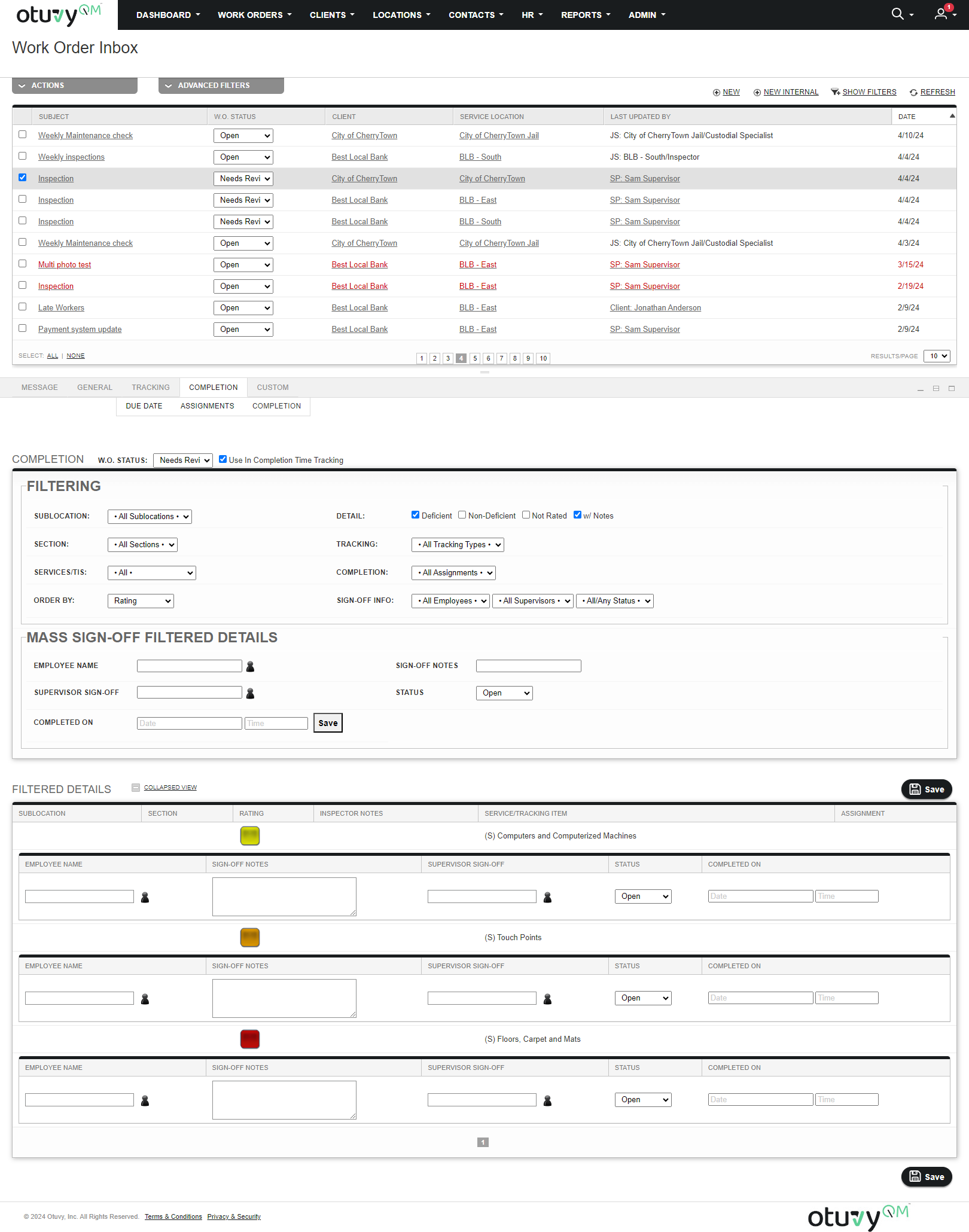
If you are looking at the work order on the website, you can review those deficiencies by clicking on the Completion tab of the work order (See [Work Order Tabs to learn more)](https://help.otuvy.com/kb/work-order-tabs?hsLang=en)
> 
>
> Completing these deficiencies signifies that your team has addressed the problems discovered during the inspection. If these deficiencies are not addressed, then you should not complete them in the work order.
There are 3 ways you can mark deficiencies as complete.
## One At A Time
If you have several deficiencies that need to be addressed separately, these can be worked on and then completed one at a time from the Completion tab of the work order from the website. There is not a way to do this from the mobile app.
1. Find and highlight the work order in question 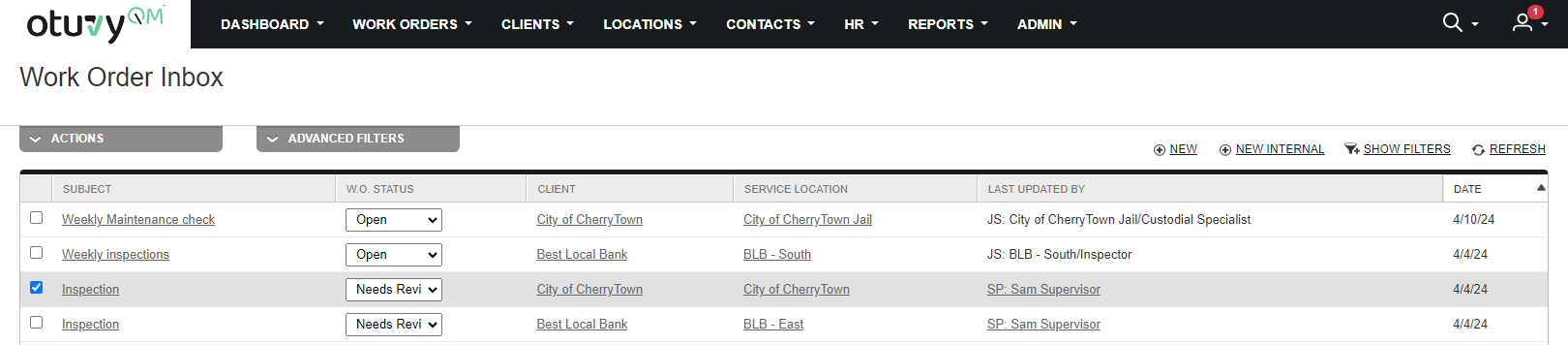
2. Click on the Completion tab below the inbox 
3. Find the deficiency that has been corrected (note that the sign-off details will be below the service details) 
4. Fill in the information and report when the deficiency was corrected:
5. Employee Name: Represents the employee who corrected the deficiency
6. Sign-Off Notes: Anything that is noteworthy during the correction process
7. Supervisor Sign-Off: The supervisor who checked the employee's work to make sure it is up to standards. (An additional inspection is not necessarily required, though it depends on your internal requirements whether you decide to perform a new inspection or not)
8. Status: Switch this from Open to Completed
9. Date and Time: When you switch the status to Completed it automatically fills in these fields with the current date and time. You can adjust this if needed.
10. Be sure to click Save at either the top or bottom of the filtered details section of the screen
## All At Once From The Completion Tab
Rather than doing them one at a time, you can complete all of the deficiencies without completing the work order from the completion tab on the web. Again, this option is not available on the mobile app.
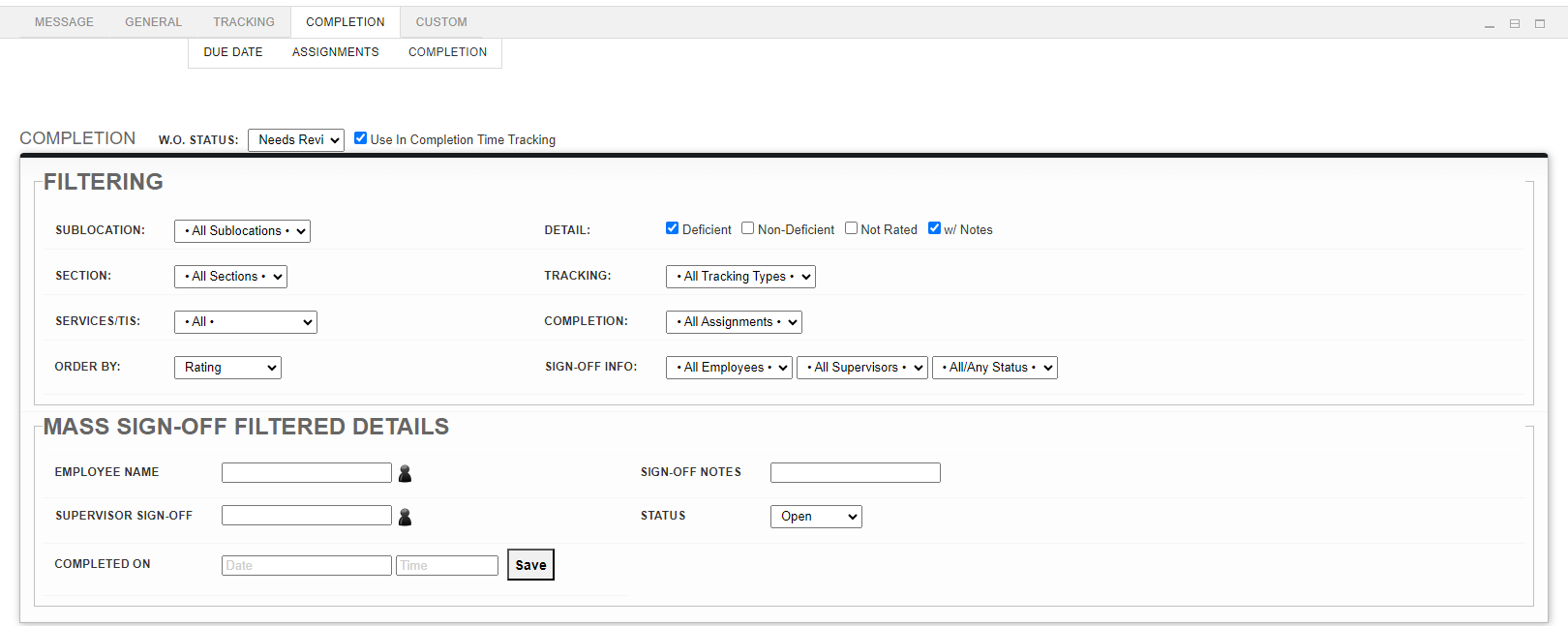
The values for the sign-off are the same but this tool will assign these values to all services you filter to using the Filter section as seen below. Leaving these filters to the default settings will only include all the services marked as deficient.
## Update The Work Order Status
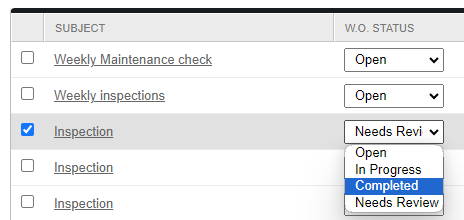
The last way to update all the deficiencies on a work order is by using a work order status that files and completes things all at once (for more info on custom statuses see [Create a Custom Work Order Status).](https://help.otuvy.com/kb/create-a-custom-work-order-status?hsLang=en)
From the web:
From the mobile app:
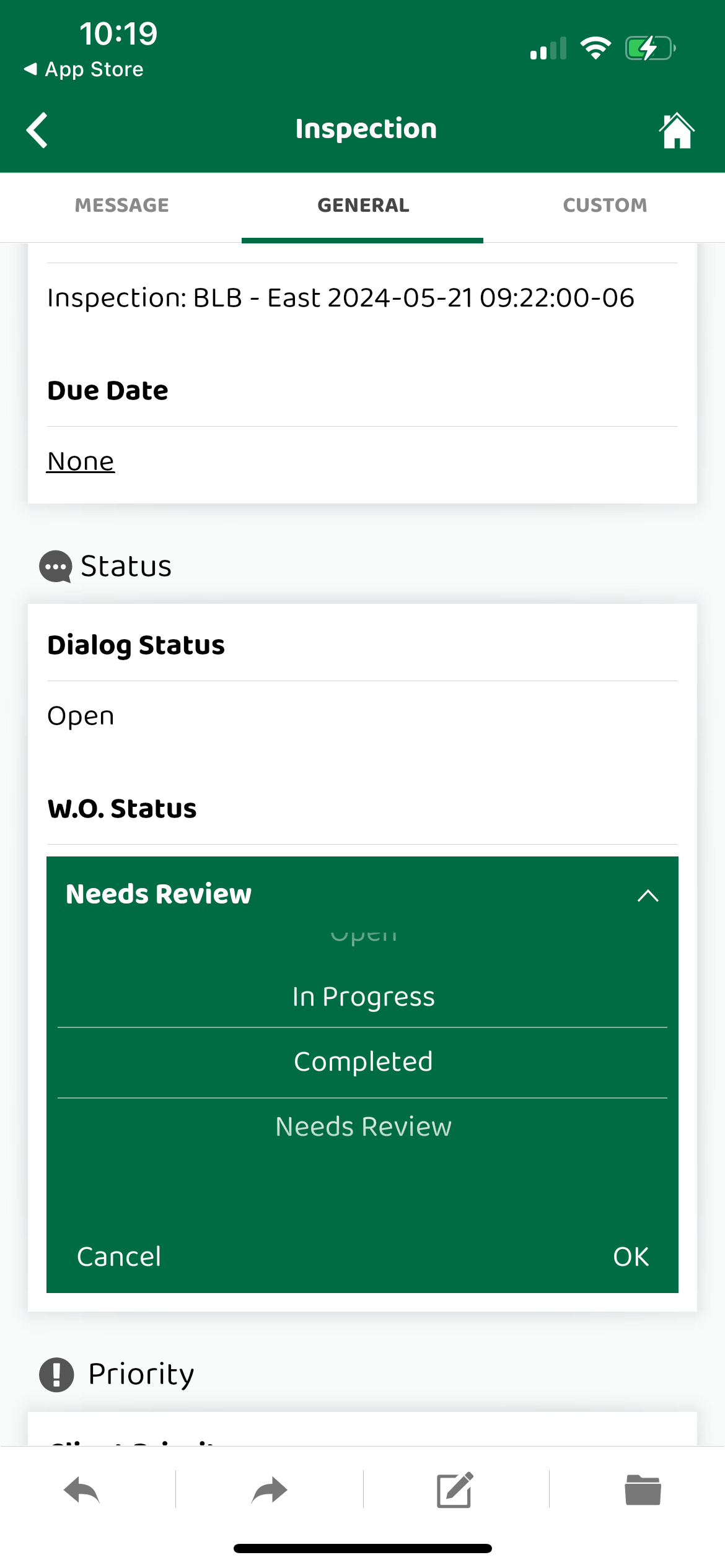
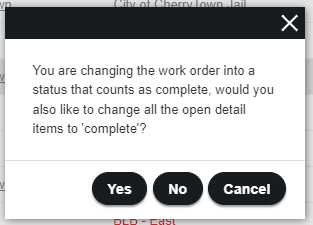
If one of your custom work order statuses allows you to complete and file/close the work order, you will have a prompt when you choose this status.
From the web:
From the mobile app:
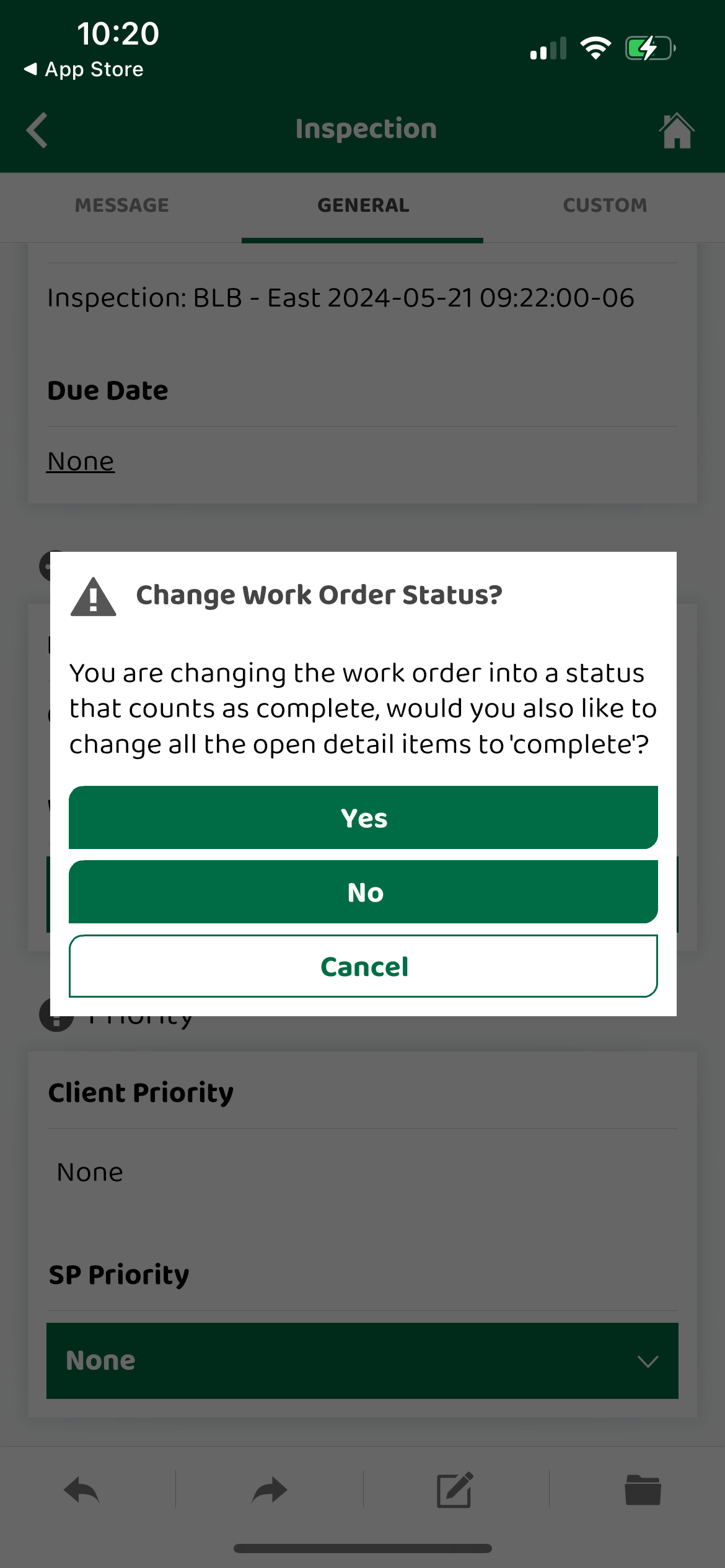
If you press/click Yes on this prompt, all the open items/services for the work order will be marked as completed with the timestamp of when you update the work order status.
> 
>
> If you press/click No on this prompt, even though it is filing/closing the work order, the incomplete services and deficiencies for the work order will remain incomplete.
- [Otuvy QM - Getting Started](https://help.otuvy.com/kb/otuvy-qm-getting-started?hsLang=en)
- [Otuvy QM - Setup & Administration](https://help.otuvy.com/kb/otuvy-qm-setup-administration?hsLang=en)
- [Otuvy QM - Contact Access](https://help.otuvy.com/kb/otuvy-qm-contact-access?hsLang=en)
- [Otuvy QM - Inspections](https://help.otuvy.com/kb/otuvy-qm-inspections?hsLang=en)
- [Otuvy QM - Work Orders](https://help.otuvy.com/kb/otuvy-qm-work-orders?hsLang=en)
- [Otuvy QM - Mobile App](https://help.otuvy.com/kb/otuvy-qm-mobile-app?hsLang=en)
- [Otuvy QM - Reports & Dashboards](https://help.otuvy.com/kb/otuvy-qm-reports-dashboards?hsLang=en)
- [Otuvy QM - Advanced Features](https://help.otuvy.com/kb/otuvy-qm-advanced-features?hsLang=en)
- [Otuvy Frontline](https://help.otuvy.com/kb/otuvy-frontline?hsLang=en#main-content)
- [Getting Started](https://help.otuvy.com/kb/otuvy-frontline?hsLang=en#getting-started)
- [Mobile App](https://help.otuvy.com/kb/otuvy-frontline?hsLang=en#mobile-app)
- [Admin Portal](https://help.otuvy.com/kb/otuvy-frontline?hsLang=en#admin-portal)
- [Uncategorized](https://help.otuvy.com/kb/uncategorized?hsLang=en)
[](https://www.otuvy.com/)
[mailto:email@email.com](mailto:email@email.com)
Copyright © 2026, Otuvy, Inc.