---
title: Completing Saved Inspections on the Otuvy QM Mobile App
description: Resume unfinished inspections in the Otuvy QM mobile app, find saved inspections in the In Progress tab, and check Sync Details for pending uploads.
---
[Skip to content](https://help.otuvy.com/kb/completing-saved-inspections-on-the-otuvy-qm-mobile-app#main-content)
[More support](https://help.otuvy.com/kb/kb-tickets/new?hsLang=en)

Open main navigation
Close main navigation
- [More support](https://help.otuvy.com/kb/kb-tickets/new)
- [Contact us](mailto:vip@otuvy.com)
[Contact us](mailto:vip@otuvy.com)
How can we help you?
- There are no suggestions because the search field is empty.
1. [Otuvy Knowledge Base](https://help.otuvy.com/kb?hsLang=en)
2. [Otuvy QM - Mobile App](https://help.otuvy.com/kb/otuvy-qm-mobile-app?hsLang=en)
# Completing Saved Inspections on the Otuvy QM Mobile App
# Completing Saved Inspections on the Otuvy QM Mobile App
If you leave an inspection before finishing it, you can come back to it later and continue where you left off. The **Otuvy QM** mobile app also handles completed inspections that are waiting to sync if you were offline.
## Resume an unfinished inspection
There are two ways to find inspections that are still in progress.
### Option 1: From the Home page
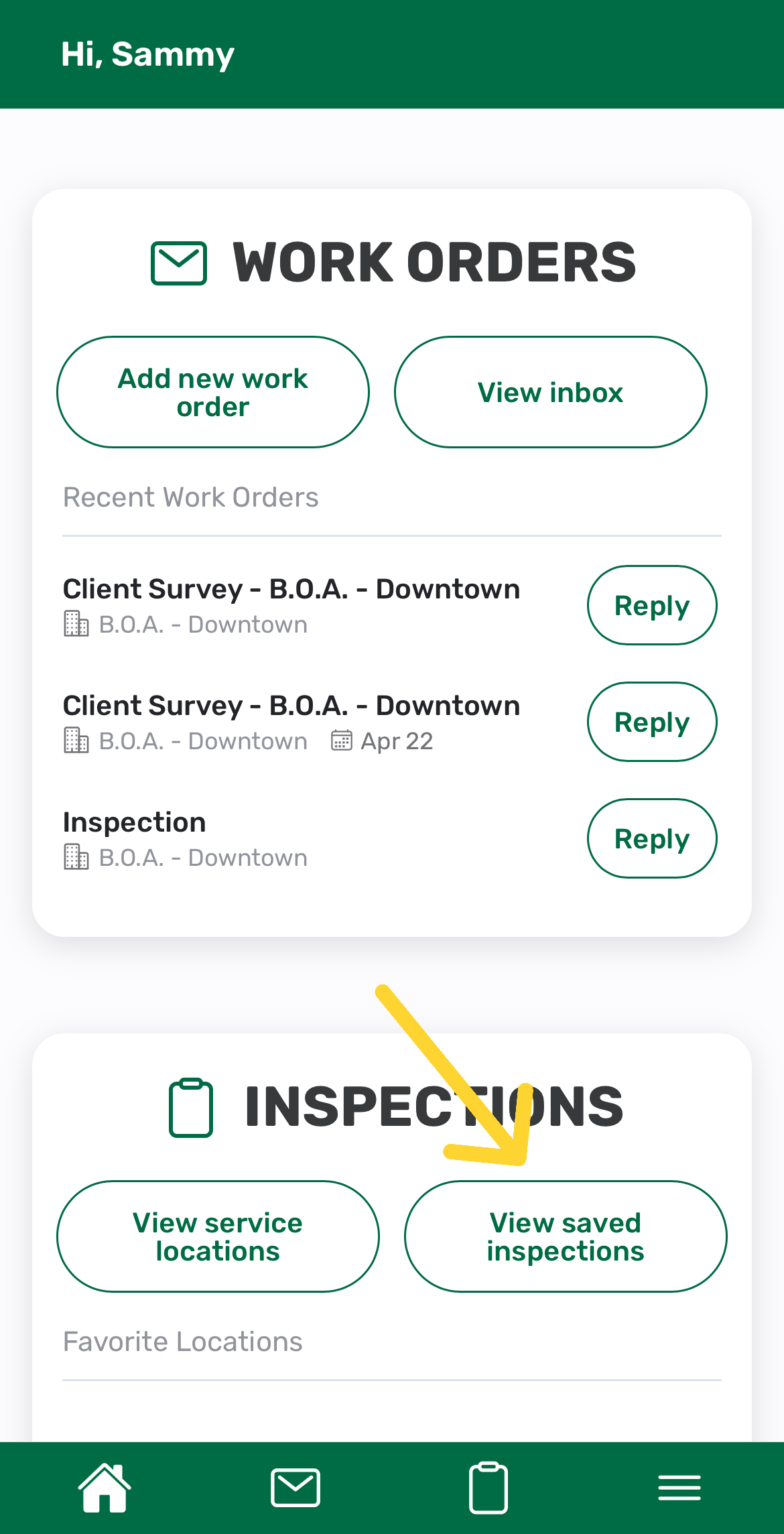
1. From the Home page, go to the Inspections section.
2. Tap **View Saved Inspections**.
3. Review the list of saved inspections.
4. Tap the inspection you want to continue.
### Option 2: From your service locations list
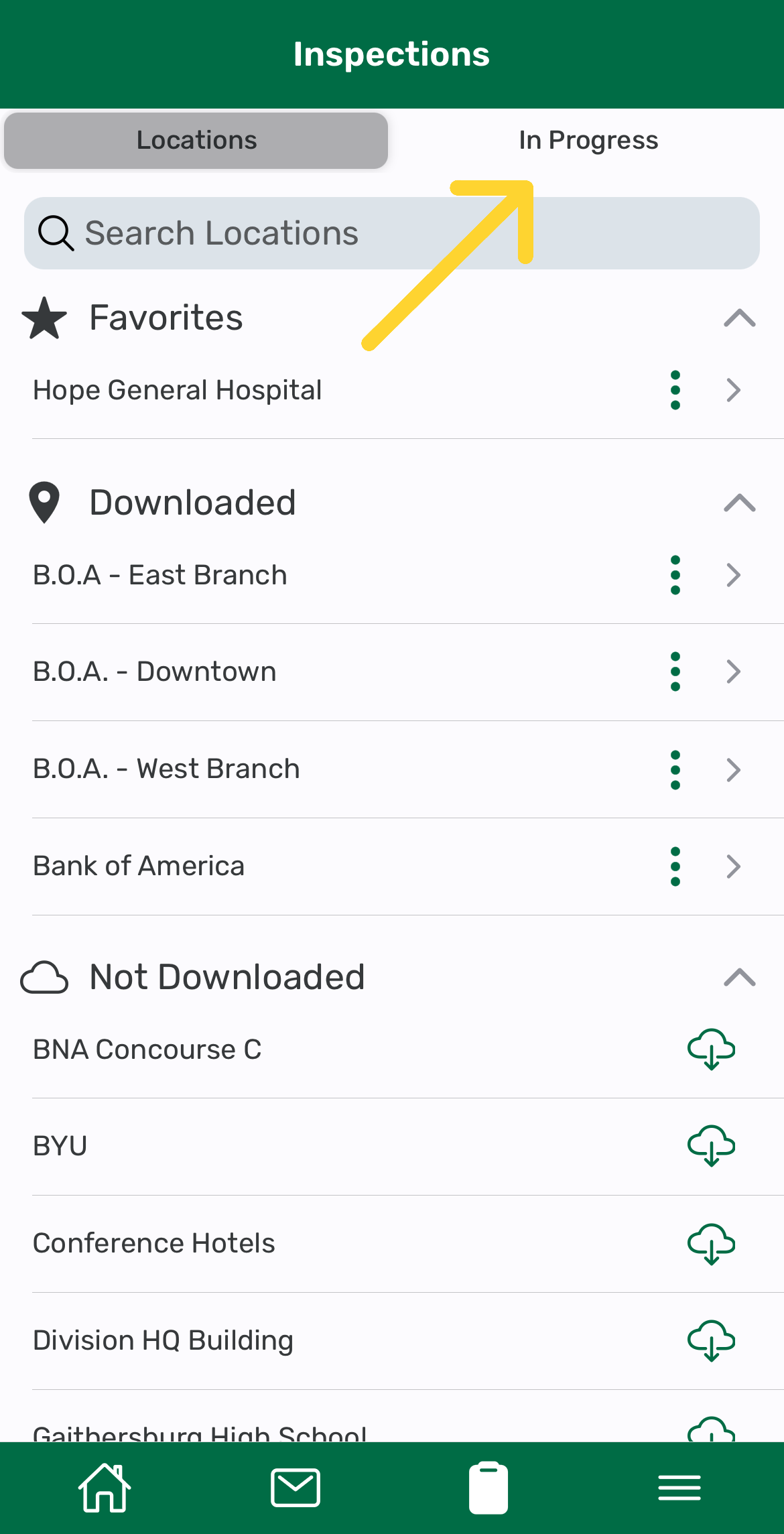
1. From the Home page, go to the Inspections section.
2. Tap **View Service Locations**.
3. On the Inspections page, tap the **In Progress** tab.
4. Find the inspection you want to continue, then tap it to reopen it.
## Find a saved inspection faster
On the **In Progress** tab, you can use the tools at the top of the page to find a saved inspection more quickly.
Use **Search inspections** to search for a saved inspection.
Turn **Grouped by Location** on or off depending on how you want the list displayed.
When **Grouped by Location** is turned on, saved inspections are grouped under the service location name.
If there are no unfinished inspections saved on the device, the **In Progress** tab will display **No Saved Inspections**.
## What happens when you reopen an unfinished inspection
When you reopen an unfinished inspection, the most recent score and detail you entered will still appear. This helps you continue your work without it looking like that service was left unscored.
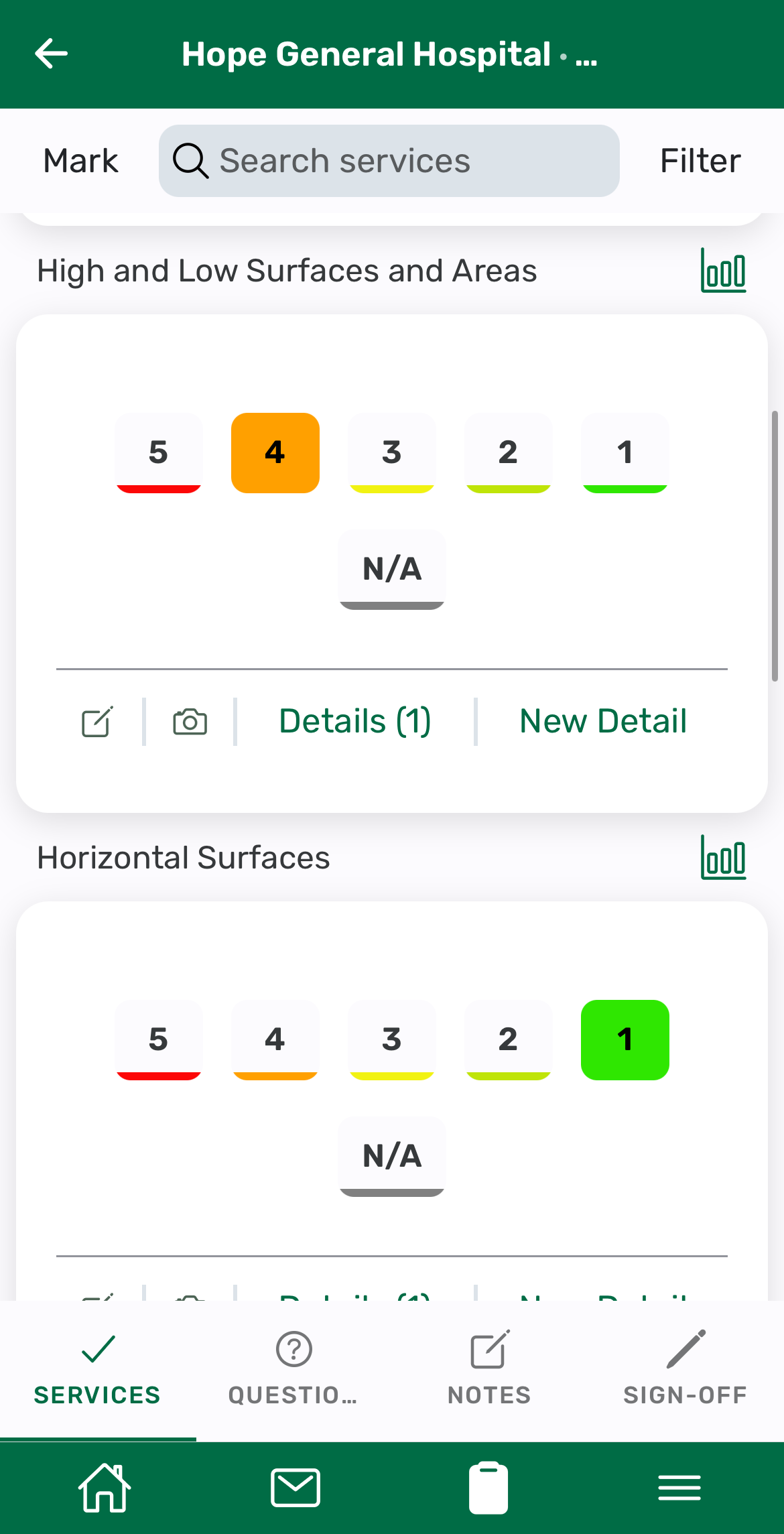
To review or update service details, tap into the details for that service.
## Completed inspections waiting to upload
If you complete an inspection while offline, the inspection is saved on your device and will upload automatically once your device is back online.
After an inspection is completed, the app may display a message like **Inspection completed successfully! Starting background sync...** This indicates the inspection is saved and the app is beginning the sync process.
These completed inspections waiting to sync do not appear in the **In Progress** tab.
## Check sync activity
> The app auto-refreshes sync activity in the background **every 2 minutes**, so using **Sync and Refresh** should only be needed occasionally
If you want to review inspections that are waiting to upload, or if you think something is not syncing correctly:
1. Tap the menu icon in the bottom-right corner of the app.
2. Tap **Sync Details**.

On the **Sync Details** page, you may see:
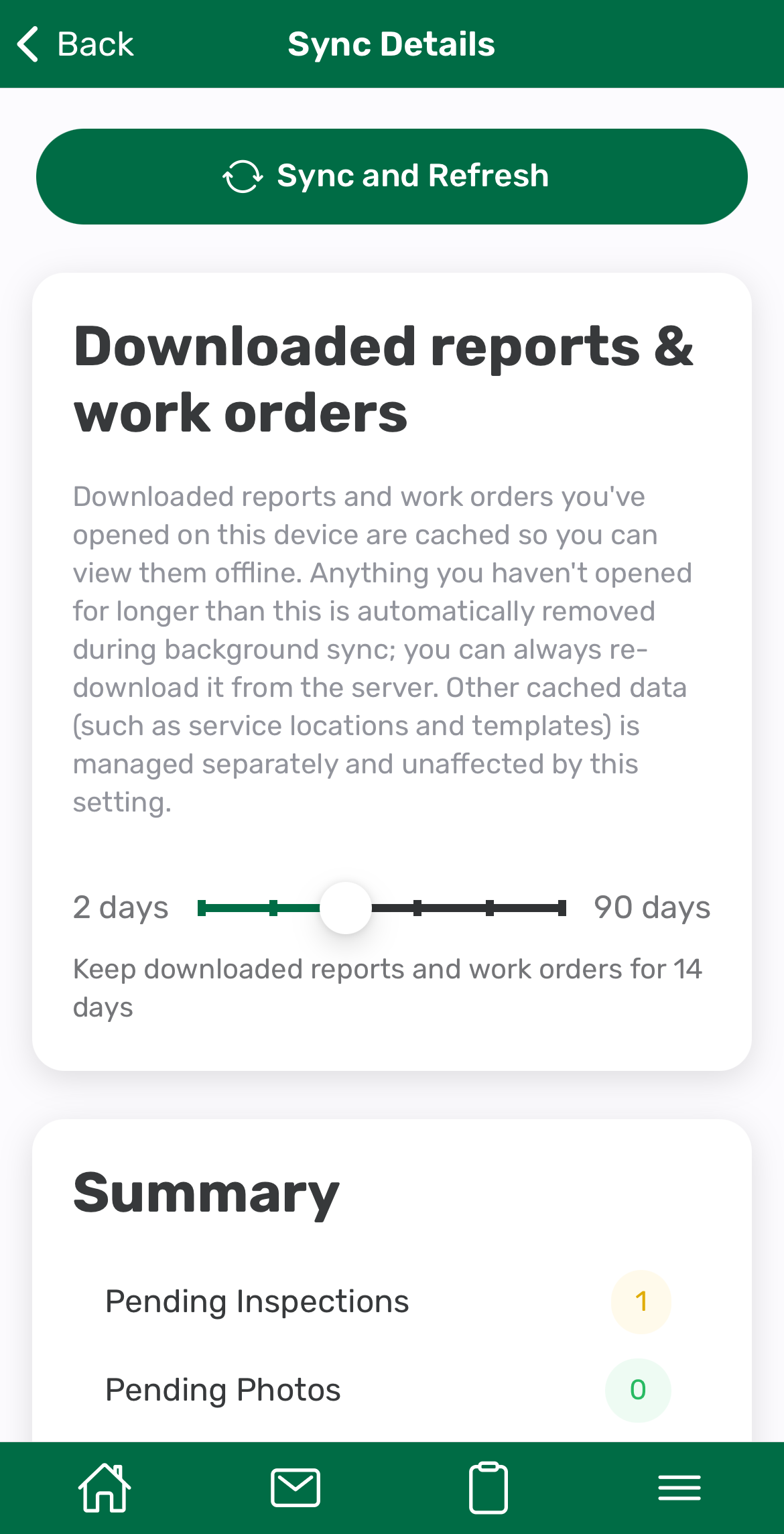
- A **Summary** section showing totals for **Pending Inspections**, **Pending Photos**, and **Pending Signatures**
- One or more service locations listed below the summary
- A category such as **Ready to Upload** when pending inspection data is available for that location
If everything has already uploaded successfully, the page will show **All data is synced** and confirm that there are no pending inspections to upload.
## Use Sync and Refresh
At the top of the **Sync Details** page, tap **Sync and Refresh** if you need to manually trigger a refresh.
This action can:
- Attempt to upload inspections that are waiting to sync to the server
- Refresh the current sync status
- Download the latest updates for service locations already downloaded to your device
- Download the latest updates for work orders already downloaded to your device
While this is running, the app may temporarily show **Syncing...** on the page.
## Contact support
If inspections still are not uploading while you are connected to a strong Wi-Fi or mobile internet connection:
1. Tap the menu icon in the bottom-right corner.
2. Tap **Sync Details**.
3. Tap **Notify Support** at the bottom of the page.
When successful, the app will display a confirmation message that **Support has been notified**.
After that, email the Otuvy team at [vip@otuvy.com to let them know you sent the support notification so they can look into it further.](mailto:vip@otuvy.com)
## Additional notes
- On the Home page, the app displays separate sections for Work Orders, Inspections, and Reports.
- The **In Progress** tab is for unfinished inspections you plan to return to.
- Completed inspections waiting to sync are handled separately through the app’s sync process.
- The **Locations** tab shows your service locations, including downloaded and not downloaded locations.
- [Otuvy QM - Getting Started](https://help.otuvy.com/kb/otuvy-qm-getting-started?hsLang=en)
- [Otuvy QM - Setup & Administration](https://help.otuvy.com/kb/otuvy-qm-setup-administration?hsLang=en)
- [Otuvy QM - Contact Access](https://help.otuvy.com/kb/otuvy-qm-contact-access?hsLang=en)
- [Otuvy QM - Inspections](https://help.otuvy.com/kb/otuvy-qm-inspections?hsLang=en)
- [Otuvy QM - Work Orders](https://help.otuvy.com/kb/otuvy-qm-work-orders?hsLang=en)
- [Otuvy QM - Mobile App](https://help.otuvy.com/kb/otuvy-qm-mobile-app?hsLang=en)
- [Otuvy QM - Reports & Dashboards](https://help.otuvy.com/kb/otuvy-qm-reports-dashboards?hsLang=en)
- [Otuvy QM - Advanced Features](https://help.otuvy.com/kb/otuvy-qm-advanced-features?hsLang=en)
- [Otuvy Frontline](https://help.otuvy.com/kb/otuvy-frontline?hsLang=en#main-content)
- [Getting Started](https://help.otuvy.com/kb/otuvy-frontline?hsLang=en#getting-started)
- [Mobile App](https://help.otuvy.com/kb/otuvy-frontline?hsLang=en#mobile-app)
- [Admin Portal](https://help.otuvy.com/kb/otuvy-frontline?hsLang=en#admin-portal)
- [Uncategorized](https://help.otuvy.com/kb/uncategorized?hsLang=en)
[](https://www.otuvy.com/)
[mailto:email@email.com](mailto:email@email.com)
Copyright © 2026, Otuvy, Inc.