
Create an Employee/Contractor Record
Video Transcript
Welcome! In this video, I’ll show you how to add a new employee to the system.
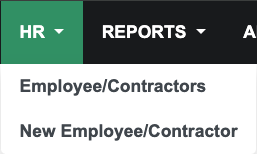
First, hover over the HR tab and select New Employee/Contractor from the drop-down menu. You can also click the HR tab then click New Employee/Contractor to the right above the list. As always, red flags indicate required fields. If this is going to be for someone logging into the system, enter their email address as well. If you don’t have it now, you can enter it later.
Start out by entering their First and Last Name, and any other info you have for your employee, including the email, if you have it.
Next, we’ll scroll down and find the Position Assignment section. This is where we assign her in the SP Organization Chart. Ann is our new administrator and will need access to everything, so I’ll select Admin level. Now, when we click Division, it’ll show all the divisions attached to Admin level. Here, I’ll click Admin again.
Finally, we should assign Ann a position. If you have an open position, meaning a recently vacated position, it’ll be under Existing Position. If there are no vacant positions, we’ll need to create a new one. So, click the menu next to New Position and select the matching position, in this case Admin User.
When you’ve finished entering all your information, click Save. Your new employee record is finished!
What is an Employee/Contractor?
Under the HR tab, you’ll set up employees and/or subcontractors who work with you. Anyone who is setup under the HR tab will be considered an internal record/user. Because they are internal, they will have access to more information, including internal work orders, inspections, and notes.
How to Create an Employee/Contractor Record
Start by hovering over the HR tab and click New Employee/Contractor. You can also click the HR tab and click New Employee/Contractor above the search results list.

Required fields are the first and last name, phone country (which should be automatically set to your SP Default), and the Position assignment fields. The email and email confirmation fields are not required, but if you want to give access to your employee/contractor, you’ll also want to enter information into those fields as well.
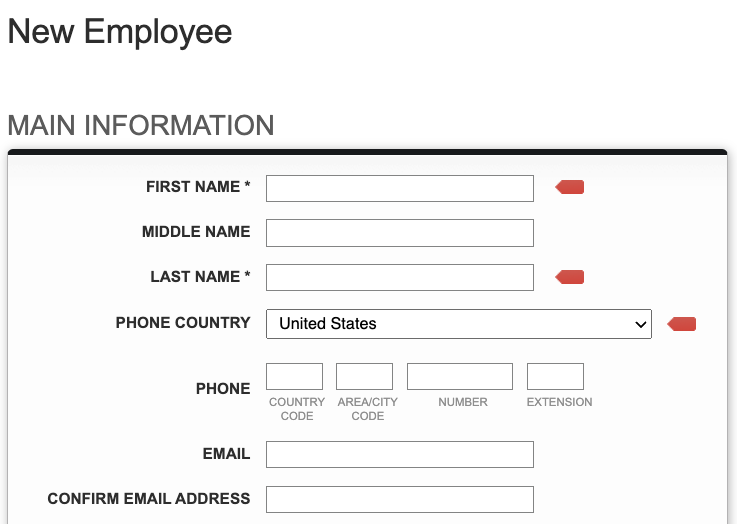
Enter in your employee/contractor’s name, phone number, email address, notes, and address.
The Position Assignment box is where you will assign a position in the SP Organization Chart. If the employee is going to be in a new division, that division should be created before trying to place the new employee in a position. To learn more about the SP Org. Chart, see our article Build a Basic Service Provider Organization Chart in the Knowledge Base.
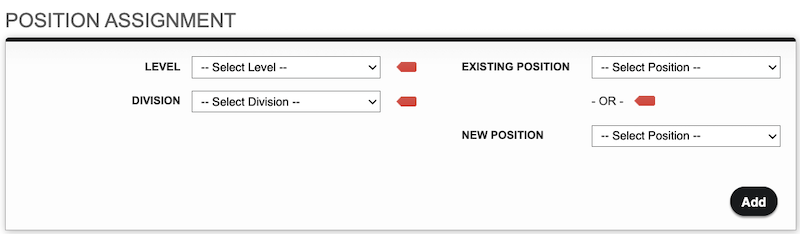
To assign a position, select the Level, Division, and either an Existing Position (one that was vacated in the Org. Chart) or a New Position (when there isn’t a vacated position in the division selected). Once each item has been selected, click Add. The position will now be listed below.

The final box of information is the Message Permissions. If you are using Message Types and need to limit the types of work orders that your employee/contractor will see, you can select the different types here. The automatic permissions allow your employee to see all Message Types.
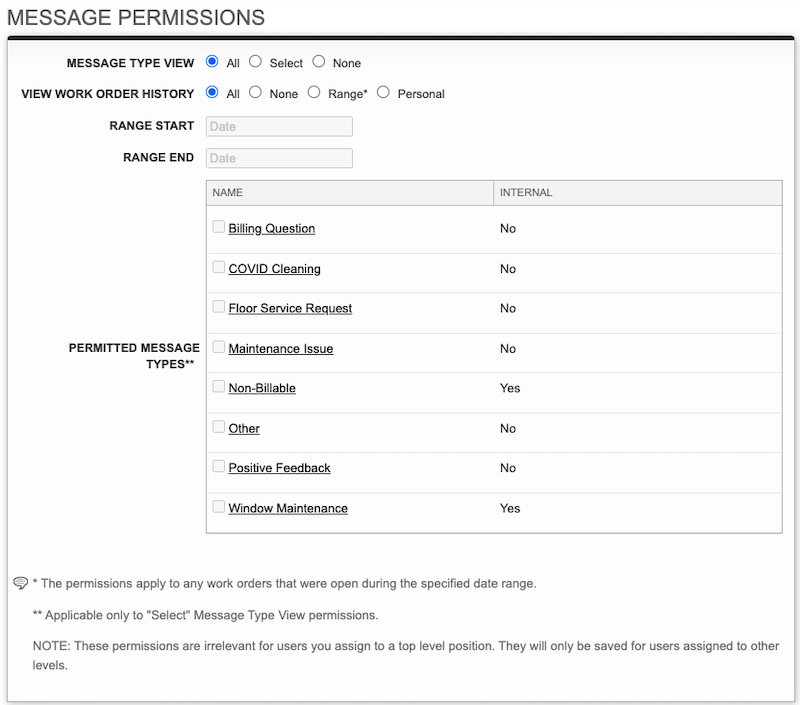
To learn more about Message Types, see our article Using Message Types in the Knowledge Base.
After entering all the information, click Save in the bottom right or top right corner. The new Employee/Contractor is now active and can be found at any time by searching or navigating through the HR list.