
From the Otuvy Frontline Mobile app you are able to create lists and add tasks to those lists to be completed. There are 3 main ways to generate these lists:
- Manually add each task in the list
- Copy and paste your list from word or excel into Otuvy Frontline Mobile
- Let the AI system generate the tasks in the list
Each process starts from the same point.
- Log into Otuvy Frontline Mobile
- Tap on + List to begin.
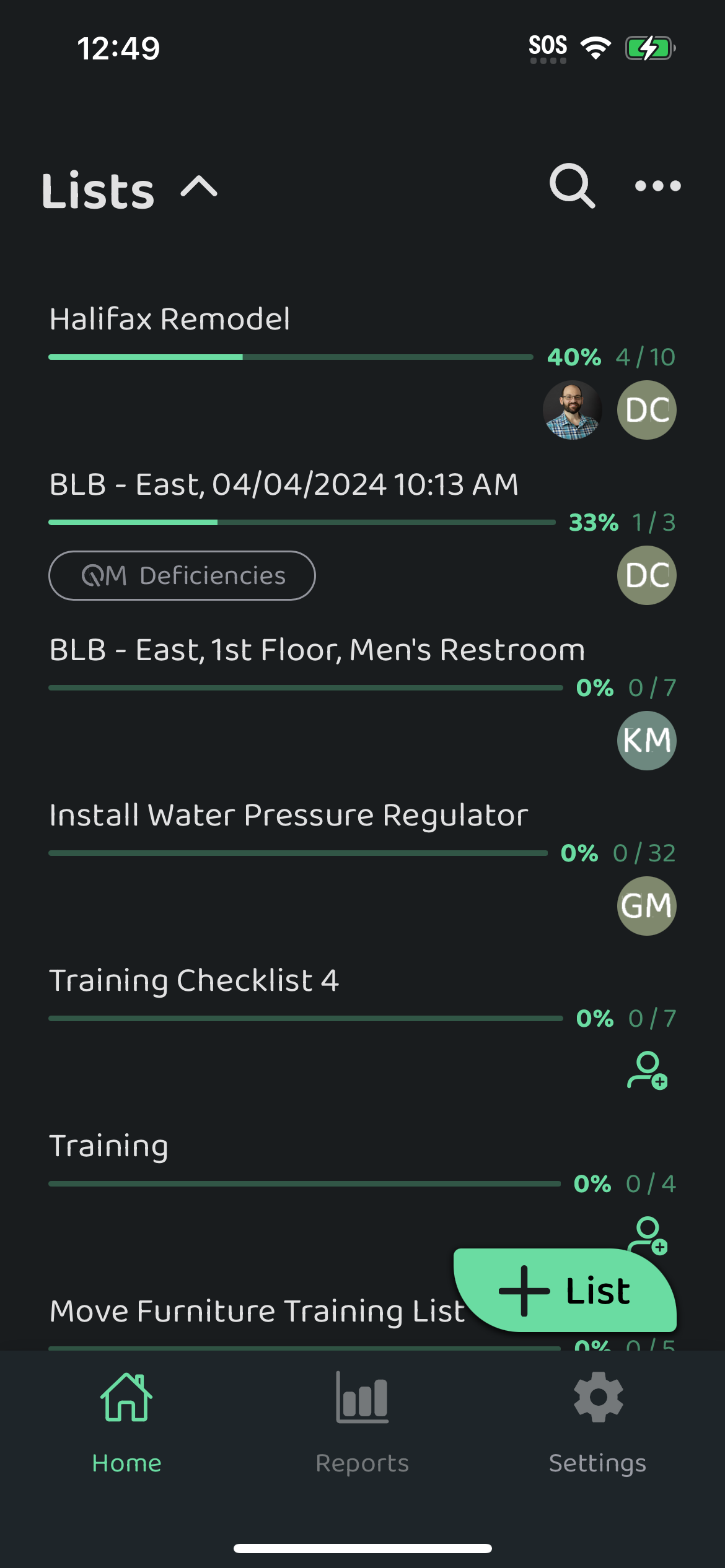
- Next give your list a name
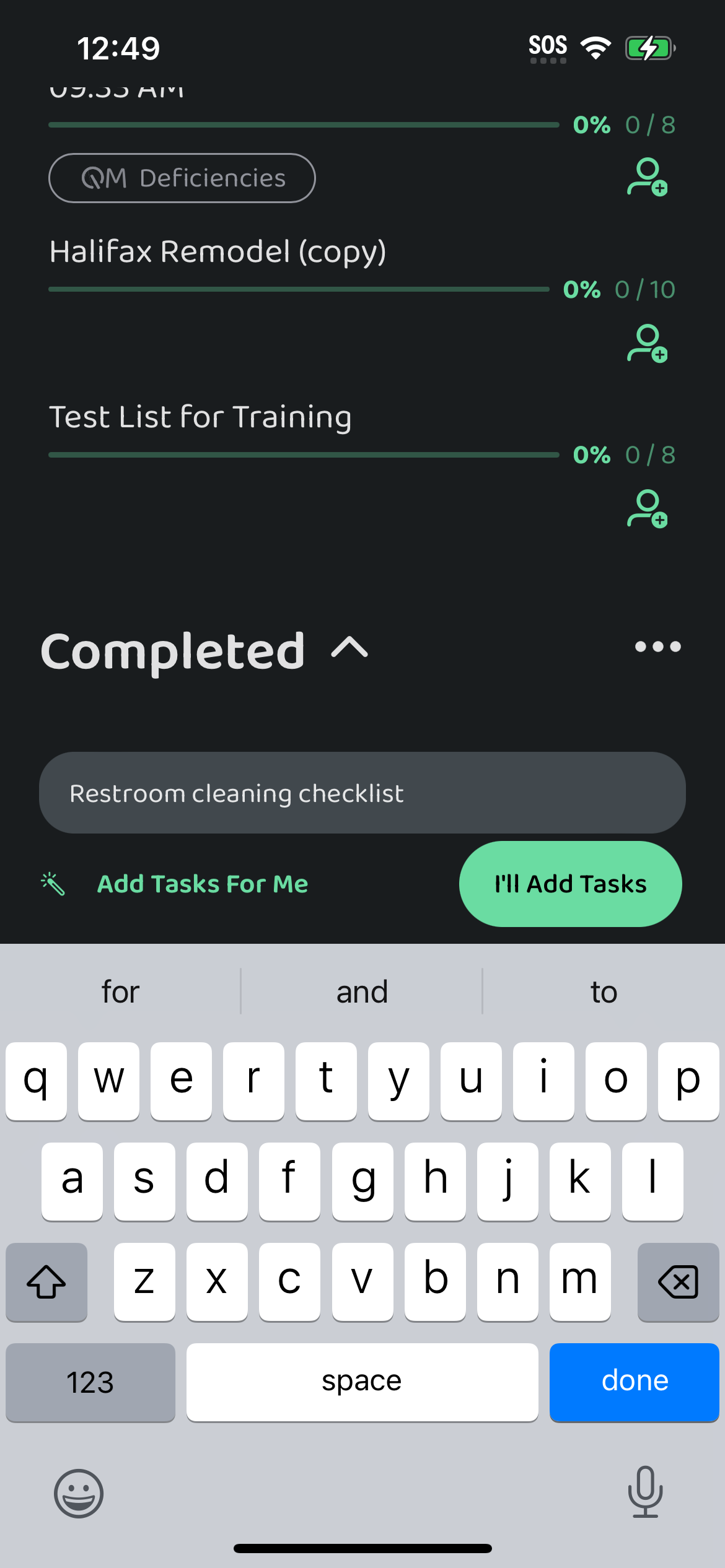
- If you want to manually add tasks or want to copy and paste your tasks in, tap on I'll Add Tasks
- If you want the AI to generate tasks for you, tap on Add Tasks For Me
This bit is quite straight forward. After you've tapped on I'll Add Tasks you are taken to the first Add Task field. Enter your first task, hit enter/return/done, type the next task, hit enter again, and so on.
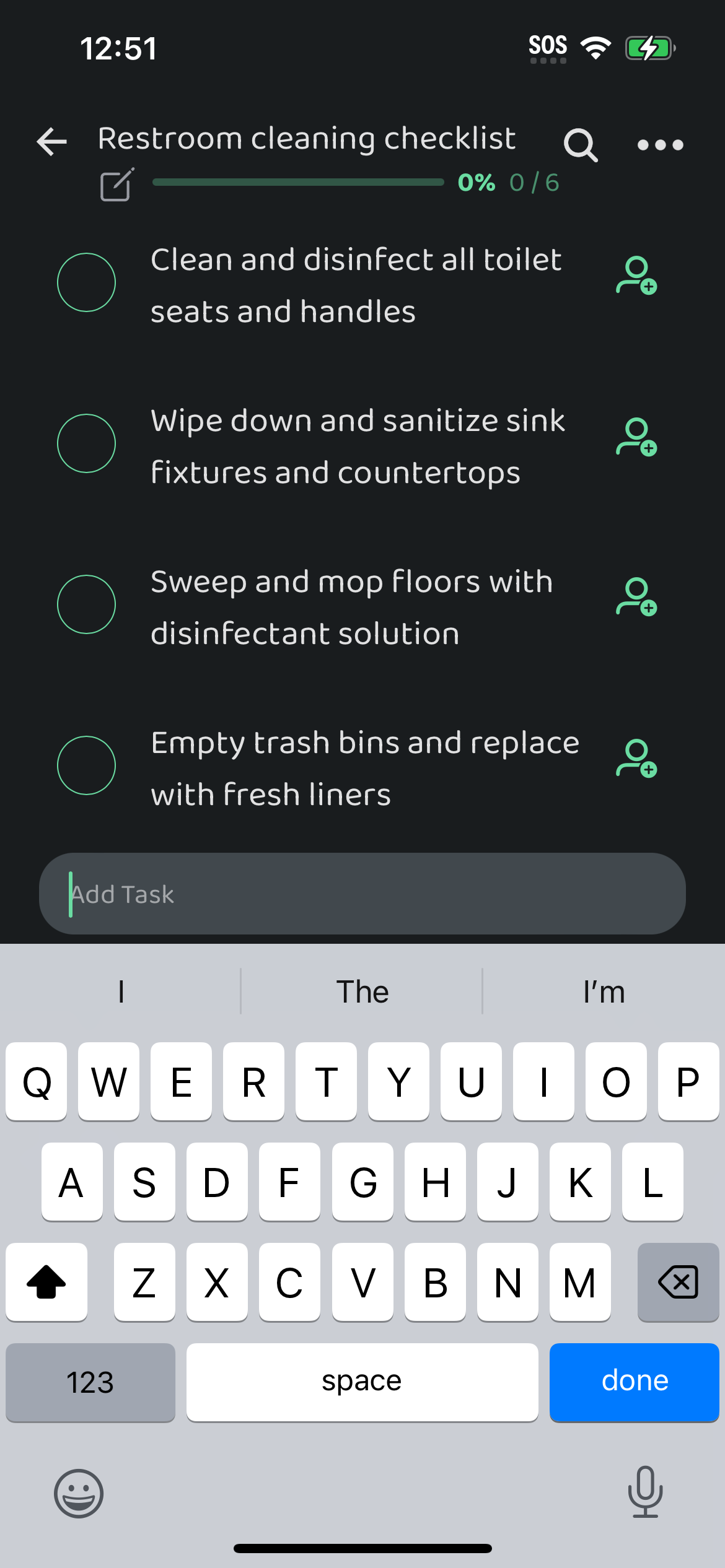
You can always return and add tasks later with the +Task button
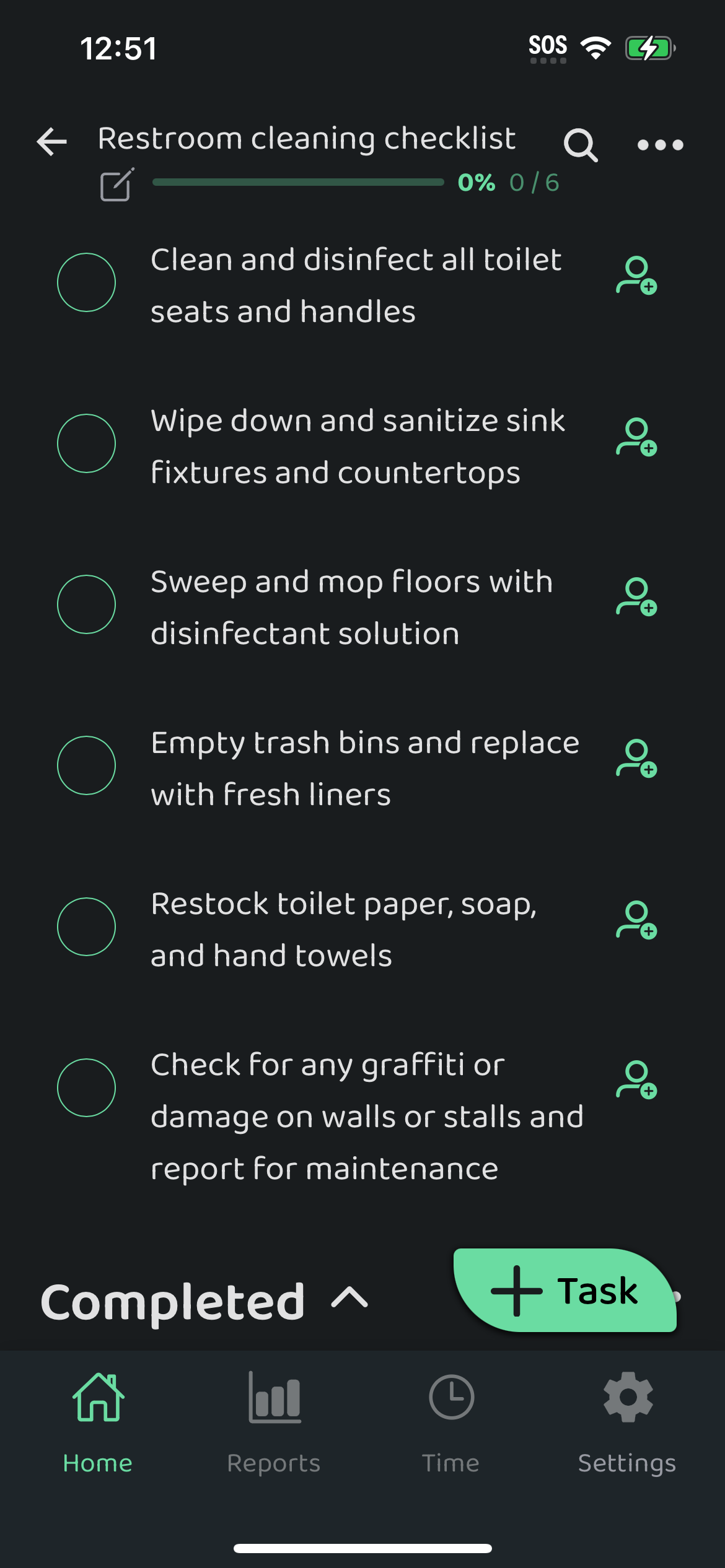 Copy and Paste Tasks
If you have a list of tasks in a file like word, excel, or a pdf, you can copy and paste those tasks into a single task input to generate an entire list.
Prerequisites:
- You need to have already created a list. It can be empty or already have tasks inside it.
- The list of tasks you are copying need to have one task per line.
Copy the text with all the tasks and navigate to the list you've created where these will reside. Tap on the green + Task button and paste the entire block of text in. Here's a quick gif that shows how easy this is.
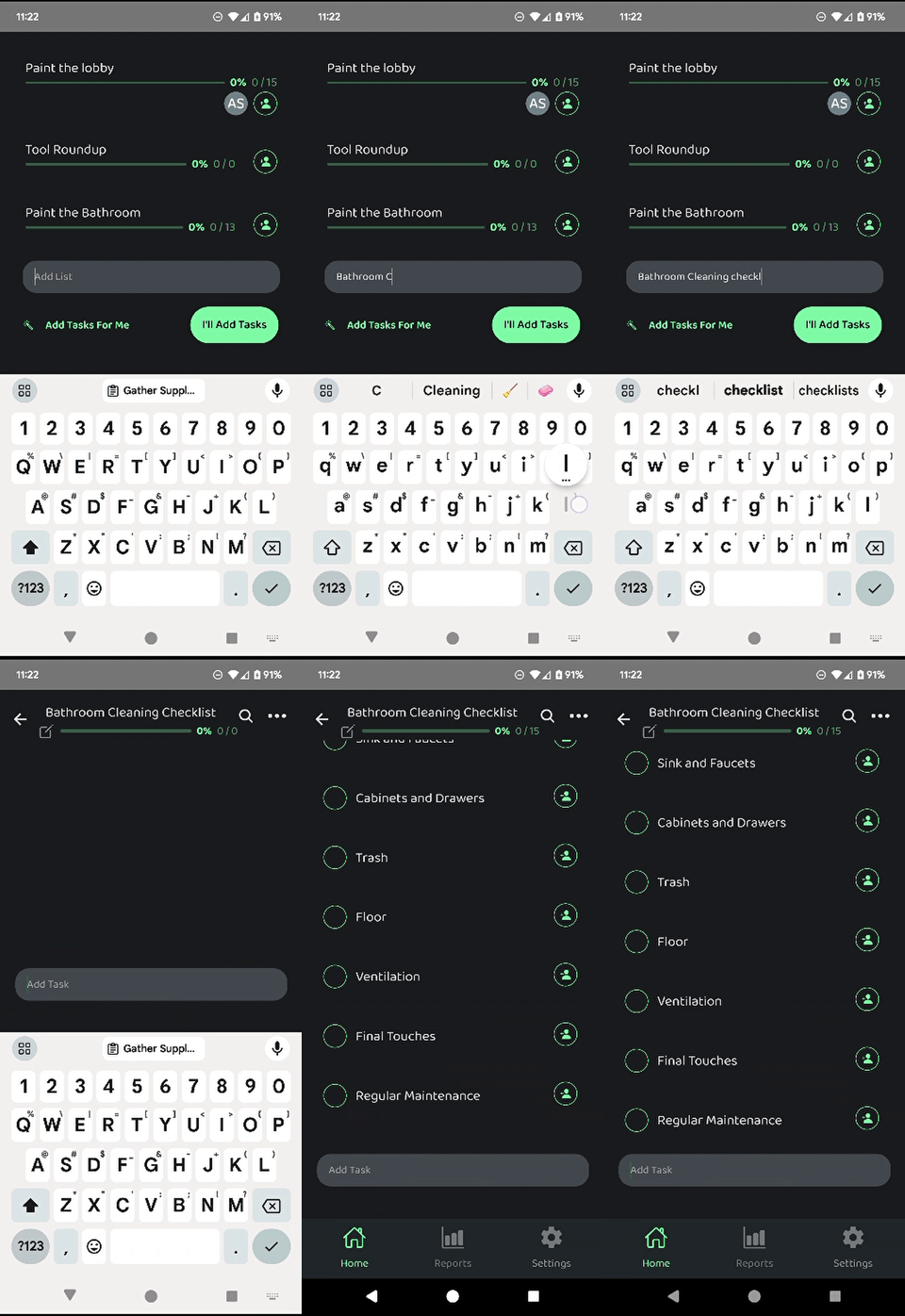
In this gif we used the following text to create a Bathroom Cleaning checklist:
Gather Supplies
Declutter
Dust and Sweep
Mirrors
Countertops and Surfaces
Toilet
Shower/Bathtub
Grout and Tiles
Sink and Faucets
Cabinets and Drawers
Trash
Floor
Ventilation
Final Touches
Regular Maintenance
Use AI to Generate Tasks
In that clip I tapped out of the input field rather than tapping the Enter/Return Checkmark. If you do that like I did, tap back into the input field and then hit the Enter/Return Checkmark to generate the list of tasks.

To have your lists magically created for you, use our artificial intelligence system to create them. After tapping +List, this time, choose Add tasks for me. Then, give the system related details as follows:
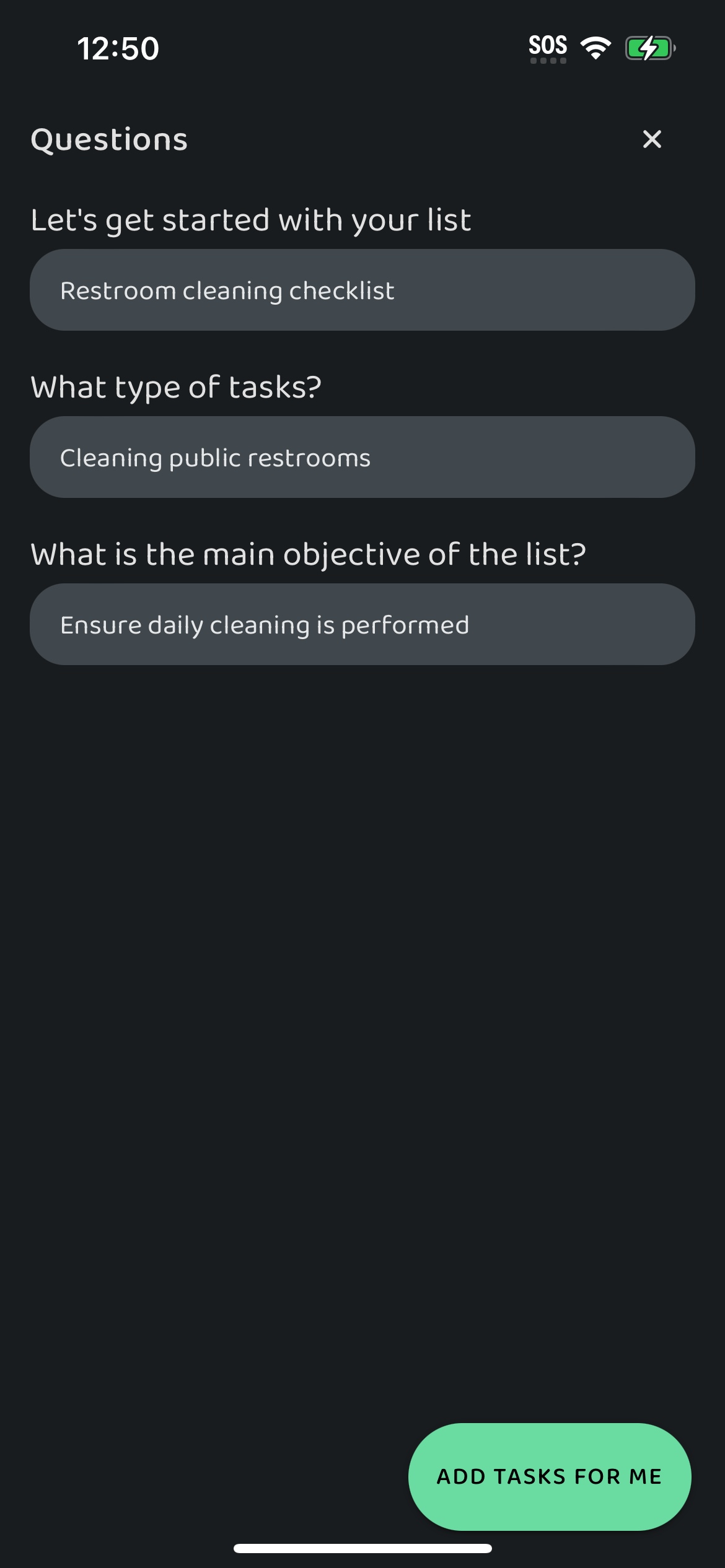
- Lets get started with your list: This is the name you want to give to your list. It's a way to identify and refer to the collection of tasks you'll be adding. For example, if your list is about project tasks, the list name could be "Project X Tasks." This field will come prefilled from the previous screen.
- What type of tasks?: Here, you'll specify the category or nature of the tasks you'll be including in the list. For instance, if your list contains tasks related to cleaning an office in a building, the type of tasks could be "Office Cleaning."
- What is the main objective of the list? This field is optional but gives the AI additional direction while creating the list. It's a brief explanation of what you hope to achieve by completing the tasks in the list. The main objective could be "Increasing efficiency."
After you fill these fields in, tap the Add Tasks For Me button to let AI generate a list for you. Be sure to review the list and make changes as needed.
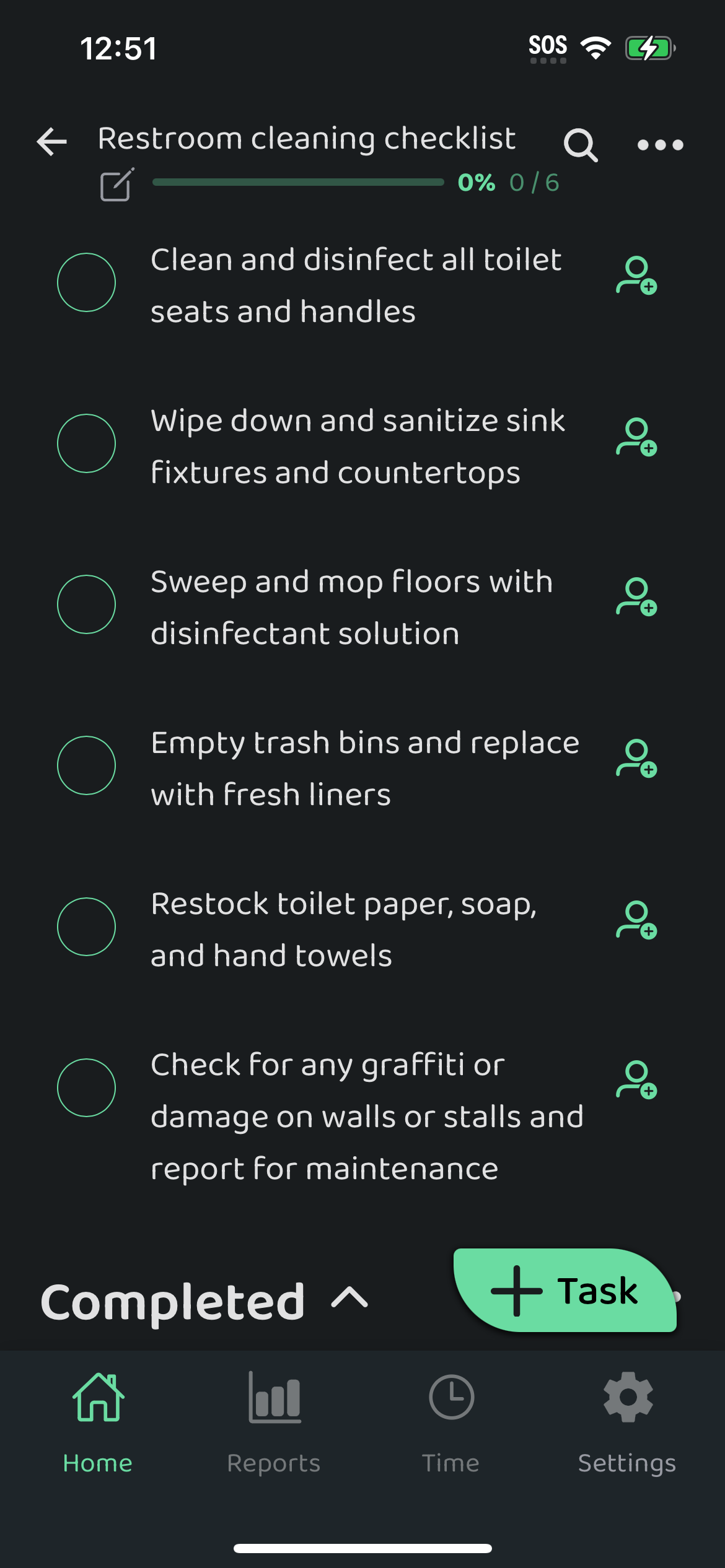
Now that you have a task list filled out, learn about managing those tasks in Manage Tasks in Otuvy Frontline Mobile
