---
title: Custom Reports for Mobile Surveys
description: Build a custom report for Otuvy QM mobile surveys with Report Writer to break out each question and answer alongside client and location details.
---
[Skip to content](https://help.otuvy.com/kb/custom-reports-for-mobile-surveys#main-content)
[More support](https://help.otuvy.com/kb/kb-tickets/new?hsLang=en)

Open main navigation
Close main navigation
- [More support](https://help.otuvy.com/kb/kb-tickets/new)
- [Contact us](mailto:vip@otuvy.com)
[Contact us](mailto:vip@otuvy.com)
How can we help you?
- There are no suggestions because the search field is empty.
1. [Otuvy Knowledge Base](https://help.otuvy.com/kb?hsLang=en)
2. [Otuvy QM - Reports & Dashboards](https://help.otuvy.com/kb/otuvy-qm-reports-dashboards?hsLang=en)
# Custom Reports for Mobile Surveys
# Custom Reports for Mobile Surveys
Mobile surveys, if they generate work orders, display answers in reports like Message History or Work Order reports. However, these reports don't break down question-answer relationships. For detailed analysis, consider creating a custom report using Report Writer.
In this lesson, we'll use the advanced Report Writer tool for Mobile Survey submissions.
1. **Name** your custom report template and use a separate one for each Mobile Survey. 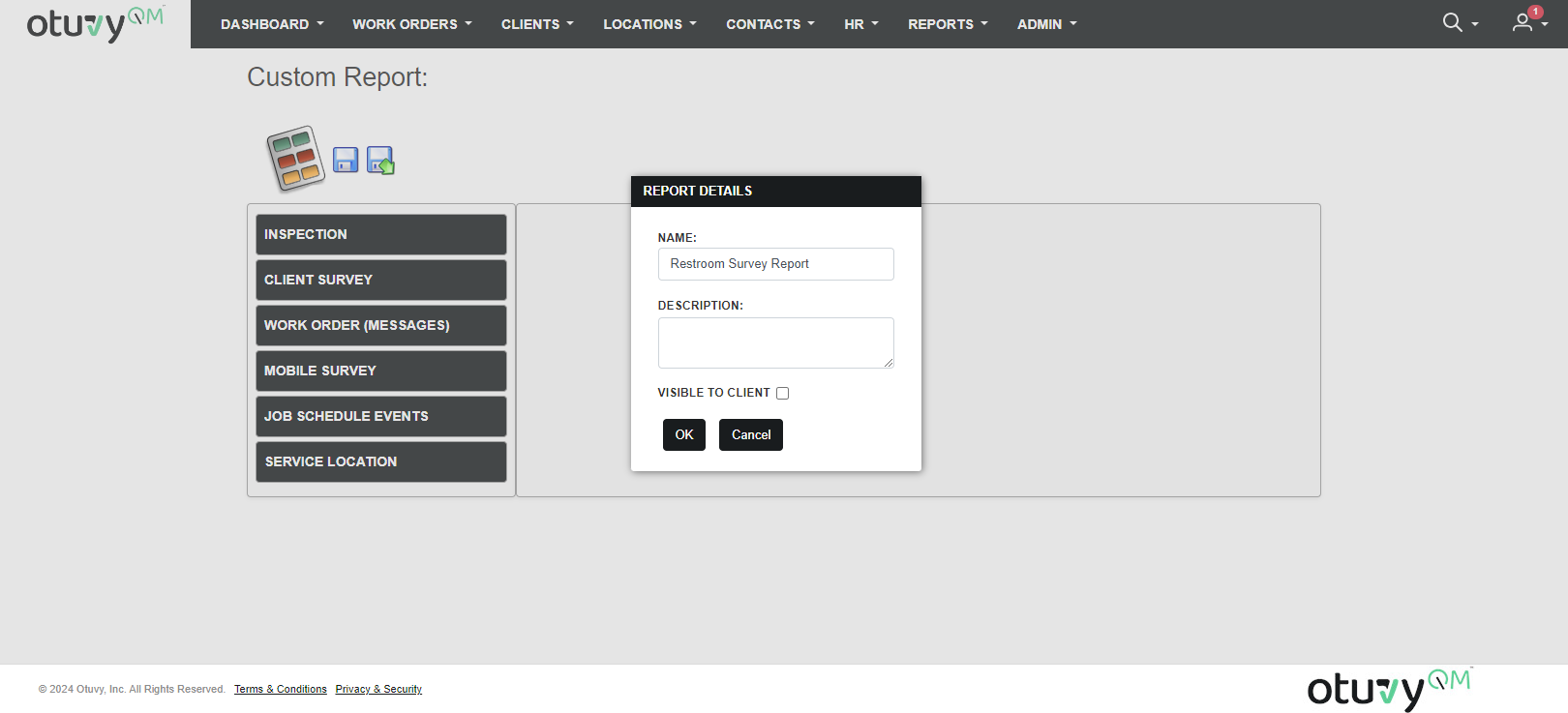
2. Choose the **Mobile Survey** dataset by dragging it from the left to the right. Give it a name that is meaningful. 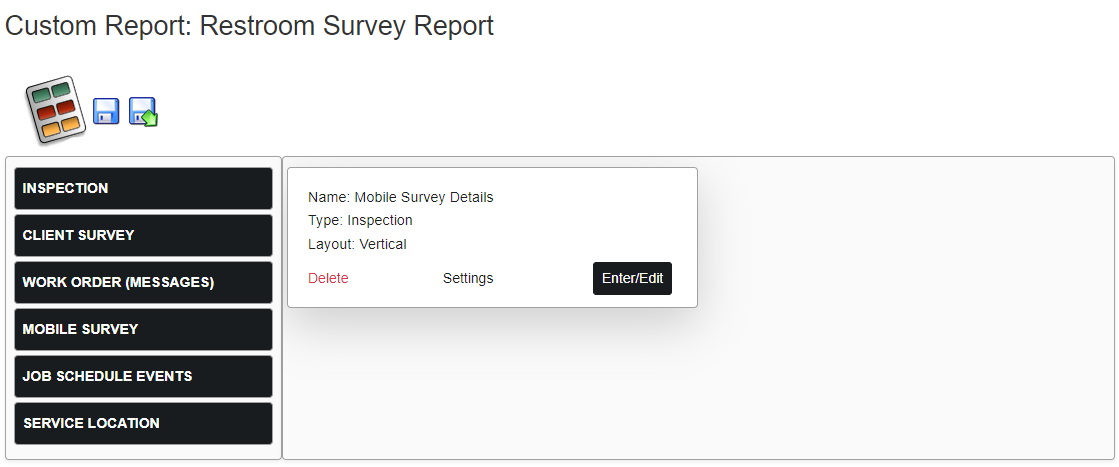
3. Create columns (e.g., Timestamp, Client Name, etc.) using **Add Right Column.**

Recommended columns include the following plus one for each question in the survey you are reporting on:
- Timestamp
- Client Name
- Service Location Name
- Sublocation Name
- Section Name
- Questions...
4. **Add a Top Row** to use as a header and label your columns, especially for questions with their prompt values. 
5. Include static fields in repeating rows (Date, Client Name, etc.) Type the header in the green header row and drag the values from the left into the white data row. 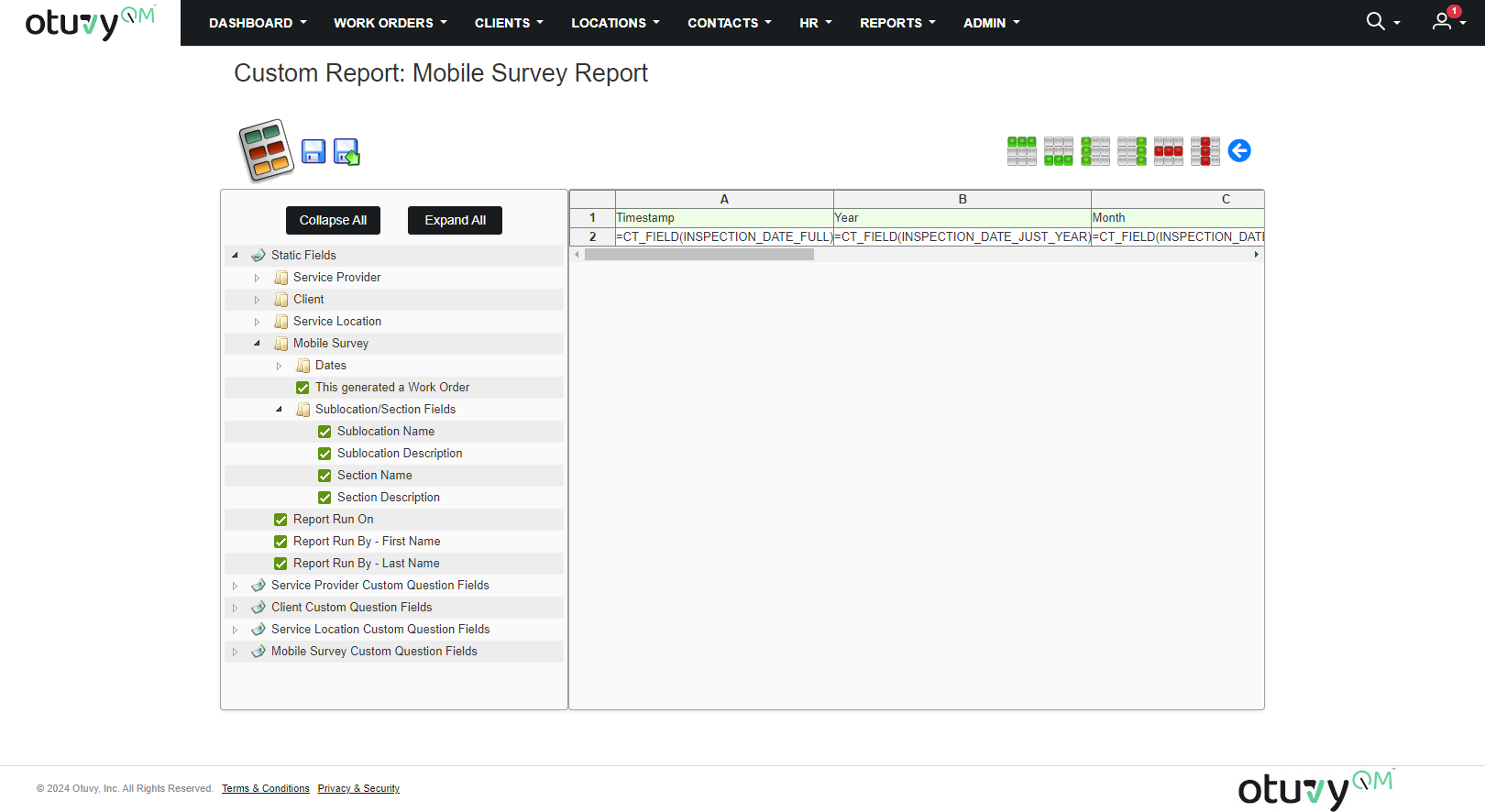
6. Populate Question Columns with actual answers matching the prompt. Drag the prompt into the green header row and the actual answer into the white data row. 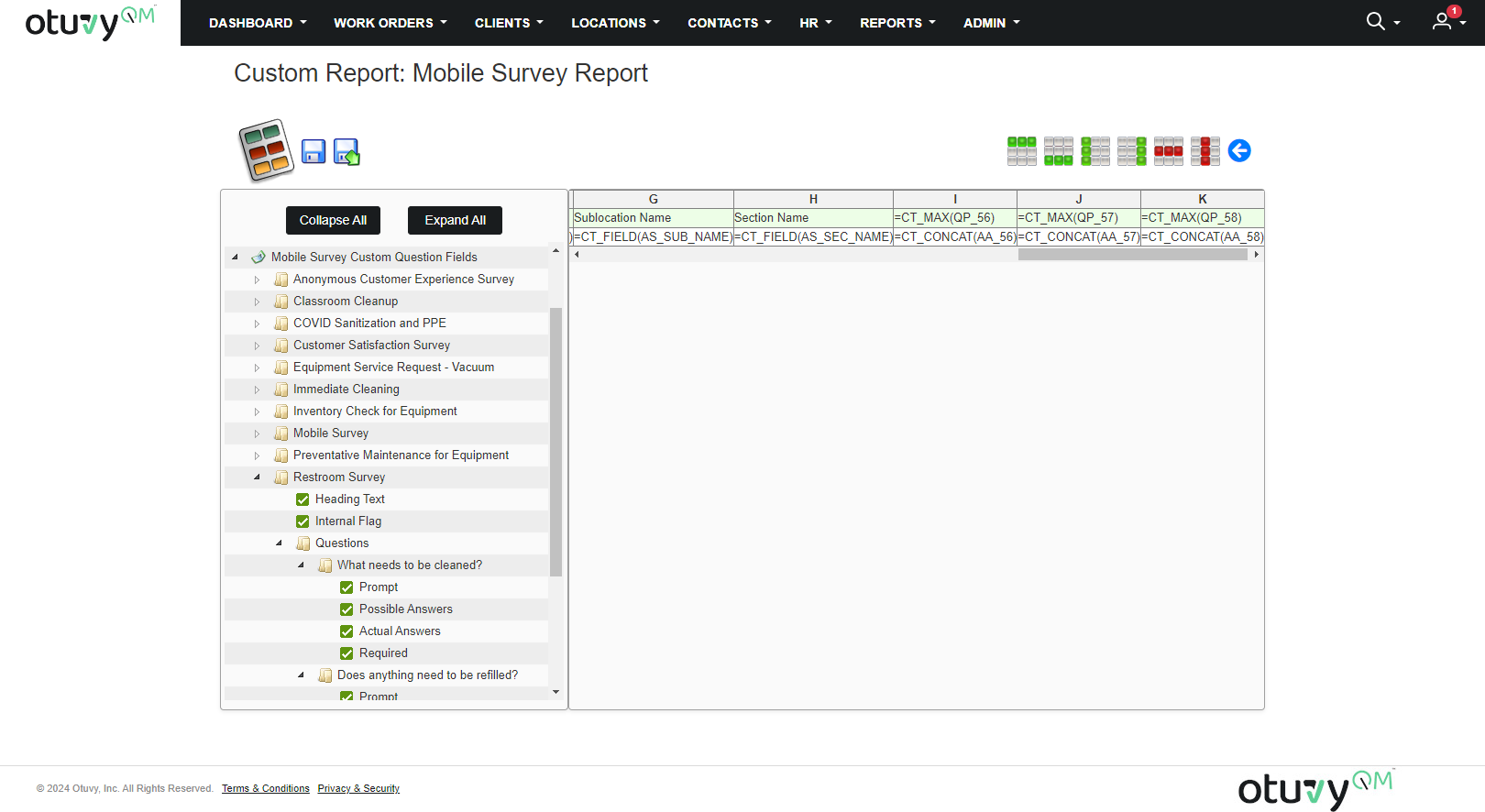
7. Be sure to update the report template whenever you add new survey questions.
8. Keep all the old questions for historical data.
9. **Save** the custom report template.
To run the report:
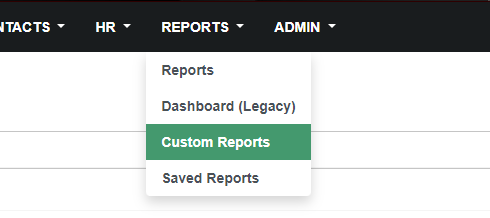
1. Hover over the **Reports** tab.
2. Click **Custom Reports**.
3. Run the report.
- [Otuvy QM - Getting Started](https://help.otuvy.com/kb/otuvy-qm-getting-started?hsLang=en)
- [Otuvy QM - Setup & Administration](https://help.otuvy.com/kb/otuvy-qm-setup-administration?hsLang=en)
- [Otuvy QM - Contact Access](https://help.otuvy.com/kb/otuvy-qm-contact-access?hsLang=en)
- [Otuvy QM - Inspections](https://help.otuvy.com/kb/otuvy-qm-inspections?hsLang=en)
- [Otuvy QM - Work Orders](https://help.otuvy.com/kb/otuvy-qm-work-orders?hsLang=en)
- [Otuvy QM - Mobile App](https://help.otuvy.com/kb/otuvy-qm-mobile-app?hsLang=en)
- [Otuvy QM - Reports & Dashboards](https://help.otuvy.com/kb/otuvy-qm-reports-dashboards?hsLang=en)
- [Otuvy QM - Advanced Features](https://help.otuvy.com/kb/otuvy-qm-advanced-features?hsLang=en)
- [Otuvy Frontline](https://help.otuvy.com/kb/otuvy-frontline?hsLang=en#main-content)
- [Getting Started](https://help.otuvy.com/kb/otuvy-frontline?hsLang=en#getting-started)
- [Mobile App](https://help.otuvy.com/kb/otuvy-frontline?hsLang=en#mobile-app)
- [Admin Portal](https://help.otuvy.com/kb/otuvy-frontline?hsLang=en#admin-portal)
- [Uncategorized](https://help.otuvy.com/kb/uncategorized?hsLang=en)
[](https://www.otuvy.com/)
[mailto:email@email.com](mailto:email@email.com)
Copyright © 2026, Otuvy, Inc.