---
title: Editing a Job Template
description: "Edit job templates in Otuvy QM: update names and frequencies, add or remove services and areas, and apply mass edits across multiple templates."
---
[Skip to content](https://help.otuvy.com/kb/editing-a-job-template#main-content)
[More support](https://help.otuvy.com/kb/kb-tickets/new?hsLang=en)

Open main navigation
Close main navigation
- [More support](https://help.otuvy.com/kb/kb-tickets/new)
- [Contact us](mailto:vip@otuvy.com)
[Contact us](mailto:vip@otuvy.com)
How can we help you?
- There are no suggestions because the search field is empty.
1. [Otuvy Knowledge Base](https://help.otuvy.com/kb?hsLang=en)
2. [Otuvy QM - Inspections](https://help.otuvy.com/kb/otuvy-qm-inspections?hsLang=en)
# Editing a Job Template
# Editing a Job Template
Job Templates can be edited in two different ways. You can edit services one-by-one or by using the **Mass Edit** tool. Just remember that as you edit a Job Template, it will affect all locations the job template is assigned to. Elements being added to a template also need to exist already, though you will be able to add them from the editing screen.
Navigate to your job templates by clicking the **Admin tab**, then click **Job Templates** in the *Job Configuration* section.
## Editing a Job Template Name or Frequency
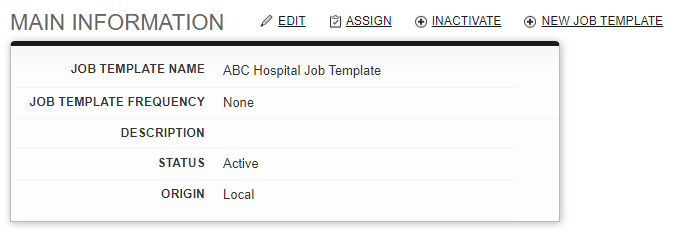
Each Job Template has a name, description, and frequency associated with it. To begin editing a Job Template, click on the name of the template in the Job Template Search list to open it. Click **Edit** next to the **Main Information** box.
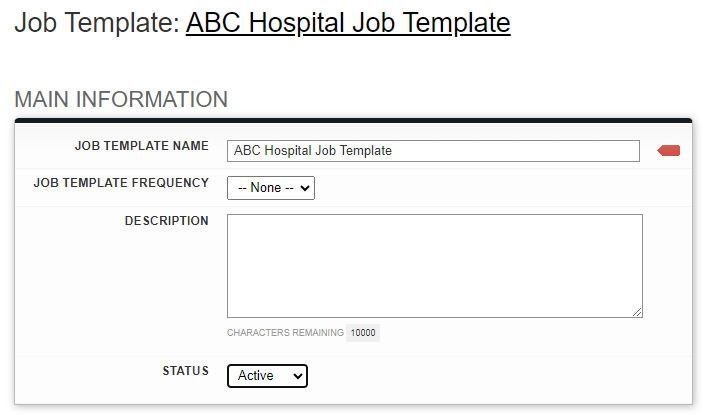
On the Main Info editing screen, you can update the name of the template, the job template frequency, the description, and the status of the template. If you change the status to **Inactive**, it will unassign it from any locations it may be assigned to. Click **Save** after making any changes.
## Editing Single Services
Sometimes a job template just needs to be updated, either by removing services or changing the wording or areas the services are in.
### Editing Services
After opening the job template you wish to edit, click the **Edit** button next to the Job Services Title.

Once you do that, you can either add a new service or edit an existing service.
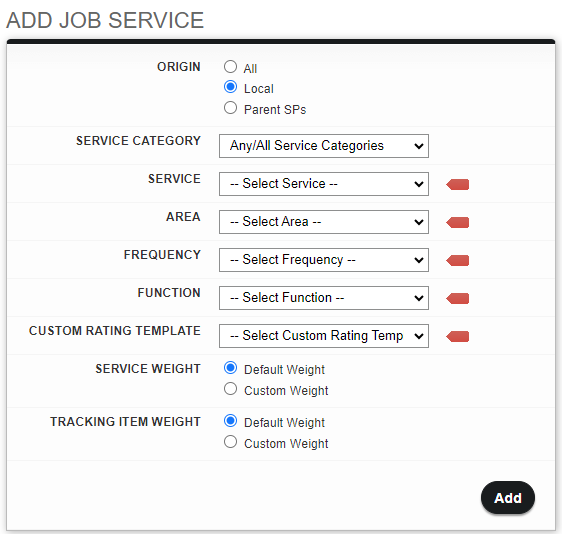
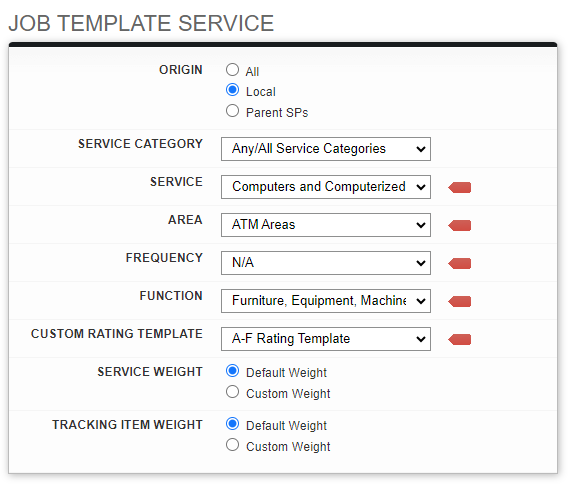
Using the drop-down lists in the **Add Job Services** box, you can add new services to the template. In several of these options, if you can't find the right item, you can easily create a new one using the red "New" option at the top of each list. Let's go over these options:
1. **Origin:** If you are in a Child account, your Parent Service Provider may have shared some of the following items with your account. Selecting either **All** or **Parent SPs** will include those items which have been shared with you. Selecting **Local** will only include any of the items created on your Service Provider's account.
2. **Service Category:** By default, this is set to **Any/All Service Categories**. Selecting any other option will filter the options in the Service dropdown below. For clarity, we recommend keeping this option set to **Any/All Service Categories**.
3. **Service:** This is the name of the service to be scored. It will show up on any inspection using this job template. A great example is "Sweep and Mop Tile Floors"
4. **Area:** This is the name of the area type where the service is expected to be completed. We recommend keeping areas generic so they can be used in several job templates. A great example of a generic Area type is "Restrooms"
5. **Frequency:** This is how frequently a service should be performed. Examples include "As Needed", "Daily", "Weekly", "Monthly", "Quarterly", "Annually", etc. Frequencies only come into play in reporting and do not affect the inspection process.
6. **Function:** This relates to the general cleaning function the Service serves. For example, if the Service is "Wipe Down Counters" the Function may be "Horizontal Surfaces". Functions only come into play in reporting and do not affect the inspection process.
7. **Custom Rating Template:** The custom rating template determines the rating scale for the service. Some examples are the 1-5 or A-F rating scales.
8. **Service Weight/Tracking Item Weight:** We recommend keeping this set to the default setting. The default weight for all services and tracking items is 1. If you chose to use a custom weight, it will score the service appropriate to the weight given in the job template.
Be sure to click the **ADD** button once you have selected all the appropriate settings. This will bring the service down into the correct area of the job template.
To edit an existing service, click the **Edit** button for that service.
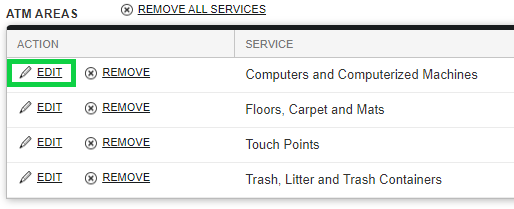
Here, you can edit all information for the selected service. The **Origin** is referring to where the information is coming from. The default is **Local**. Local information is all created in your own system. **Parent SPs** is information that is created by Otuvy QM and is available to your system, but not stored in your system. **All** will show you all information from both origin points.
You can change the service name, the area it belongs to, the frequency, function, or the Custom Rating template used for the service. You can also add a custom weight to the service or it’s tracking items. Use the drop-down list options to make the changes you need, then click Save to return to the full template to continue making changes.
### Removing Services and/or Areas
After opening the job template you wish to edit, click the **Edit** button next to the Job Services title.
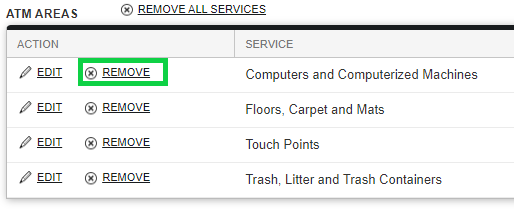
Below the **Add Job Services** box, each area and its services are listed. To remove a service, click the **Remove** button for that service.
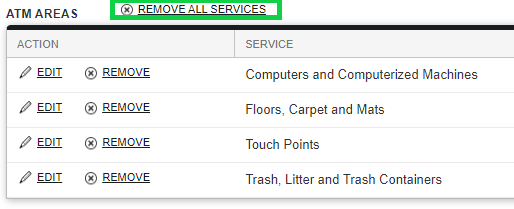
To remove an Area and all the services included in it, click the **Remove All Services** button above the Area you wish to remove.
> 
>
> When editing a Job Template, the changes you make are saved each time to click the **Remove** button.
## Making Mass Edits
For making changes that will affect an entire job template, you can use the Mass Edit function. This is useful when you need to update the Custom Rating Template or change Frequencies. Start by opening the Job Template you’ll be editing. Below the Main Information box, click **Mass Edit**.

On the Mass Edit screen, the first box has all the active Job Templates in your system.
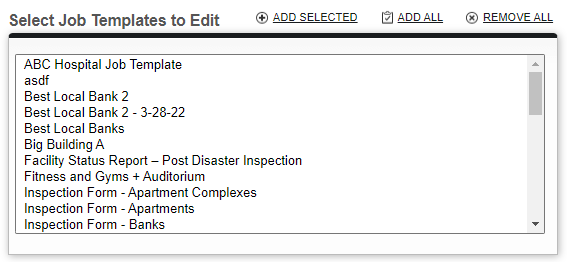
From that list, select the Job Template that you'll be editing then click Add Selected above the box. You may repeat this step if you are changing multiple Job Templates at a time. After you've added your Job Template, it will be listed in the Affected Job Template list below the list.

In a Mass Edit, you can edit Areas, Frequencies, Functions, and Custom Rating Templates.

### Mass Area Edit
To change the name of an Area, click **New Mass Area Edit**. A box will show up below.
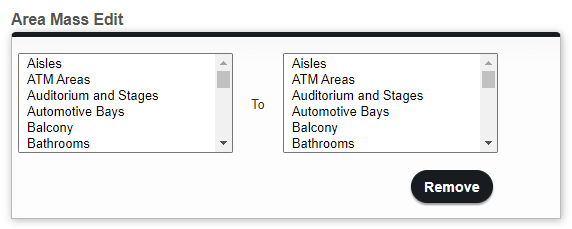
In this box, both sections list ALL active areas in your system, not just the areas used in the selected job template. The list on the *left* will be where you select the area that is currently used in the template. The list on the *right* will be the area you are changing it to.
> 
>
> **DO NOT** click the **Remove** button after making your selections from both the left and right lists. Clicking the **Remove** button will remove the selection of your mass edit.
Click the **Save** button to make your changes.
### Mass Frequency Edit
To change the frequencies of selected services, click **New Mass Frequency Edit**. A box will show up below.
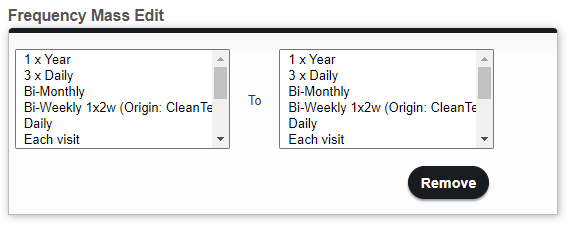
In this box, both sections list ALL active frequencies in your system, not just the frequencies used in the selected job template. The list on the left will be where you select the frequency that is currently used in the template. The list on the right will be the frequency you are changing it to.
Once again, ***do not*** click the **Remove** button unless you want to cancel the change.
Click **Save** to make your changes.
### Mass Function Edit
To change the functions of selected services, click **New Mass Function Edit**. A box will show up below.
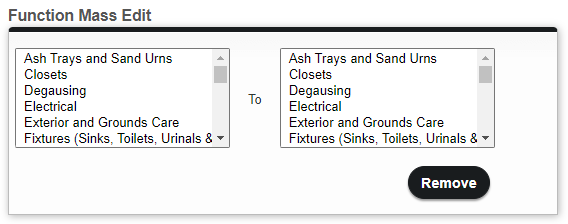
In this box, both sections list ALL active functions in your system, not just the functions used in the selected job template. The list on the left will be where you select the function that is currently used in the template. The list on the right will be the frequency you are changing it to.
Once again, ***do not*** click the **Remove** button unless you want to cancel the change.
Click **Save** to make your changes.
### Mass Custom Rating Template Edit
To change the functions of selected services, click **New Mass Custom Rating Template Edit**. A box will show up below.
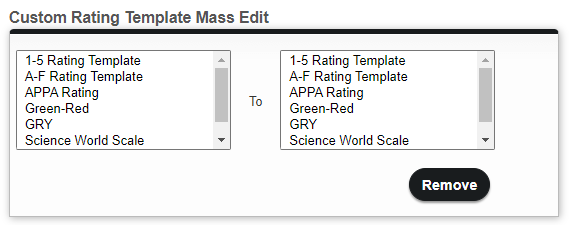
In this box, both sections list ALL active custom rating templates in your system, not just the rating templates used in the selected job template. The list on the left will be where you select the rating template that is currently used in the template. The list on the right will be the frequency you are changing it to.
Once again, ***do not*** click the **Remove** button unless you want to cancel the change.
Click **Save** to make your changes.
> 
>
> Remember that when you make changes to a Job Template, it will affect all locations with that Job Template assigned to it. Users on the mobile app will need to refresh their apps to make sure they are using the correct updated template.
- [Otuvy QM - Getting Started](https://help.otuvy.com/kb/otuvy-qm-getting-started?hsLang=en)
- [Otuvy QM - Setup & Administration](https://help.otuvy.com/kb/otuvy-qm-setup-administration?hsLang=en)
- [Otuvy QM - Contact Access](https://help.otuvy.com/kb/otuvy-qm-contact-access?hsLang=en)
- [Otuvy QM - Inspections](https://help.otuvy.com/kb/otuvy-qm-inspections?hsLang=en)
- [Otuvy QM - Work Orders](https://help.otuvy.com/kb/otuvy-qm-work-orders?hsLang=en)
- [Otuvy QM - Mobile App](https://help.otuvy.com/kb/otuvy-qm-mobile-app?hsLang=en)
- [Otuvy QM - Reports & Dashboards](https://help.otuvy.com/kb/otuvy-qm-reports-dashboards?hsLang=en)
- [Otuvy QM - Advanced Features](https://help.otuvy.com/kb/otuvy-qm-advanced-features?hsLang=en)
- [Otuvy Frontline](https://help.otuvy.com/kb/otuvy-frontline?hsLang=en#main-content)
- [Getting Started](https://help.otuvy.com/kb/otuvy-frontline?hsLang=en#getting-started)
- [Mobile App](https://help.otuvy.com/kb/otuvy-frontline?hsLang=en#mobile-app)
- [Admin Portal](https://help.otuvy.com/kb/otuvy-frontline?hsLang=en#admin-portal)
- [Uncategorized](https://help.otuvy.com/kb/uncategorized?hsLang=en)
[](https://www.otuvy.com/)
[mailto:email@email.com](mailto:email@email.com)
Copyright © 2026, Otuvy, Inc.