---
title: How Work Orders Get Assigned
description: "Learn how work orders get assigned in Otuvy QM: org chart positions, user permissions, manual selection, and message type restrictions."
---
[Skip to content](https://help.otuvy.com/kb/how-work-orders-get-assigned#main-content)
[More support](https://help.otuvy.com/kb/kb-tickets/new?hsLang=en)

Open main navigation
Close main navigation
- [More support](https://help.otuvy.com/kb/kb-tickets/new)
- [Contact us](mailto:vip@otuvy.com)
[Contact us](mailto:vip@otuvy.com)
How can we help you?
- There are no suggestions because the search field is empty.
1. [Otuvy Knowledge Base](https://help.otuvy.com/kb?hsLang=en)
2. [Otuvy QM - Work Orders](https://help.otuvy.com/kb/otuvy-qm-work-orders?hsLang=en)
# How Work Orders Get Assigned
# How Work Orders Get Assigned
## What is a Work Order
A work order is a means of communicating needs to service providers and communicating how that work is proceeding to contacts from their clients. For a more detailed review, see [Work Orders Overview. You can](https://help.otuvy.com/kb/work-orders-overview?hsLang=en)[Create a Web Work Order or](https://help.otuvy.com/kb/create-a-web-work-order?hsLang=en)[Create a Mobile Work Order as a service provider's Employee User. You can also](https://help.otuvy.com/portal/en/kb/articles/create-a-mobile-work-order?hsLang=en)[Send a Message:From Contact to Service Provider as a Contact user to request work to be done at your location. Work orders can also be created through](https://help.otuvy.com/kb/send-a-message-from-contact-to-service-provider?hsLang=en)[Job Scheduling, from an email by](https://help.otuvy.com/kb/job-scheduling?hsLang=en)[Setting Up External Emails in CleanTelligent, or when](https://help.otuvy.com/portal/en/kb/articles/setting-up-external-emails-in-cleantelligent?hsLang=en)[Client Surveys,](https://help.otuvy.com/kb/client-surveys?hsLang=en)[Mobile Surveys or](https://help.otuvy.com/kb/setup-a-mobile-survey?hsLang=en)[Inspections are submitted and those settings are active in your account's](https://help.otuvy.com/portal/en/kb/articles/perform-a-mobile-inspection?hsLang=en)[SP Info to generate work orders from them. But the question remains...](https://help.otuvy.com/kb/sp-info-overview?hsLang=en)
## How do Work Orders Get Assigned?
The most basic way work orders get assigned is based on the position of the location compared to the position of the Employees and Contacts in the [SP Organization Chart (Employees) and the](https://help.otuvy.com/kb/build-a-basic-service-provider-organization-chart?hsLang=en)[Client Organization Chart (Contacts). These positions allow those contacts and employees to see their locations. This goes hand in hand with the](https://help.otuvy.com/kb/build-a-basic-client-organization-chart?hsLang=en)[User Permissions given to the employee or contact user. If they haven't been granted access to work orders or messages at all, then they won't be assigned a work order.](https://help.otuvy.com/portal/en/kb/articles/giving-an-employee-or-contact-access-to-cleantelligent?hsLang=en)
Simply stated, an employee or contact that can see the location and has permissions to view work orders/messages will get work orders for their location(s).
This being said, there are additional customizations and user choices that may affect who is assigned a work order. Let's go over each in detail.
### Internal Work Orders
When creating an Internal Work Order as an employee user, no message or notifications will go out to any contact users. This will be a work order to communicate strictly between employee users only.
### Manually Selecting Users
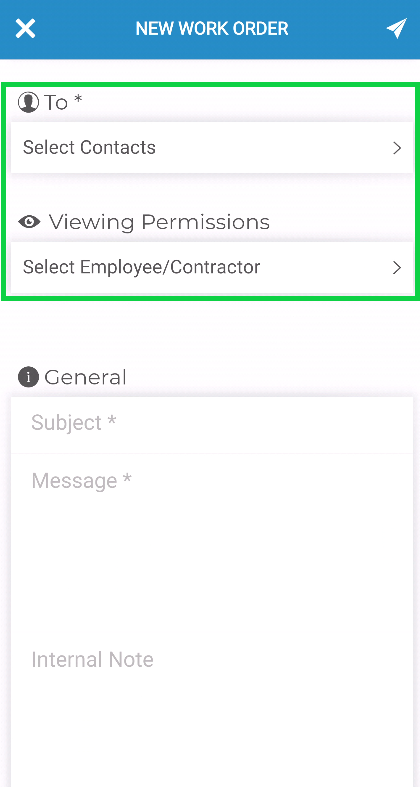
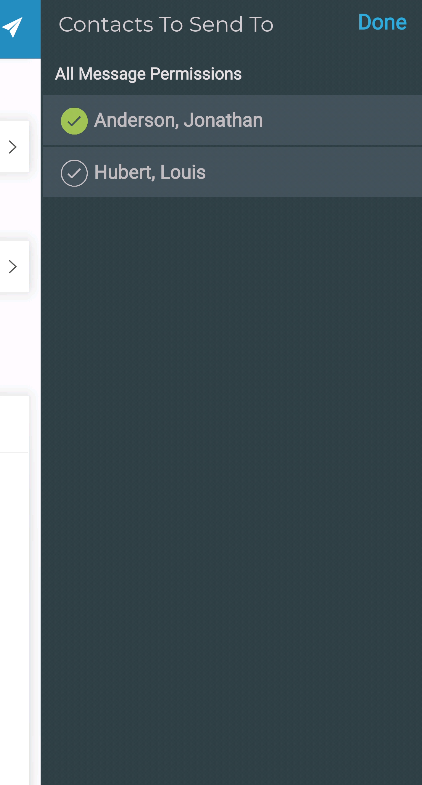
When creating a work order as an employee user, if your position in the SP Organization Chart is upline from the service location's record AND there are other employees downline from you who can also see that location, you may select who from that group is assigned the work order. The others you do not assign the work order to will still be able to see the work order in their work order history but not receive it in their work order inbox. If this is *not* an internal work order, you will also be able to select who of the Contact Users will receive the message in their inbox.
> 
>
> Not every employee who will receive this work order will be listed in this window because any employees who have your same position or are upline from you will automatically receive the work order in their inbox. Additionally, contact users will not be able to select who of the employee users receives this work order.
### Selecting a Message Type
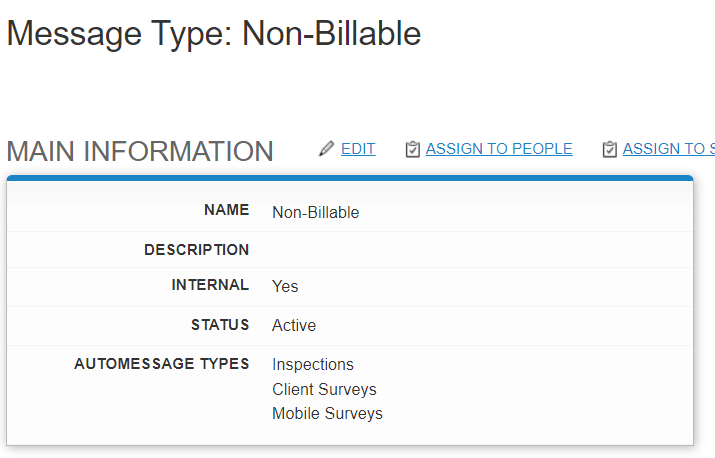
When [Using Message Types, you can manage which of your employees and contacts receive work orders with those given message types. You can also associate those message types with various origins and have them be the defaults for those origin types. For example you can associate the message type "Non-Billable" to the Inspection, Client Survey, and Mobile Survey generated work orders, then you can limit who is assigned those by denying that person's permissions for this message type.](https://help.otuvy.com/kb/using-message-types?hsLang=en)
****
You can also manually select the message type while creating a work order if you have assigned it to a location.
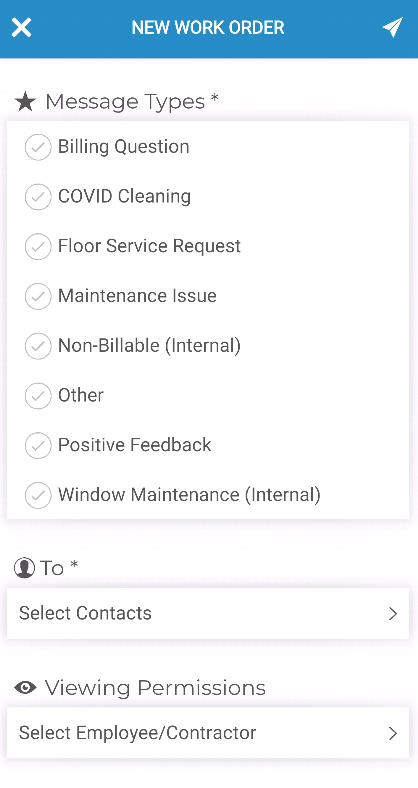
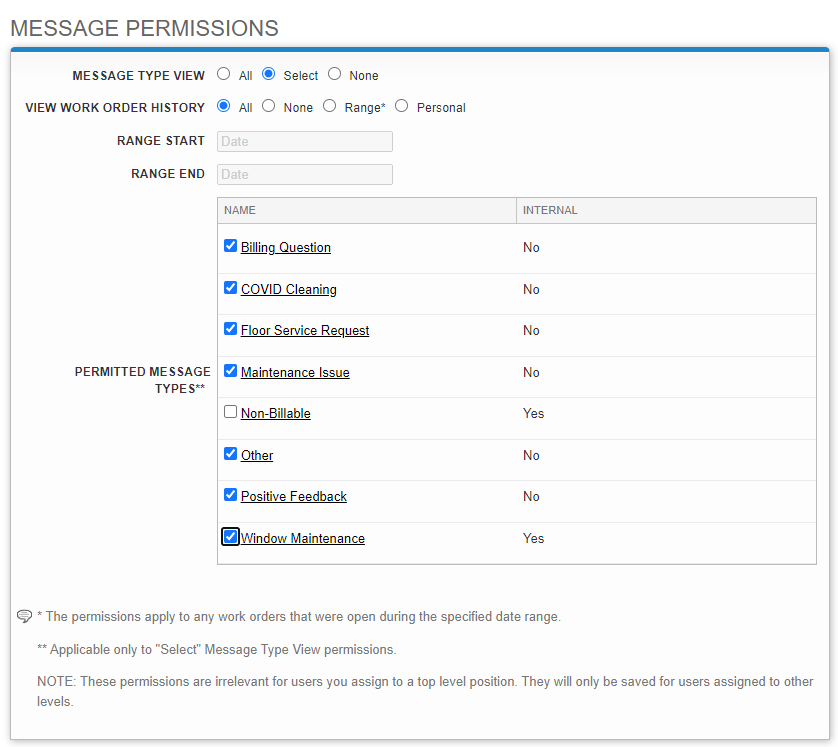
Any employee or contact user who can see the location, has permissions to view and/or edit work orders/messages but does NOT have permissions for the "Non-Billable" message type will not see that work order in their inbox and will not be able to reply to it unless an additional message type they do have permissions for is also applied. To implement this limitation do the following:
1. Navigate to the Employee or Contact user's record
2. Click **Edit** next to the Main Information header
3. Scroll to the **Message Permissions** section
4. Change the Message Type View to **Select**
5. Check the boxes next to the message types you want them to have assigned to them
6. Click **Save**
****
Message types can be automatically associated with the following work order creation origins:
1. Mobile Surveys
2. Inspections
3. Job Schedules
4. Client Surveys
## Conclusion
Work orders/messages can be auto-assigned or manually assigned based on:
1. Positions of the user and locations
2. Manually selecting users to assign when manually creating the work order/message
3. Manually or automatically selecting/assigning a message type and choosing who should be assigned work orders based on those message types.
- [Otuvy QM - Getting Started](https://help.otuvy.com/kb/otuvy-qm-getting-started?hsLang=en)
- [Otuvy QM - Setup & Administration](https://help.otuvy.com/kb/otuvy-qm-setup-administration?hsLang=en)
- [Otuvy QM - Contact Access](https://help.otuvy.com/kb/otuvy-qm-contact-access?hsLang=en)
- [Otuvy QM - Inspections](https://help.otuvy.com/kb/otuvy-qm-inspections?hsLang=en)
- [Otuvy QM - Work Orders](https://help.otuvy.com/kb/otuvy-qm-work-orders?hsLang=en)
- [Otuvy QM - Mobile App](https://help.otuvy.com/kb/otuvy-qm-mobile-app?hsLang=en)
- [Otuvy QM - Reports & Dashboards](https://help.otuvy.com/kb/otuvy-qm-reports-dashboards?hsLang=en)
- [Otuvy QM - Advanced Features](https://help.otuvy.com/kb/otuvy-qm-advanced-features?hsLang=en)
- [Otuvy Frontline](https://help.otuvy.com/kb/otuvy-frontline?hsLang=en#main-content)
- [Getting Started](https://help.otuvy.com/kb/otuvy-frontline?hsLang=en#getting-started)
- [Mobile App](https://help.otuvy.com/kb/otuvy-frontline?hsLang=en#mobile-app)
- [Admin Portal](https://help.otuvy.com/kb/otuvy-frontline?hsLang=en#admin-portal)
- [Uncategorized](https://help.otuvy.com/kb/uncategorized?hsLang=en)
[](https://www.otuvy.com/)
[mailto:email@email.com](mailto:email@email.com)
Copyright © 2026, Otuvy, Inc.