---
title: Manage Tasks in Otuvy Frontline Mobile
description: "Learn how to manage tasks in Otuvy Frontline Mobile: assign, set due dates and repeats, add notes and photos, and bulk-select tasks."
---
[Skip to content](https://help.otuvy.com/kb/manage-tasks-in-otuvy-frontline-mobile#main-content)
[More support](https://help.otuvy.com/kb/kb-tickets/new?hsLang=en)

Open main navigation
Close main navigation
- [More support](https://help.otuvy.com/kb/kb-tickets/new)
- [Contact us](mailto:vip@otuvy.com)
[Contact us](mailto:vip@otuvy.com)
How can we help you?
- There are no suggestions because the search field is empty.
1. [Otuvy Knowledge Base](https://help.otuvy.com/kb?hsLang=en)
2. [Otuvy Frontline](https://help.otuvy.com/kb/otuvy-frontline?hsLang=en)
3. [Mobile App](https://help.otuvy.com/kb/otuvy-frontline?hsLang=en#mobile-app)
# Manage Tasks in Otuvy Frontline Mobile
Manage Tasks in Otuvy Frontline Mobile
Once you have a list populated with tasks you may want to assign the tasks, set reminders/due dates, and even set some tasks as repeating.
> 
>
> To learn about creating task lists, see [Creating Lists in Otuvy Frontline Mobile](https://help.otuvy.com/kb/creating-lists-in-otuvy-frontline-mobile?hsLang=en)
Task Basics
Every task that you create have the following items in common with each other.
### Task Details Page
Tap on a task title in your list to see that task's details page:
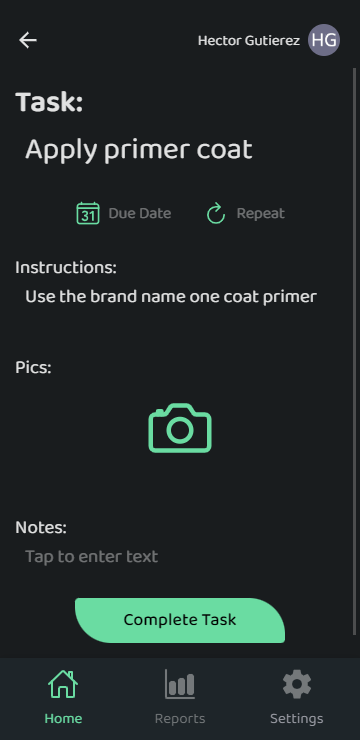
1. **Assignment Icon:** Unassigned tasks will have the **+Person** button but tasks already assigned will have that employee's name and profile photo or initials listed at the top of the task.
2. **Task:** This is the name of the task
3. **Due Date and Repeat:** This is optional and can be set on any task individually from the task details page
4. **Date:** Pick the day you want this task completed from the calendar provided
5. **Time:** This optional field specifies what time of the day you want the task completed by
6. **Time Zone:** By default this is set to your time zone and will translate the time into other users' time zones appropriately
7. If you want to change the time zone, tap the **Globe** icon
8. **Repeat:** You can set the task to repeat periodically
9. If you don't set a due date, setting a repeat value will use today's date as the start of the series of repeating tasks
10. Repeating tasks will only display in the list for the next task that is due. This means that if that task is not completed on time, the old task will disappear and the new task will appear in its place
11. Missed or incomplete repeating tasks can be reviewed in the Completion Report. See [Reporting in Otuvy Frontline Mobile](https://help.otuvy.com/kb/reporting-in-otuvy-frontline-mobile?hsLang=en)
12. **Clear:** This allows you to clear your due date and repeating settings and start over without closing this window.
13. **Cancel:** This will clear and exit from the Due Date window without saving your changes
14. **Done:** Save the changes and go back to the Task Details page 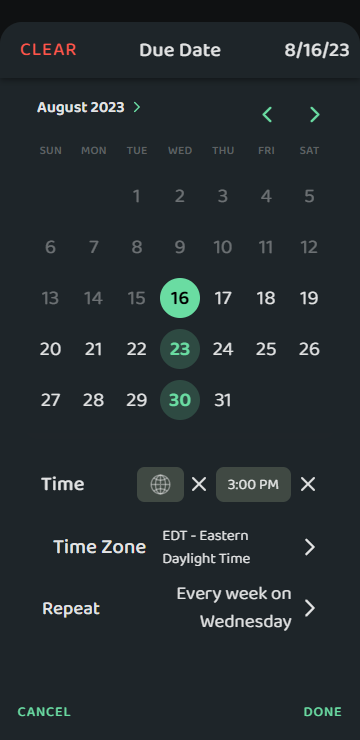
15. **Instructions:** This field can be filled by the list owner and is a great way to give instructions to the employees completing the task
16. **Pics:** Pictures can be uploaded to the task to show what needs to be done as well as what has been completed
17. **Notes:** This is a great way for the employees assigned to a task to communicate with the list owner. There is also an option to add these notes to the final completion report
18. **Complete Task:** If you are reviewing a task you have completed and entered all your notes and pictures, you can tap this button to report the completion of the task
Tap the back arrow at the top to exit the Task Details page.
### Task Drawer Menu
From the tasks page, list owners can swipe a task to the left to see 2 buttons revealed, kind of like opening a drawer.
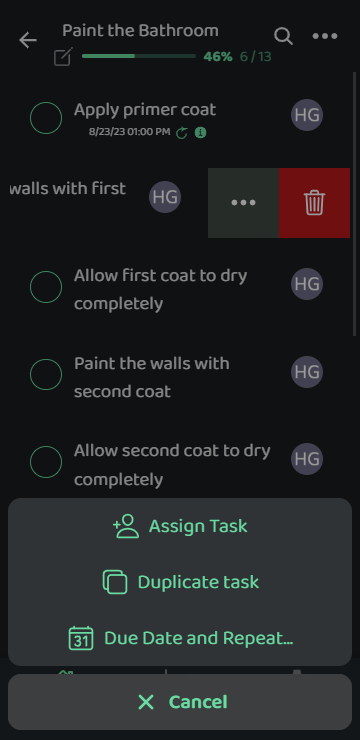
1. **Delete:** This is the red trash can. If you tap this you will be asked to confirm if you want to delete the list.
2. **Ellipses:** These are the 3 dots. In this menu item you can:
3. **Assign Task:** Assign the task to an employee
4. This will make the list show up in other people's lists page if they don't already see it
5. **Duplicate Task:** This will make a copy of the task in the same list
6. **Due Date and Repeat...:** This will allow you to set the due date and repeating sequence for this task
Searching for and Pinning Users
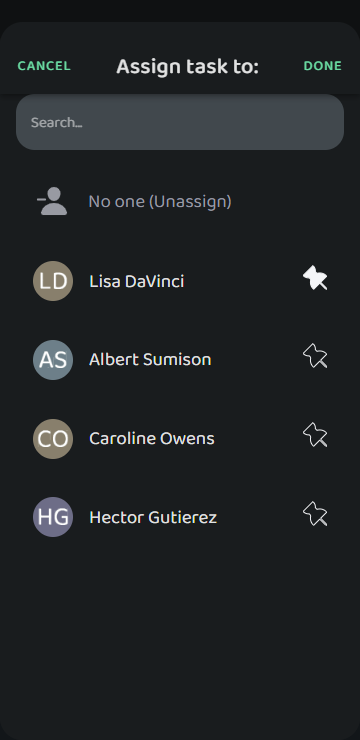
When assigning or sharing lists and tasks to users the **Assign task to**, **Assign list to**, and **Share list with** pages will sort the users in your company alphabetically. You can search these pages to find the needed users. If you have a team of users you frequently assign tasks to or share lists with, you may benefit from pinning the user. Doing this will keep them at the top of the list. To do this when sharing or assigning a list/task:
1. Find the users you frequently assign/share lists and tasks with
2. Tap the **Pin** icon next to their name
3. Tap **Done**
**** Assigning Full Lists
From the home screen, you can assign all the tasks in a list to a single person. Do this by:
1. Swipe left on the list title you wish to assign
2. Tap the ellipses (**…**) button that appears
3. Tap **Assign List**
4. Select the person you want to assign the list to
5. Tap **Done**
**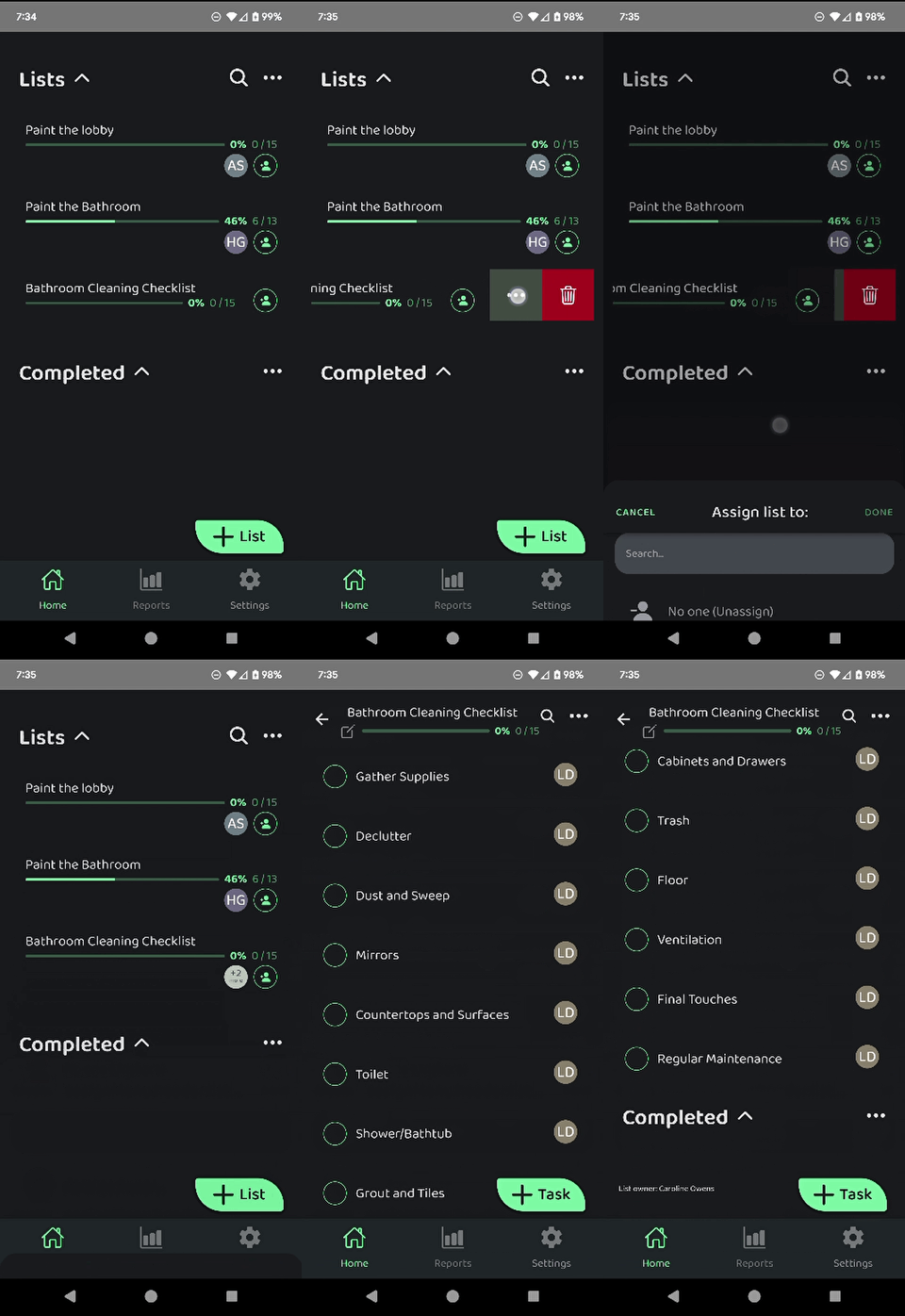**
> 
>
> Assigning a list to someone will overwrite any other assignments of the tasks within the list and reassign them to the person you select
Assigning Tasks
You can assign tasks one at a time, or in groups by selecting multiple tasks at a time before assigning them.
### One at a time
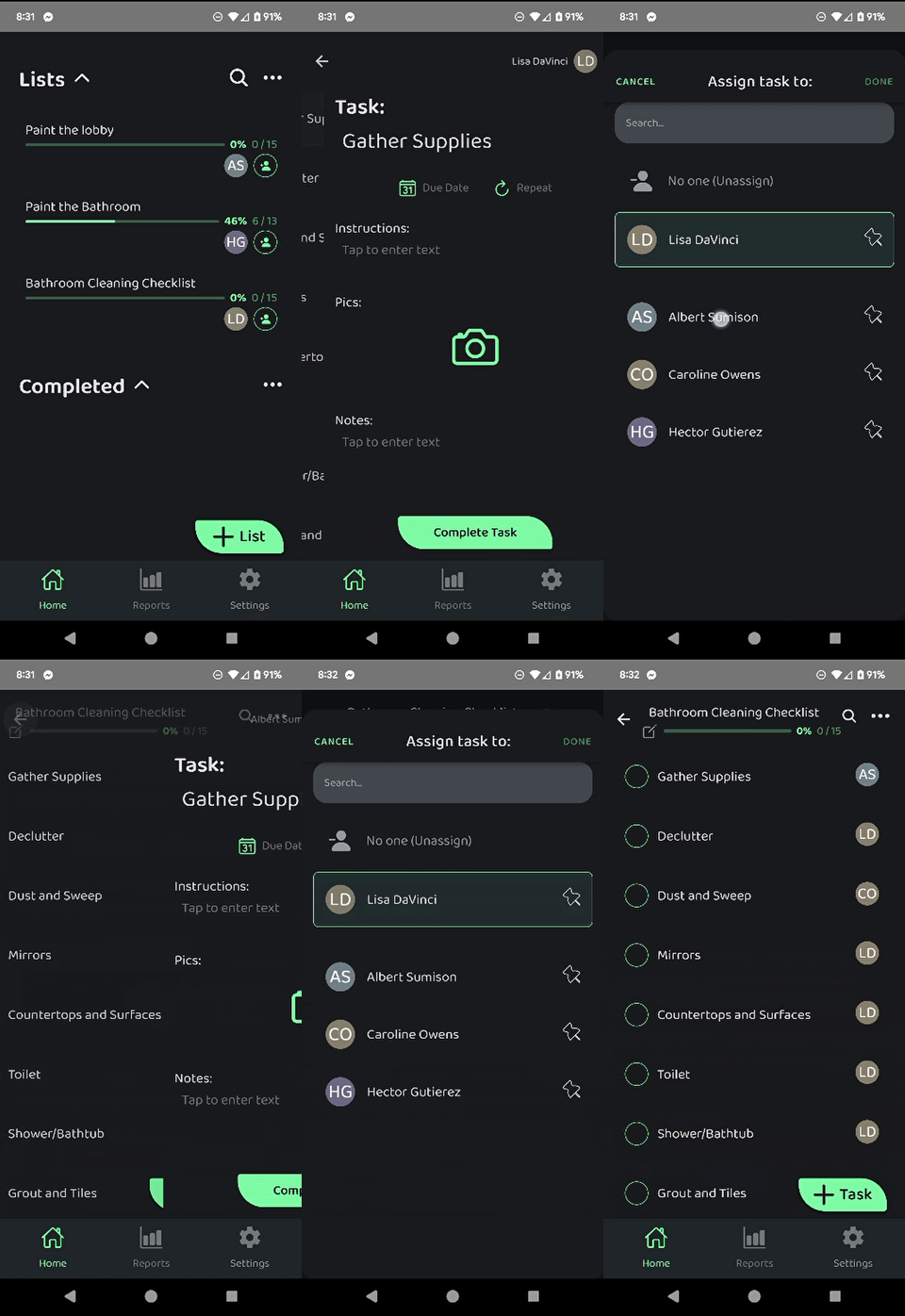
1. From either within a list or the task details page, tap on the assignment button.
2. If the task is not assigned to anyone then it will look like a +Person icon. If it is already assigned to someone it will have their profile picture or initials showing up
3. Select the individual responsible for completing the task by selecting their name.
4. If this task was already assigned, the currently assigned user will be highlighted green.
5. Assigning it to a different user will unassign it from the current user.
 Select Tasks
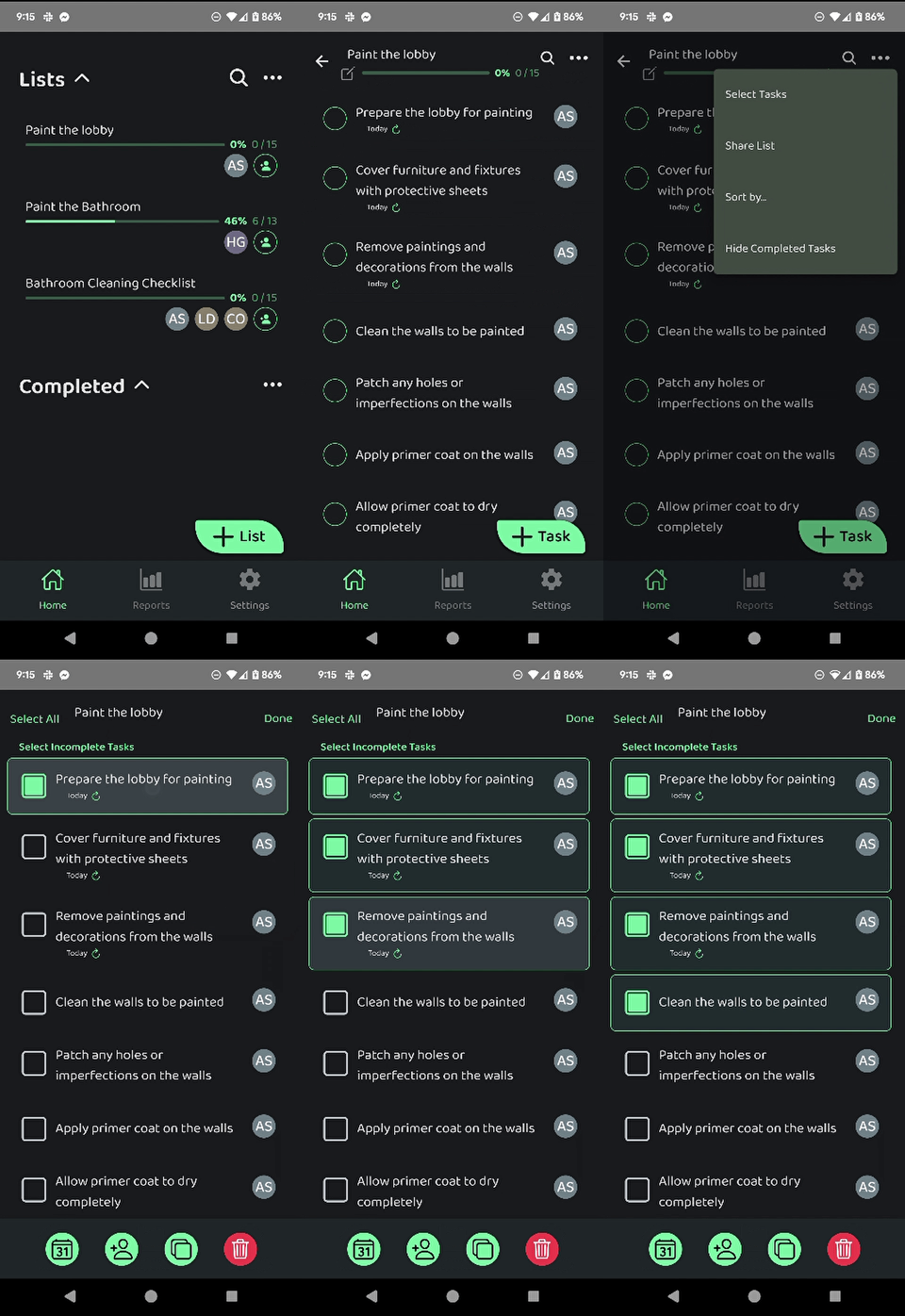
Using the **Select Tasks** tool you can assign, set the due date and repeating schedule, copy, and even delete multiple tasks all at once.
1. Navigate to the list you want to select tasks from
2. Tap the Ellipses menu (**...**) at the top of the screen
3. Tap **Select Tasks**
4. Select the tasks you want to manage by either:
5. Tap **Select All** to choose all the tasks in the list
6. Tap **Select Incomplete Tasks** to only select those tasks which are incomplete
7. Tap **Select Completed Tasks** to only select those tasks which are already completed
8. Tap the **Checkbox** next to individual tasks you wish to select
9. Choose what to do from the options across the bottom of the screen. From right to left they are:
10. **Due Date and Repeat**
11. **Assign Task**
12. **Copy Task**
13. **Delete Task**
- [Otuvy QM - Getting Started](https://help.otuvy.com/kb/otuvy-qm-getting-started?hsLang=en)
- [Otuvy QM - Setup & Administration](https://help.otuvy.com/kb/otuvy-qm-setup-administration?hsLang=en)
- [Otuvy QM - Contact Access](https://help.otuvy.com/kb/otuvy-qm-contact-access?hsLang=en)
- [Otuvy QM - Inspections](https://help.otuvy.com/kb/otuvy-qm-inspections?hsLang=en)
- [Otuvy QM - Work Orders](https://help.otuvy.com/kb/otuvy-qm-work-orders?hsLang=en)
- [Otuvy QM - Mobile App](https://help.otuvy.com/kb/otuvy-qm-mobile-app?hsLang=en)
- [Otuvy QM - Reports & Dashboards](https://help.otuvy.com/kb/otuvy-qm-reports-dashboards?hsLang=en)
- [Otuvy QM - Advanced Features](https://help.otuvy.com/kb/otuvy-qm-advanced-features?hsLang=en)
- [Otuvy Frontline](https://help.otuvy.com/kb/otuvy-frontline?hsLang=en#main-content)
- [Getting Started](https://help.otuvy.com/kb/otuvy-frontline?hsLang=en#getting-started)
- [Mobile App](https://help.otuvy.com/kb/otuvy-frontline?hsLang=en#mobile-app)
- [Admin Portal](https://help.otuvy.com/kb/otuvy-frontline?hsLang=en#admin-portal)
- [Uncategorized](https://help.otuvy.com/kb/uncategorized?hsLang=en)
[](https://www.otuvy.com/)
[mailto:email@email.com](mailto:email@email.com)
Copyright © 2026, Otuvy, Inc.