---
title: Navigating Dashboards in Otuvy QM
description: "Learn how to navigate Otuvy QM dashboards: use filters and tabs, switch between dashboard views, and set a primary dashboard for faster access to your data."
---
[Skip to content](https://help.otuvy.com/kb/navigating-dashboards-in-otuvy-qm#main-content)
[More support](https://help.otuvy.com/kb/kb-tickets/new?hsLang=en)

Open main navigation
Close main navigation
- [More support](https://help.otuvy.com/kb/kb-tickets/new)
- [Contact us](mailto:vip@otuvy.com)
[Contact us](mailto:vip@otuvy.com)
How can we help you?
- There are no suggestions because the search field is empty.
1. [Otuvy Knowledge Base](https://help.otuvy.com/kb?hsLang=en)
2. [Otuvy QM - Reports & Dashboards](https://help.otuvy.com/kb/otuvy-qm-reports-dashboards?hsLang=en)
# Navigating Dashboards in Otuvy QM
# Navigating Dashboards in Otuvy QM
## Accessing and Navigating Dashboards
When you click on the **Dashboards** tab, you are taken to the **Inspections Overview dashboard** by default. Each dashboard contains a combination of **charts, tables, and KPIs** to display key operational data.
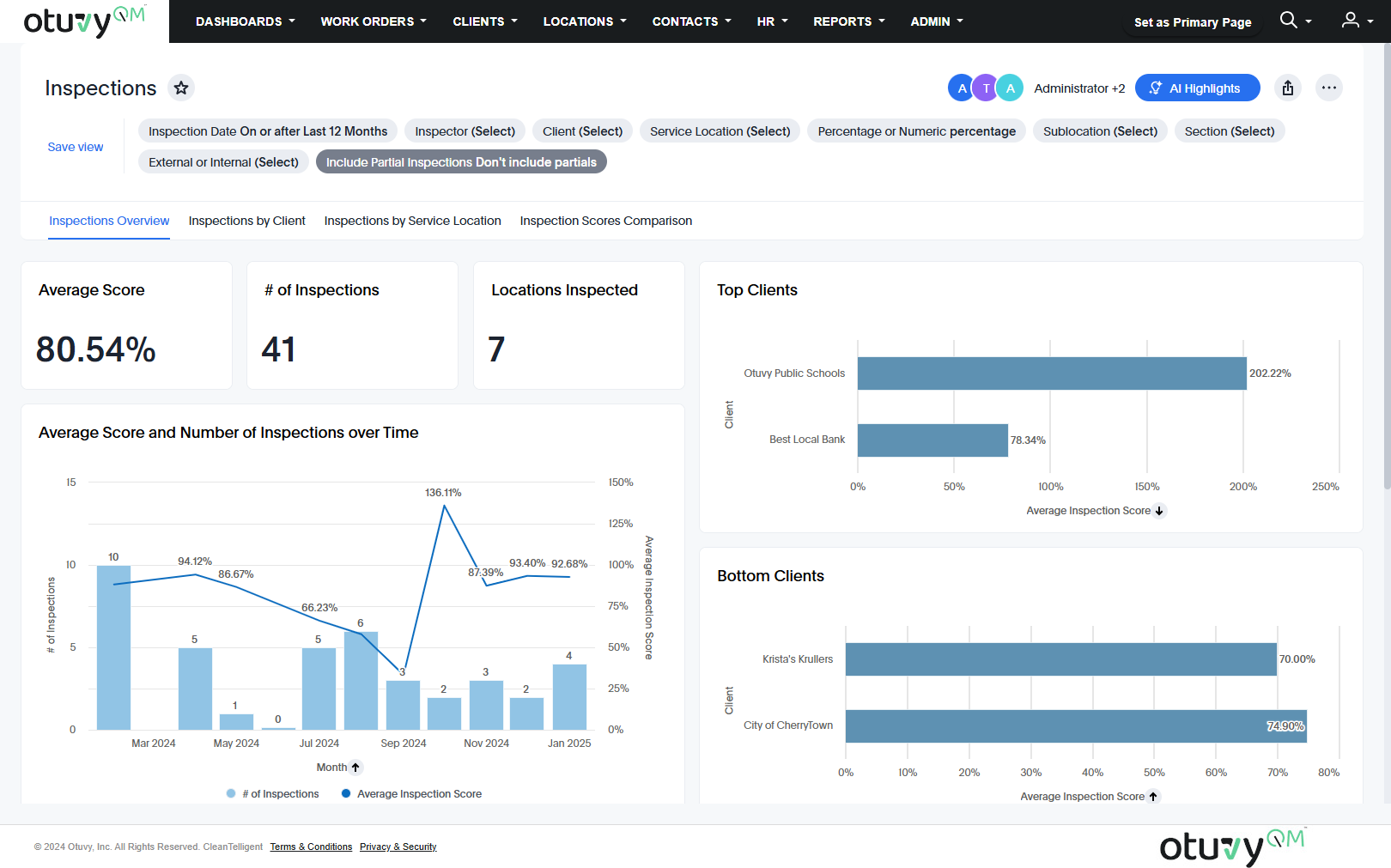
Across the **top of each dashboard**, you will see filters that allow you to adjust the displayed data.

Some of the most commonly used filters include:
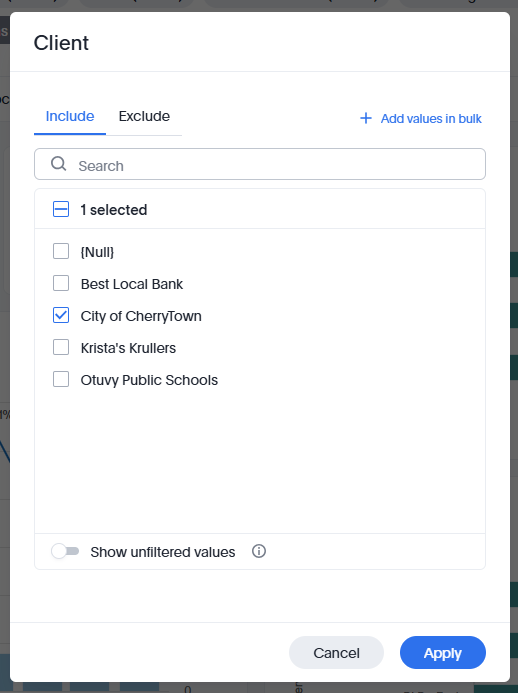
- **Clients** – Filter data based on specific clients.
- **Service Locations** – View data for specific locations.
- **Date Range** – Adjust reports to show data for a particular timeframe.
- **Inspectors** – Focus on inspections completed by certain team members.
- **Work Order Authors** – Identify reports by specific individuals.
The available filters vary based on the dashboard and the data it displays.
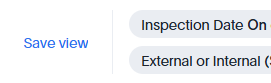
You can save these filtered settings for easy use by clicking **Save View** next to the filters.
## Dashboard Tabs
Some dashboards contain **tabs** located just under the filters but above the charts. These tabs help **organize data into different views**.
In our standard dashboards, tabs are structured to flow from:
1. **High-Level Overview** – A broad summary of all data.
2. **Client-Level Data** – Insights specific to a particular client.
3. **Service Location-Level Data** – More detailed breakdowns by location.
4. **Dashboard-specific Groupings of Data** – The tabs shown vary from one dashboard to another based on the type of information being shown.

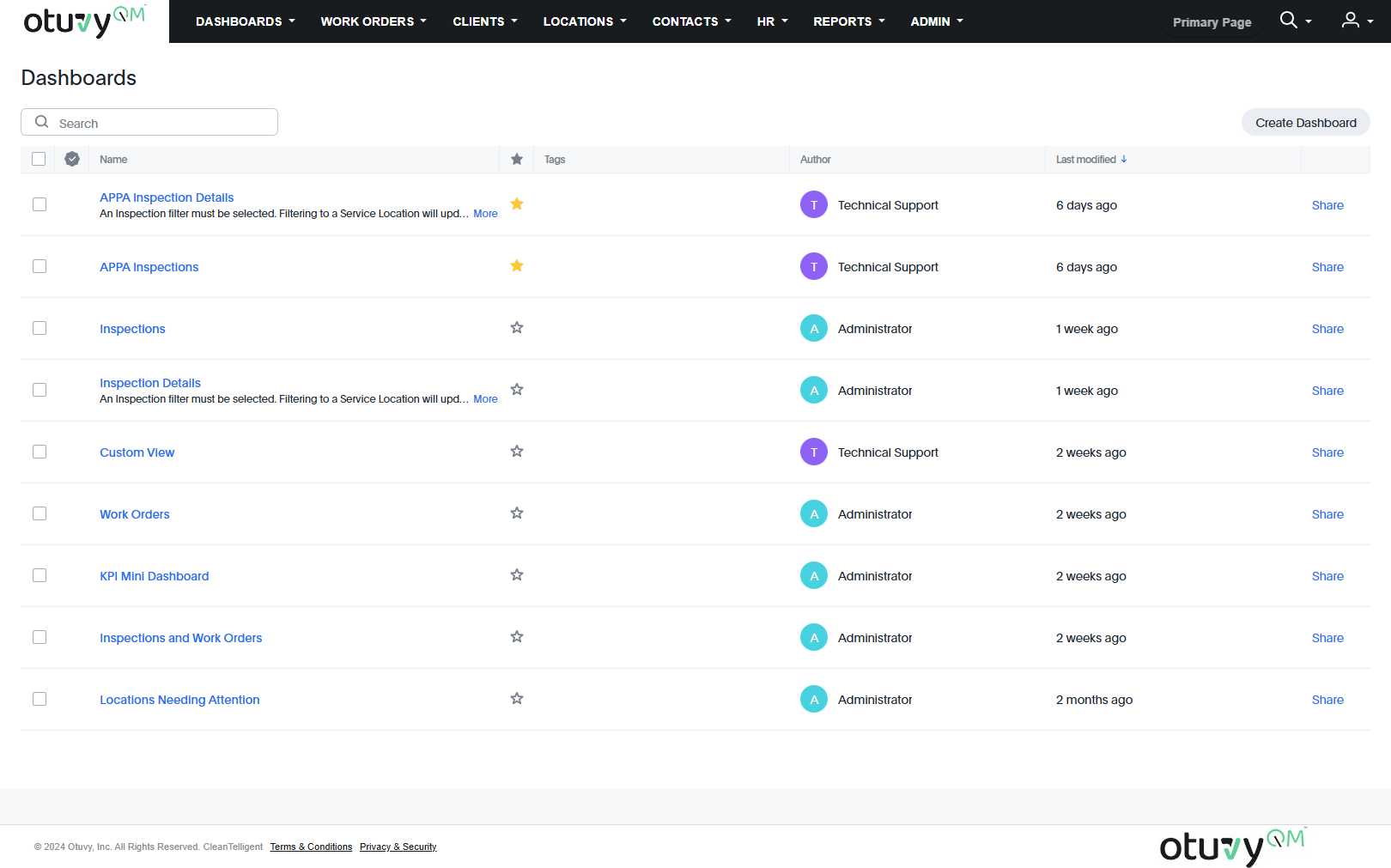
## Navigating the Collection of Dashboards
To switch between dashboards:
1. **Hover over the Dashboards menu item** at the top of the screen.
2. **Click on Collection** to open the full list of available dashboards. 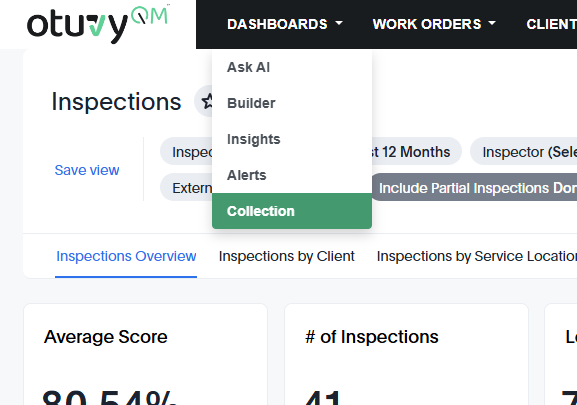
3. From the **Collection** page, you can:
- **Search** for a dashboard by name.
- **Click on a dashboard name** to navigate to it.
- **Star a dashboard** for quick access in the future.
- *(OI Platinum users only)* **Create or share custom dashboards**
## Standard Dashboards in Otuvy QM
### Inspections Dashboards
- **Inspections** – A broad overview of all inspections.
- **Inspection Details** – A more granular breakdown of individual inspections.
- **Locations Needing Attention** – Highlights locations requiring follow-up.
- **KPI Mini Dashboard** – Displays key performance indicators at a glance.
### Work Orders Dashboard
- **Work Orders** – Focuses on work order data, including statuses and trends.
### Combined Dashboard
- **Inspections and Work Orders** – A high-level summary of both inspections and work orders.
## Setting a Primary Dashboard
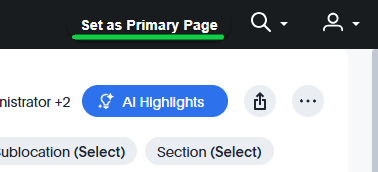
Users can **set a specific dashboard or the Collection page as their primary page** for easier access.
### How to Set a Primary Page
1. Navigate to the **dashboard** you use most frequently.
2. At the **top of the screen**, next to the search icon in the navigation bar, click **Set as Primary Page**
### Choosing Between a Dashboard or the Collection Page
- If you set a **specific dashboard**, clicking the Dashboards tab will take you directly there.
- If you set the **Collection page**, you will be taken to the list of dashboards instead.
This customization allows users to access the dashboards most relevant to their work efficiently.
---
This guide provides an overview of navigating Otuvy QM’s dashboards, using filters and tabs, switching between dashboards, and setting a preferred dashboard for quick access. If you have any questions, email [vip@otuvy.com or call our team at 801-874-3443 for further assistance!](mailto:vip@otuvy.com)
- [Otuvy QM - Getting Started](https://help.otuvy.com/kb/otuvy-qm-getting-started?hsLang=en)
- [Otuvy QM - Setup & Administration](https://help.otuvy.com/kb/otuvy-qm-setup-administration?hsLang=en)
- [Otuvy QM - Contact Access](https://help.otuvy.com/kb/otuvy-qm-contact-access?hsLang=en)
- [Otuvy QM - Inspections](https://help.otuvy.com/kb/otuvy-qm-inspections?hsLang=en)
- [Otuvy QM - Work Orders](https://help.otuvy.com/kb/otuvy-qm-work-orders?hsLang=en)
- [Otuvy QM - Mobile App](https://help.otuvy.com/kb/otuvy-qm-mobile-app?hsLang=en)
- [Otuvy QM - Reports & Dashboards](https://help.otuvy.com/kb/otuvy-qm-reports-dashboards?hsLang=en)
- [Otuvy QM - Advanced Features](https://help.otuvy.com/kb/otuvy-qm-advanced-features?hsLang=en)
- [Otuvy Frontline](https://help.otuvy.com/kb/otuvy-frontline?hsLang=en#main-content)
- [Getting Started](https://help.otuvy.com/kb/otuvy-frontline?hsLang=en#getting-started)
- [Mobile App](https://help.otuvy.com/kb/otuvy-frontline?hsLang=en#mobile-app)
- [Admin Portal](https://help.otuvy.com/kb/otuvy-frontline?hsLang=en#admin-portal)
- [Uncategorized](https://help.otuvy.com/kb/uncategorized?hsLang=en)
[](https://www.otuvy.com/)
[mailto:email@email.com](mailto:email@email.com)
Copyright © 2026, Otuvy, Inc.