---
title: Navigating Lists with QR Codes in Otuvy Frontline
description: Learn how to print and scan QR codes in Otuvy Frontline to quickly share checklists with employees via the mobile app.
---
[Skip to content](https://help.otuvy.com/kb/navigating-lists-with-qr-codes-in-otuvy-frontline#main-content)
[More support](https://help.otuvy.com/kb/kb-tickets/new?hsLang=en)

Open main navigation
Close main navigation
- [More support](https://help.otuvy.com/kb/kb-tickets/new)
- [Contact us](mailto:vip@otuvy.com)
[Contact us](mailto:vip@otuvy.com)
How can we help you?
- There are no suggestions because the search field is empty.
1. [Otuvy Knowledge Base](https://help.otuvy.com/kb?hsLang=en)
2. [Otuvy Frontline](https://help.otuvy.com/kb/otuvy-frontline?hsLang=en)
3. [Admin Portal](https://help.otuvy.com/kb/otuvy-frontline?hsLang=en#admin-portal)
# Navigating Lists with QR Codes in Otuvy Frontline
# Navigating Lists with QR Codes in Otuvy Frontline
Using Otuvy Frontline's QR Code functionality can speed up your performance and make it easier for your employees to find the right list they need to work on. A great example of this is a bathroom cleaning checklist. You can put up the QR code and let your employees do the rest from the mobile app.
> 
>
> Even though it takes an admin user to print the codes, once they are printed, any user on your account can scan the QR cod. The list will be shared with them and they'll be ready to go. You don't need to assign your lists to everyone in your company. If someone is stepping into a new role or is covering for someone else's shift, just have them scan these QR codes and the list of responsibilities will be shared with them.
## Printing QR Codes
Otuvy Frontline Admins can print QR codes tied to the lists already in the system directly from the Otuvy Frontline Admin Portal. Administrators can select lists, generate QR codes for them, and print them in batches.
1. Login to [https://admin.otuvyfrontline.com](https://admin.otuvyfrontline.com)
2. Click **Lists** from the navigation menu
3. Select **View** from the options to view all the lists in Otuvy Frontline 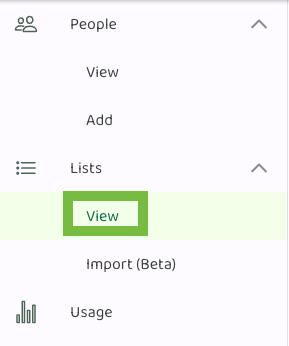
4. **Scroll** through this list to see the names, details, and owners of each list 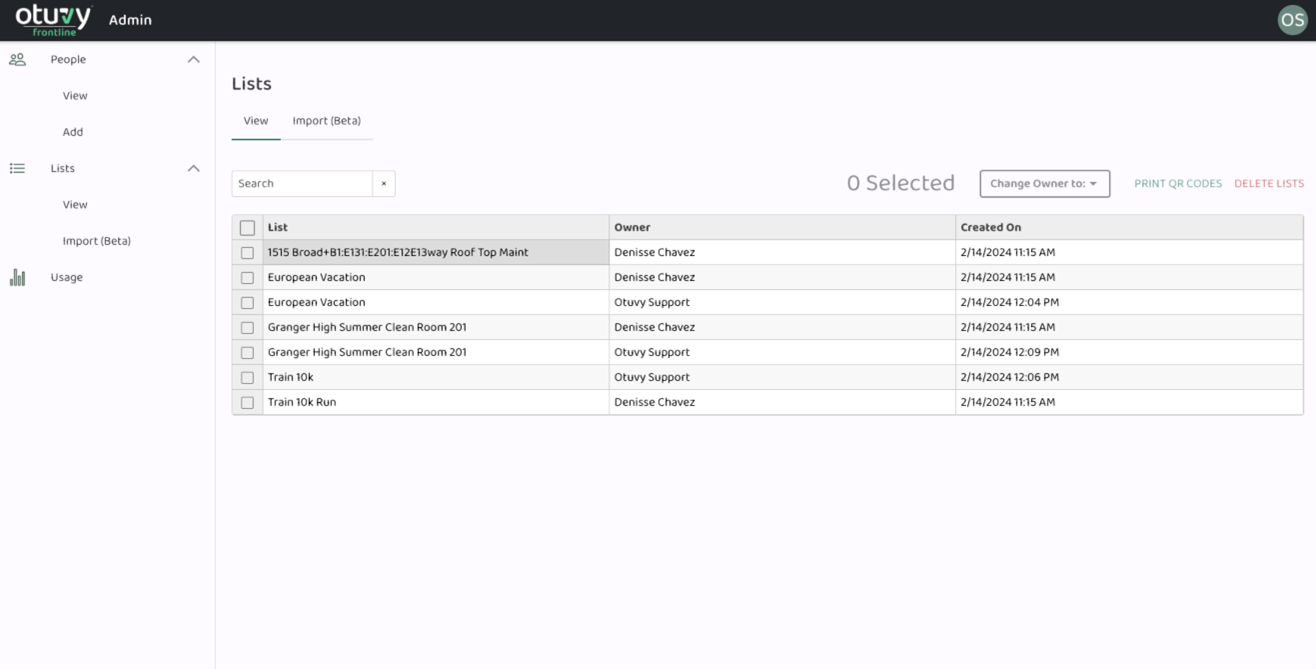
5. **Check** the box next to the list(s) for which you want to print QR codes 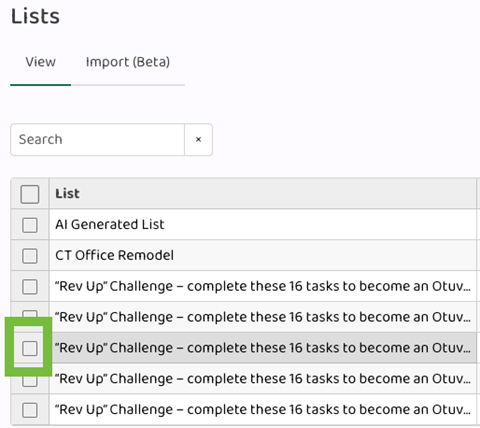
6. Click **Print QR Code** in the top right corner 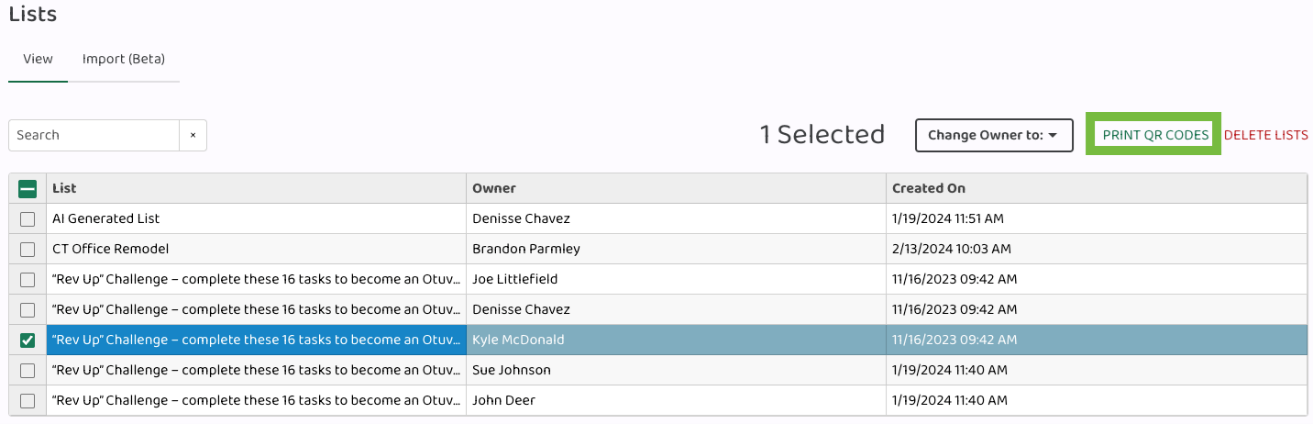
7. Choose the **QR Code Size** you want, **Small**, **Medium**, or **Large** 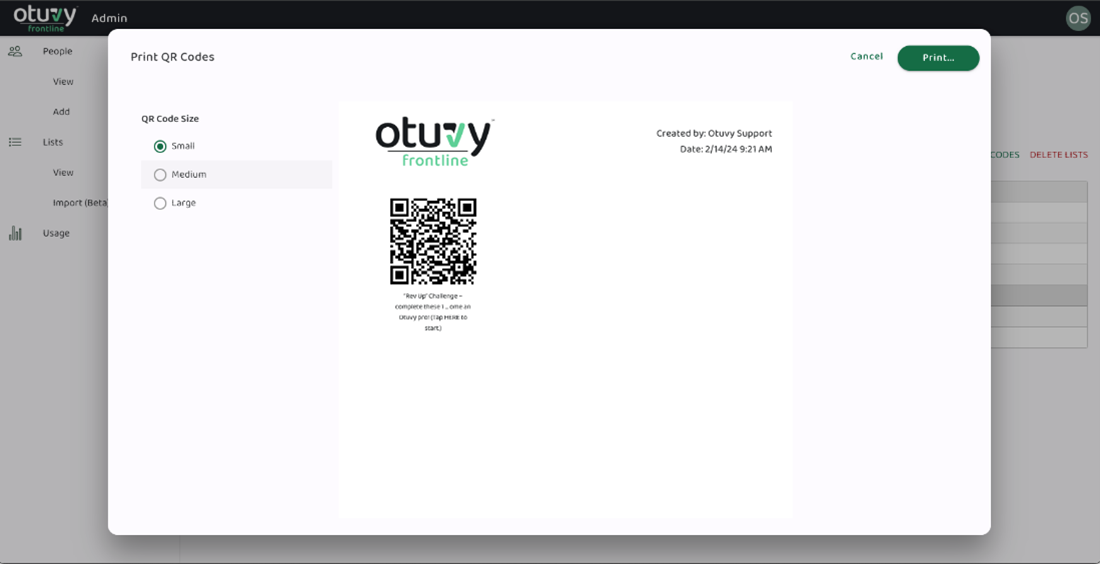
8. Click **Print**
After you've printed the codes, you can distribute them as needed. Don't worry, anyone who doesn't have a login on your Otuvy Frontline account won't be able to scan these codes.
## Scanning QR Codes
Once you have printed off the QR code(s), you or any of your users can login to the Otuvy Frontline Mobile App to scan the QR codes
1. Tap the **three dots** in the top right corner next to the search icon 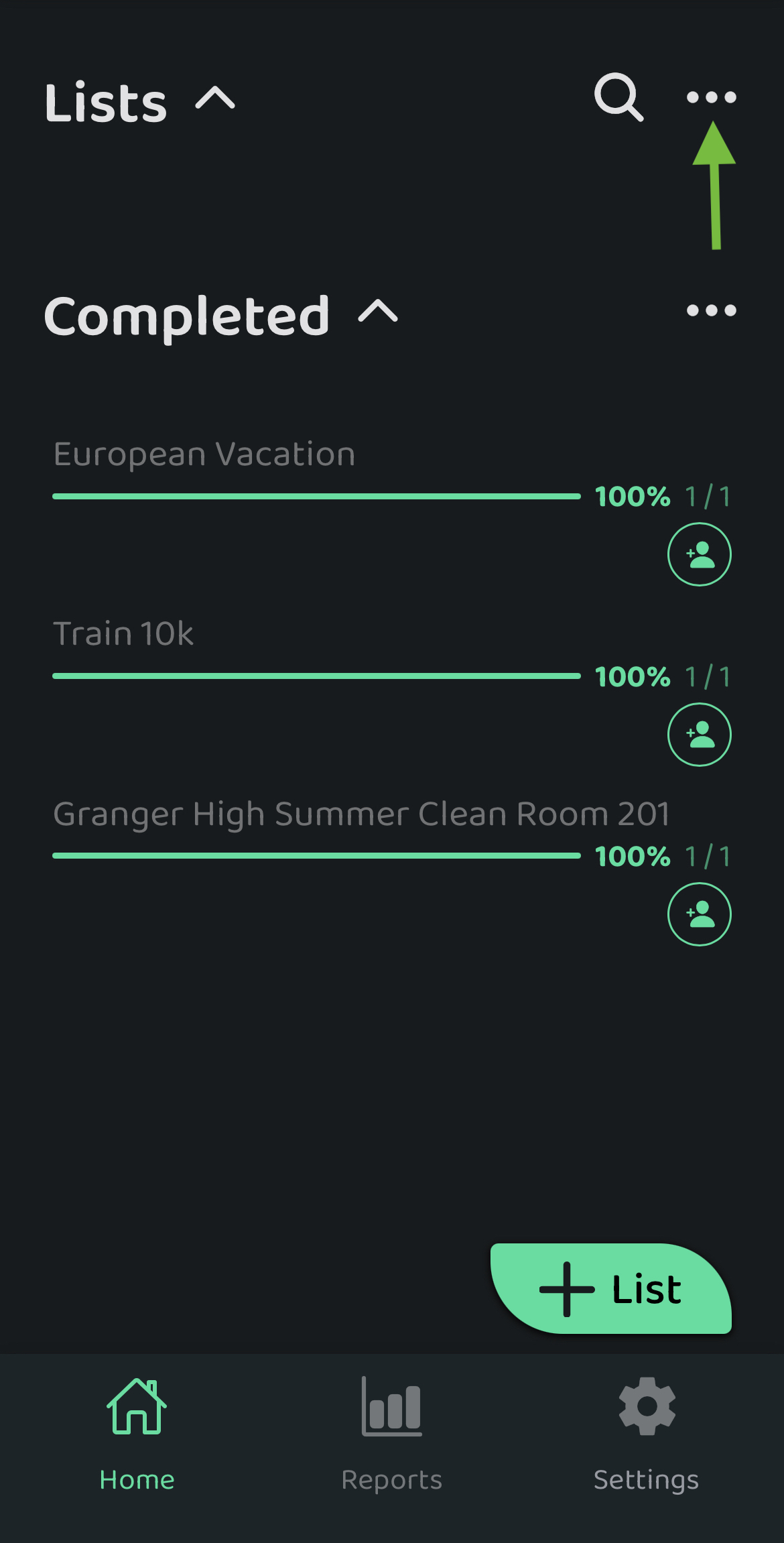
2. From these options, choose **Scan QR Codes** 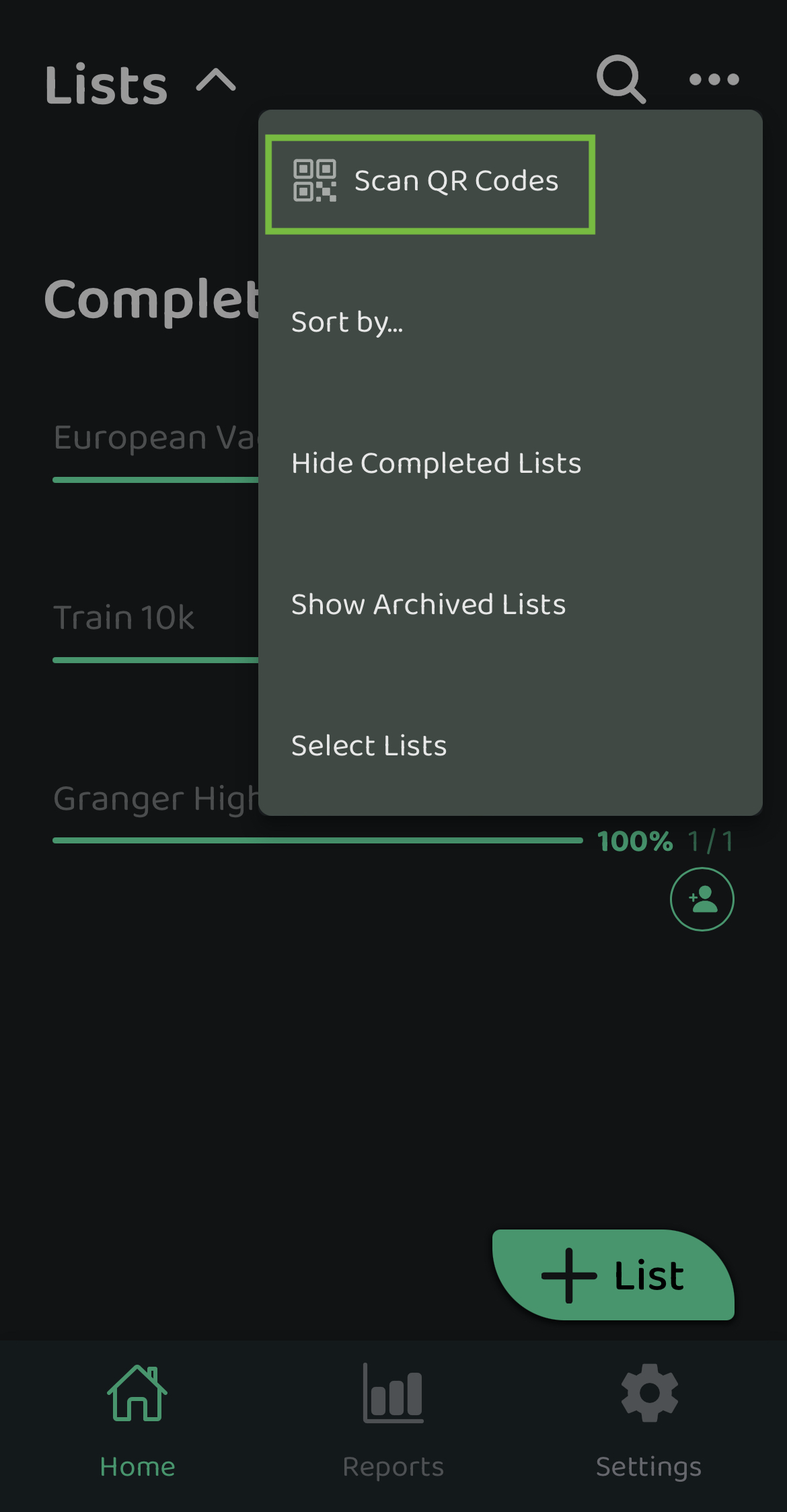
3. Finally, **scan** the appropriate QR Code to bring up the intended list
- [Otuvy QM - Getting Started](https://help.otuvy.com/kb/otuvy-qm-getting-started?hsLang=en)
- [Otuvy QM - Setup & Administration](https://help.otuvy.com/kb/otuvy-qm-setup-administration?hsLang=en)
- [Otuvy QM - Contact Access](https://help.otuvy.com/kb/otuvy-qm-contact-access?hsLang=en)
- [Otuvy QM - Inspections](https://help.otuvy.com/kb/otuvy-qm-inspections?hsLang=en)
- [Otuvy QM - Work Orders](https://help.otuvy.com/kb/otuvy-qm-work-orders?hsLang=en)
- [Otuvy QM - Mobile App](https://help.otuvy.com/kb/otuvy-qm-mobile-app?hsLang=en)
- [Otuvy QM - Reports & Dashboards](https://help.otuvy.com/kb/otuvy-qm-reports-dashboards?hsLang=en)
- [Otuvy QM - Advanced Features](https://help.otuvy.com/kb/otuvy-qm-advanced-features?hsLang=en)
- [Otuvy Frontline](https://help.otuvy.com/kb/otuvy-frontline?hsLang=en#main-content)
- [Getting Started](https://help.otuvy.com/kb/otuvy-frontline?hsLang=en#getting-started)
- [Mobile App](https://help.otuvy.com/kb/otuvy-frontline?hsLang=en#mobile-app)
- [Admin Portal](https://help.otuvy.com/kb/otuvy-frontline?hsLang=en#admin-portal)
- [Uncategorized](https://help.otuvy.com/kb/uncategorized?hsLang=en)
[](https://www.otuvy.com/)
[mailto:email@email.com](mailto:email@email.com)
Copyright © 2026, Otuvy, Inc.