---
title: Otuvy Frontline Mobile App Settings
description: "Learn how to configure Otuvy Frontline Mobile app settings: notifications, location, profile picture, language, and account deletion."
---
[Skip to content](https://help.otuvy.com/kb/otuvy-frontline-mobile-app-settings#main-content)
[More support](https://help.otuvy.com/kb/kb-tickets/new?hsLang=en)

Open main navigation
Close main navigation
- [More support](https://help.otuvy.com/kb/kb-tickets/new)
- [Contact us](mailto:vip@otuvy.com)
[Contact us](mailto:vip@otuvy.com)
How can we help you?
- There are no suggestions because the search field is empty.
1. [Otuvy Knowledge Base](https://help.otuvy.com/kb?hsLang=en)
2. [Otuvy Frontline](https://help.otuvy.com/kb/otuvy-frontline?hsLang=en)
3. [Mobile App](https://help.otuvy.com/kb/otuvy-frontline?hsLang=en#mobile-app)
# Otuvy Frontline Mobile App Settings
Otuvy Frontline Mobile App Settings
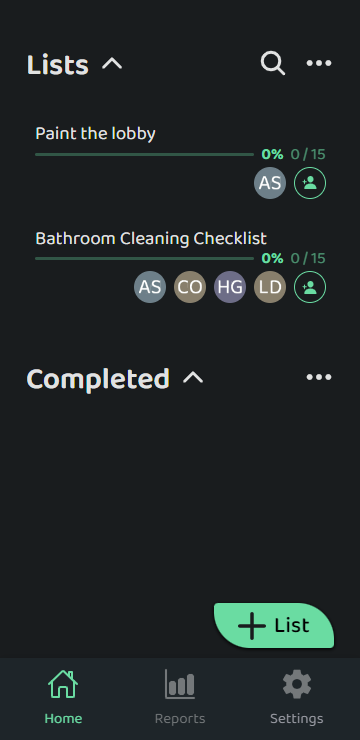
To open the Settings side panel in Otuvy Frontline Mobile, tap on the **Settings** cog icon at the bottom of the app’s screen.
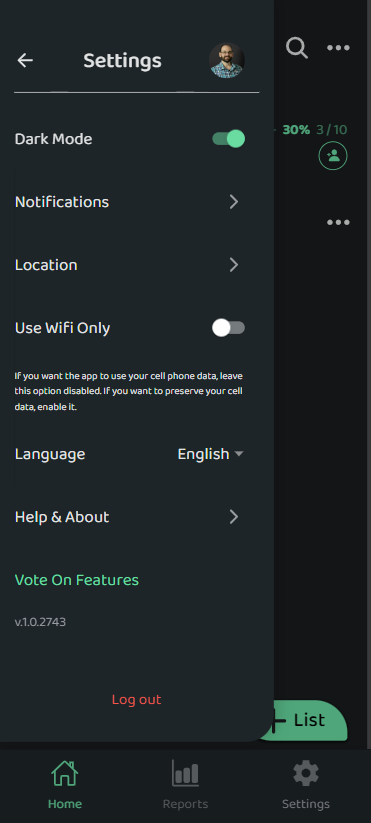
From the Settings side panel, you can:
1. Change your **Profile Picture**
2. Toggle **Light** or **Dark Mode**
3. Manage **Notifications** settings
4. Manage **Location** settings
5. Decide to **Use Wifi Only**
6. If you want the app to use your cell phone data, leave this option disabled. If you want to preserve your cell data, enable it.
7. Set the **Language** of your user interface. All lists, tasks, and notes will be translated automatically from a supported language to your own. Available languages are
8. **English**
9. **Spanish**
10. **French**
11. **Portuguese**
12. Navigate our **Help and About** section to review:
13. **Frequently Asked Questions**
14. **Terms and Conditions**
15. **Privacy Policy**
16. **Give your Feedback**
17. **Delete my account**
18. **Vote on Features**
19. **Log Out**
20. You can also see your app version number from the Settings side panel.
 Set Your Profile Picture
Open the **Settings** side panel in the mobile app to set your Profile Picture:
1. Tap on your **Profile Picture** or **Initials** at the top of the Settings side panel
2. Tap **Change** to take a new picture or **Remove** to delete your current picture 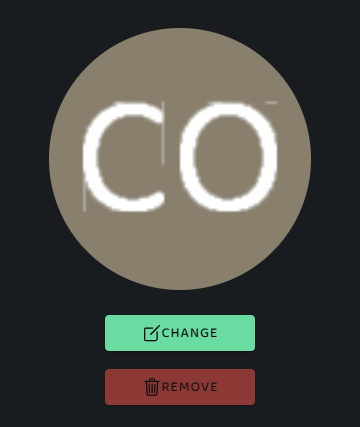
3. After you tap **Change** you can take a picture using your camera
4. Resize, position, and crop the picture 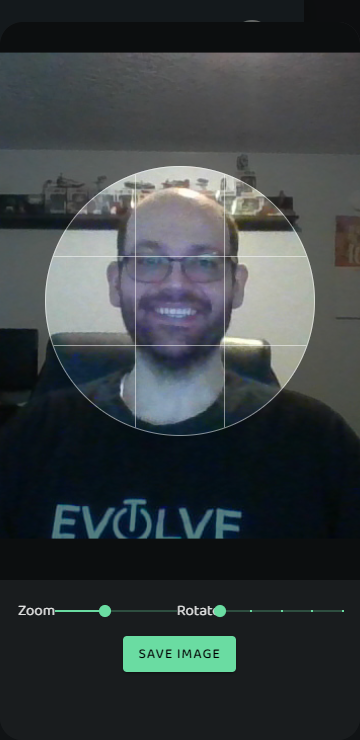
5. Tap **Save Image**
Your Profile Picture will now show at the top of the Settings side panel, beneath any lists where you are assigned tasks, and directly on any tasks you have been assigned.
 Notification Settings
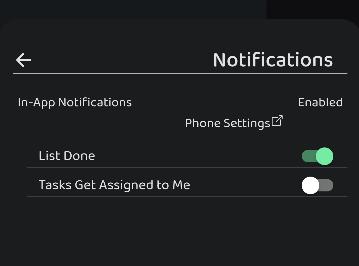
You can chose which events send push notifications to your phone.
1. **List Done** will send you a notification whenever one of your lists have been completed (recommended for supervisors)
2. **Tasks Get Assigned to Me** will send you a notification whenever a task has been assigned to you (recommended for employees)
3. **Phone Settings** will take you to your app settings in your phone's system. This is where you can enable In-App Notifications if they are turned off in the phone settings.
 Location Settings
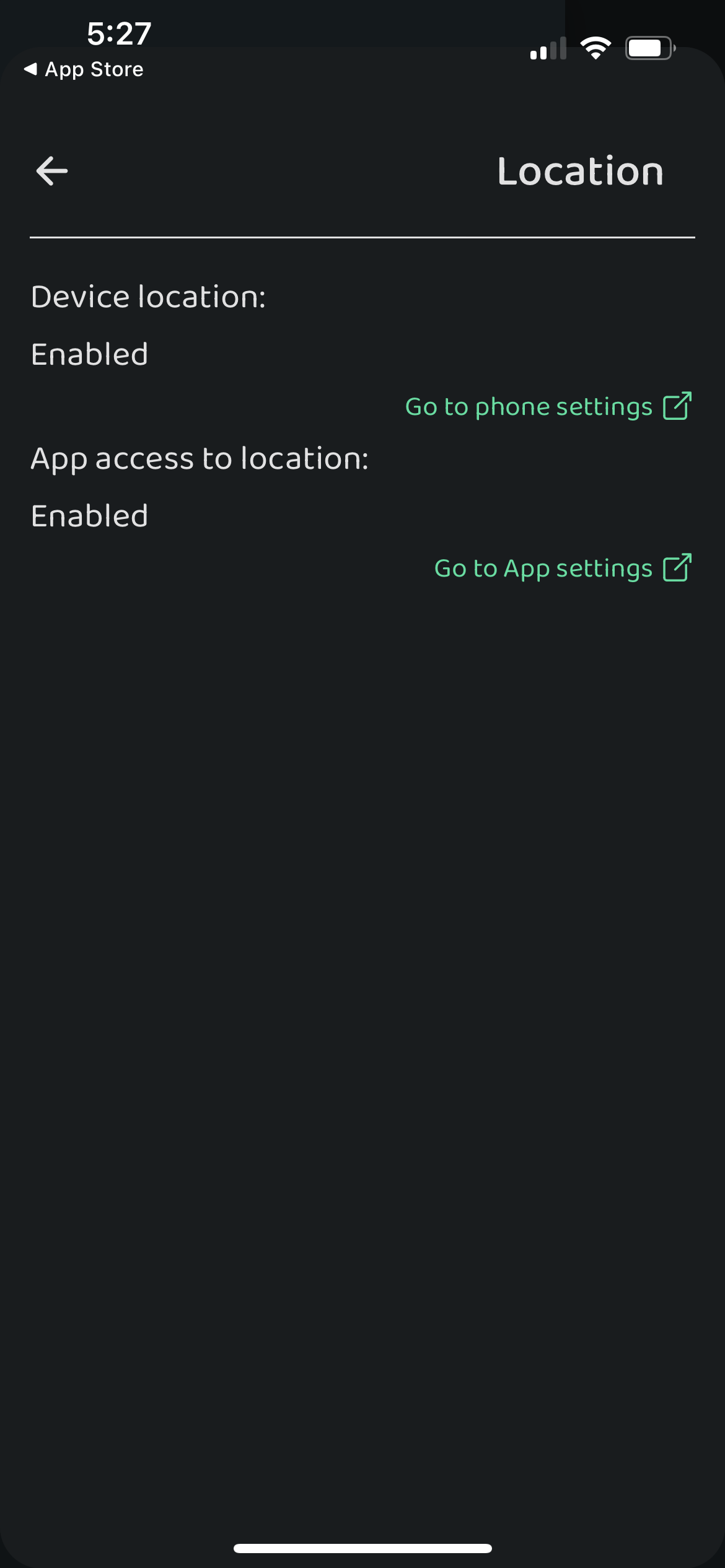
By allowing location settings, the tasks you complete will have geolocation information tied to them. This information can be reported on in both the Completion report and Employee Scorecard Report
 Delete My Account
You can request that your Otuvy Frontline account be deleted.
> This refers to your personal login access to Otuvy.
> You can uninstall the Otuvy Frontline Mobile app without deleting your account
> If you Delete your account, you will no longer be able to:
>
> 1. Log in to the account
> 2. Access your Lists and Tasks
> 3. Use the Otuvy Frontline app or admin portal
To request your Otuvy Frontline account be deleted:
1. Tap on the **Settings** cog icon
2. Tap on **Help and About**
3. Tap on **Delete my account** at the bottom of the screen
You will be prompted to confirm you wish to delete your account
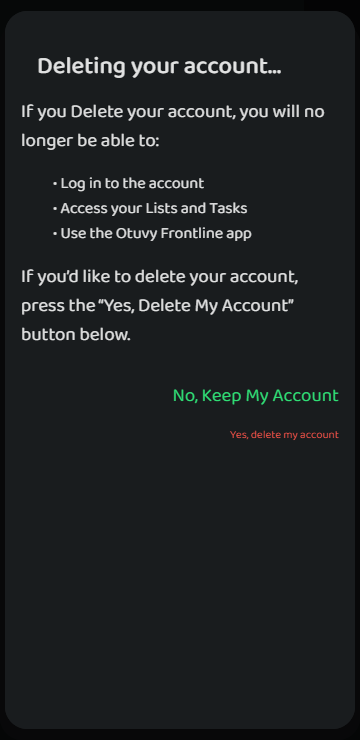
If you choose **No, Keep My Account** you will be taken back to the Help and About screen. If you choose **Yes, delete my account** an email will be sent to [vip@otuvy.com to confirm your account deletion with your Super-Admin and Admins. They will be able to log into the Admin Portal to delete your account.](mailto:vip@otuvy.com)
> To learn more about deleting individual users, see [Edit Users in Otuvy Frontline](https://help.cleantelligent.com/portal/en/kb/articles/edit-users-in-otuvy-frontline)
- [Otuvy QM - Getting Started](https://help.otuvy.com/kb/otuvy-qm-getting-started?hsLang=en)
- [Otuvy QM - Setup & Administration](https://help.otuvy.com/kb/otuvy-qm-setup-administration?hsLang=en)
- [Otuvy QM - Contact Access](https://help.otuvy.com/kb/otuvy-qm-contact-access?hsLang=en)
- [Otuvy QM - Inspections](https://help.otuvy.com/kb/otuvy-qm-inspections?hsLang=en)
- [Otuvy QM - Work Orders](https://help.otuvy.com/kb/otuvy-qm-work-orders?hsLang=en)
- [Otuvy QM - Mobile App](https://help.otuvy.com/kb/otuvy-qm-mobile-app?hsLang=en)
- [Otuvy QM - Reports & Dashboards](https://help.otuvy.com/kb/otuvy-qm-reports-dashboards?hsLang=en)
- [Otuvy QM - Advanced Features](https://help.otuvy.com/kb/otuvy-qm-advanced-features?hsLang=en)
- [Otuvy Frontline](https://help.otuvy.com/kb/otuvy-frontline?hsLang=en#main-content)
- [Getting Started](https://help.otuvy.com/kb/otuvy-frontline?hsLang=en#getting-started)
- [Mobile App](https://help.otuvy.com/kb/otuvy-frontline?hsLang=en#mobile-app)
- [Admin Portal](https://help.otuvy.com/kb/otuvy-frontline?hsLang=en#admin-portal)
- [Uncategorized](https://help.otuvy.com/kb/uncategorized?hsLang=en)
[](https://www.otuvy.com/)
[mailto:email@email.com](mailto:email@email.com)
Copyright © 2026, Otuvy, Inc.