---
title: Otuvy QM Mobile App FAQ
description: "Get answers to common Otuvy QM mobile app questions: offline mode, on-demand downloads, notifications, work orders, and inspection scoring."
---
[Skip to content](https://help.otuvy.com/kb/otuvy-qm-mobile-app-faq#main-content)
[More support](https://help.otuvy.com/kb/kb-tickets/new?hsLang=en)

Open main navigation
Close main navigation
- [More support](https://help.otuvy.com/kb/kb-tickets/new)
- [Contact us](mailto:vip@otuvy.com)
[Contact us](mailto:vip@otuvy.com)
How can we help you?
- There are no suggestions because the search field is empty.
1. [Otuvy Knowledge Base](https://help.otuvy.com/kb?hsLang=en)
2. [Otuvy QM - Getting Started](https://help.otuvy.com/kb/otuvy-qm-getting-started?hsLang=en)
# Otuvy QM Mobile App FAQ
# Otuvy QM Mobile App FAQ
The **Otuvy QM** mobile app is built to deliver a fast, clear, and reliable experience for field teams. Below you will find answers to the most common questions about using the app.
## Where can I download the app?
You can download the **Otuvy QM** mobile app on the [**App Store**](https://apps.apple.com/us/app/otuvy-qm-v2/id6757811667) for iOS devices and the [**Google Play Store**](https://play.google.com/store/apps/details?id=com.otuvy.inspector.sp0&hl=en_US) for Android devices.
## Will my team need to be retrained to use the mobile app?
**No major retraining should be necessary.**
The **Otuvy QM** mobile app preserves the core functionality your team relies on while making the experience cleaner and more intuitive. The goal was modernization without disruption.
We also provide [**self-service knowledge base articles**](https://help.otuvy.com/portal/en/kb/otuvy-qm/mobile-app?hsLang=en) so your team can get up to speed quickly and continue working with confidence.
## Will my locations and templates automatically download in the app?
Your access to locations and templates remains unchanged in the **Otuvy QM** mobile app.
The app uses on-demand downloads to improve performance, reduce unnecessary storage use, and support scalability for growing teams.
You simply download the locations you plan to inspect. Once downloaded, they remain available offline and stay updated through the sync process unless you choose to remove them.
## Will inspection scoring or reporting change?
**No.** Inspection scoring and reporting calculations are not changing.
Your scores, dashboards, and web reports in the Otuvy QM Service Provider HQ will remain consistent.
The updates are focused on how you navigate inspections within the **Otuvy QM** mobile app, including improved filtering, services grouped by Area for better clarity, and minor visual enhancements to in-app reports.
## Will the app work offline?
**Yes.** The **Otuvy QM** mobile app works in offline mode.
Any location or work order data you have downloaded will be available without an internet connection.
Because the app uses on-demand downloads rather than bulk downloads, users must manually download the specific locations and work orders they plan to access offline.
If you complete inspections while offline, they are safely stored on your device and will automatically upload once your device reconnects to the internet. The app attempts to sync and upload completed inspections approximately every 2 minutes when a connection is available.
Once downloaded, items remain updated through the sync process unless removed from the device.
## Will notifications work differently?
Push notifications function the same as before.
The only change is where you manage them. Notification settings are now located in the Settings section rather than the Work Order inbox, making them easier to find and adjust.

To access them, tap the hamburger menu in the bottom right, then select **Notification Settings**.
## Why are my work orders not automatically downloading? Is something broken?
**Nothing is broken.** This is an intentional performance improvement.
Your Work Order inbox will still display all assigned work orders automatically and show the action indicators for those work orders even if you have not downloaded the full message details yet.
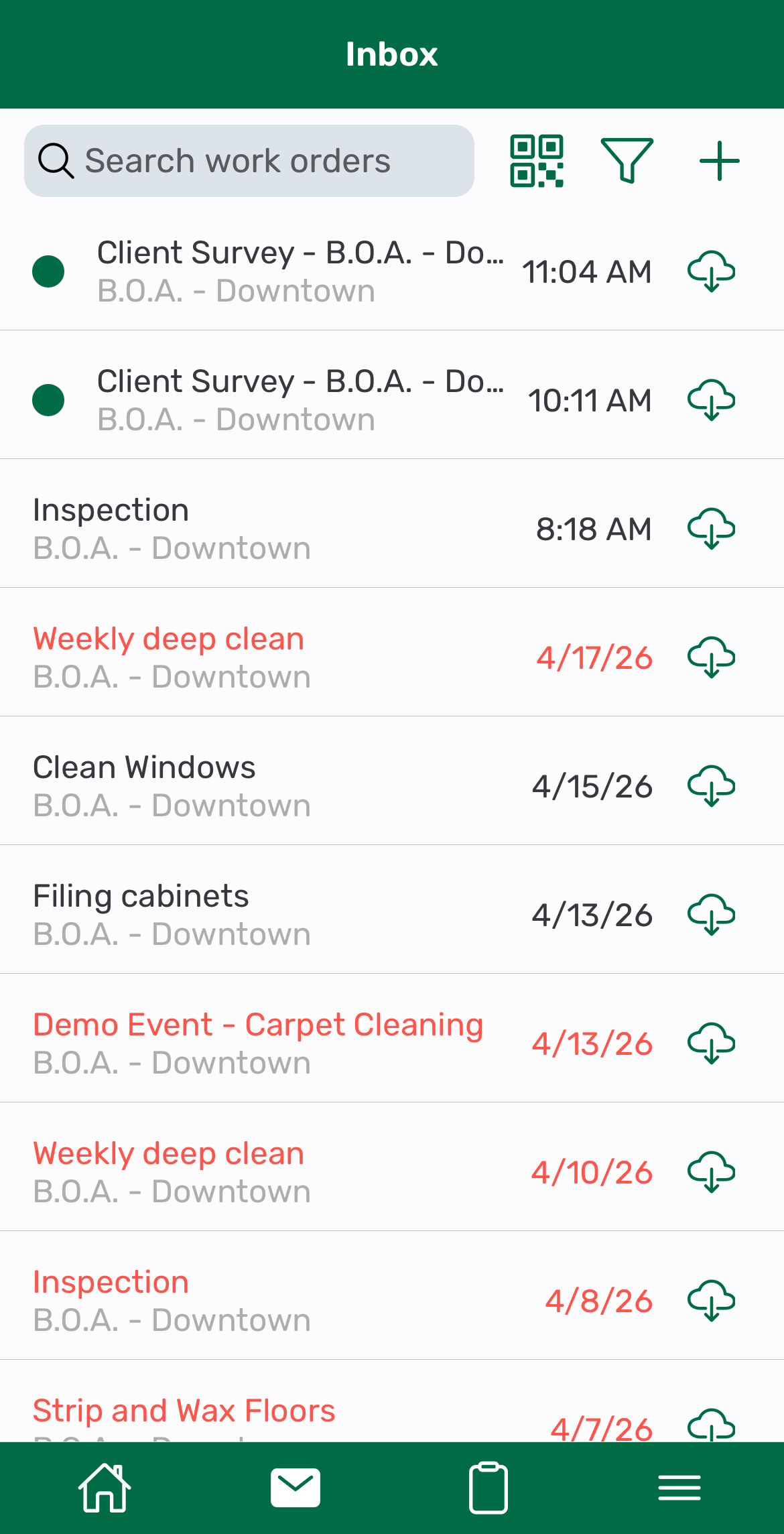
Full message details and attachments download when you open the work order while connected to the internet.
Unopened work orders will not be available in offline mode until they have been opened at least once while online.
This targeted download approach improves speed, reduces device strain, and keeps the app responsive even for high-volume accounts.
## Why do I not see all my locations downloaded automatically?
Locations are no longer downloaded automatically by design.
This change improves performance, especially for companies managing many locations, by reducing unnecessary downloads and conserving device storage.
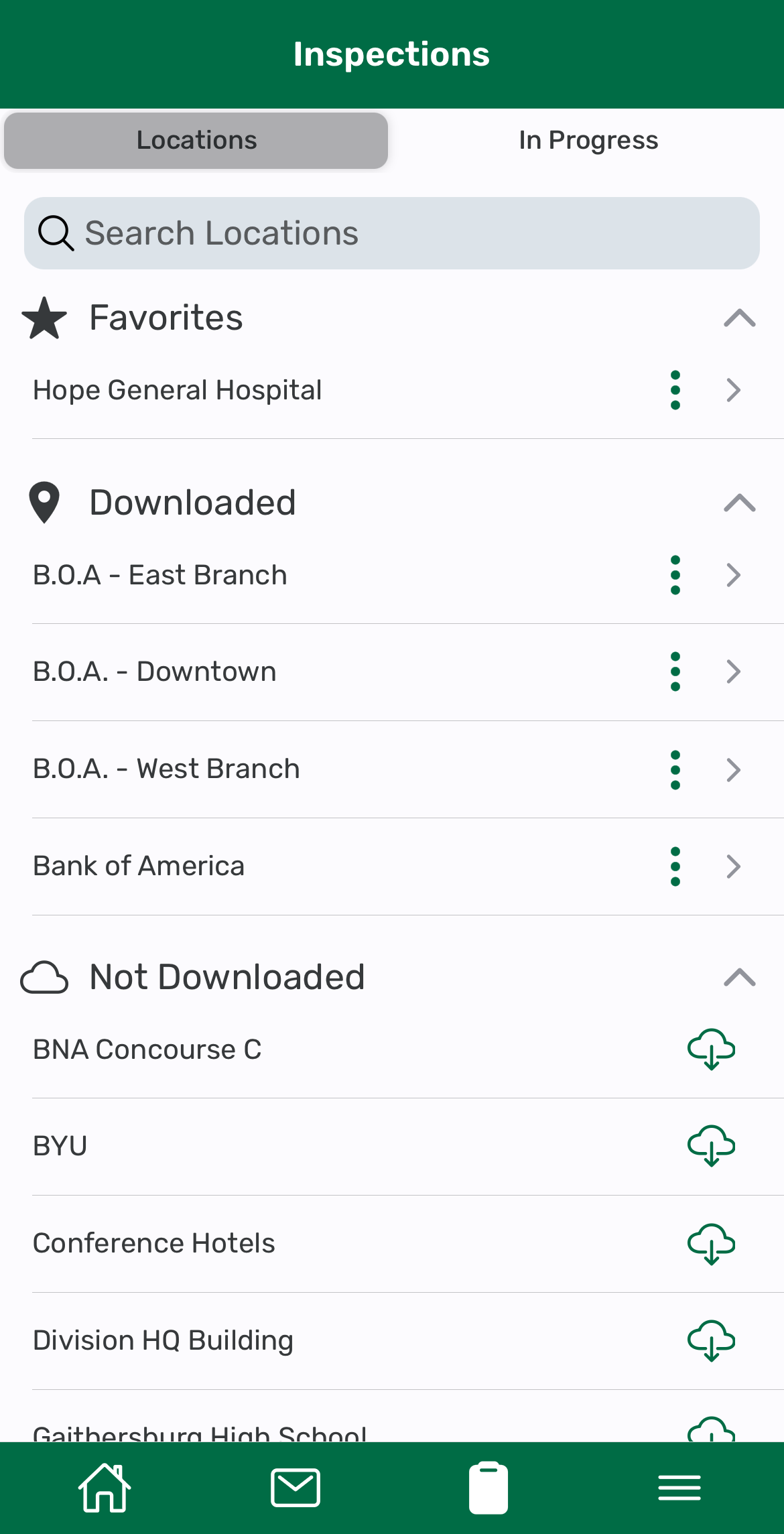
You can download just the locations you need to focus on and favorite locations you want always on top. Once downloaded, they remain available offline and stay updated unless you choose to delete them.
## How does photo and note capture work during inspections?
The overall process is familiar and streamlined.
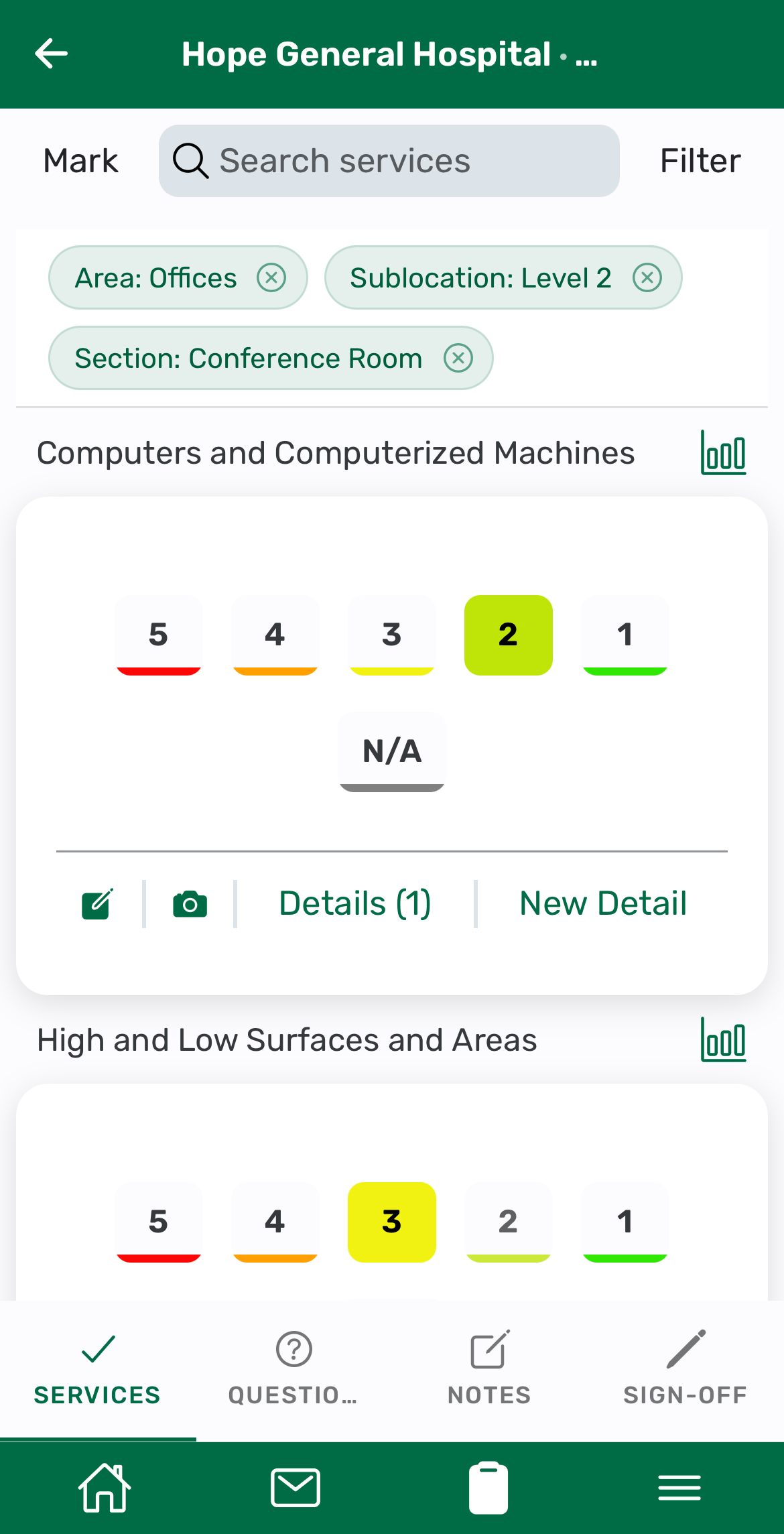
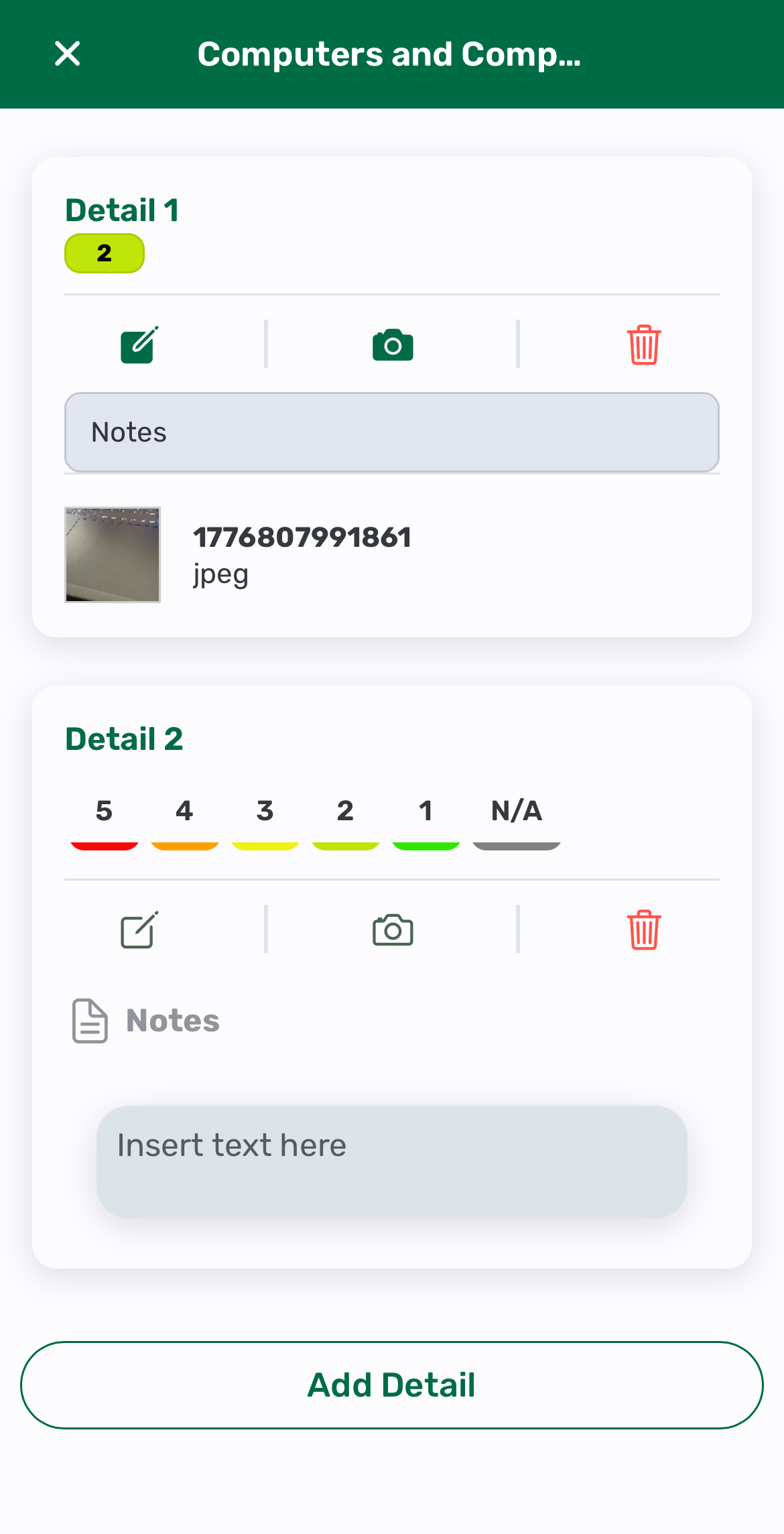
When you save an inspection as unfinished and return to it later, the most recent score and detail you entered will remain visible. This helps you quickly see what was last completed so it does not appear as though the service was left unscored.
To review all details for a service, tap into the **Details** view. This keeps the inspection interface clean while ensuring you can easily confirm where you left off.
## How does inspection uploading work?
In the **Otuvy QM** mobile app, inspections upload in the background after completion, allowing supervisors to move directly to their next task without waiting.
If completed offline, inspections automatically queue and upload as soon as a connection is restored. This improves reliability, reduces delays between locations, and supports real-world field conditions.
## Will my customers see changes to reports or dashboards?
**No.** Reports and dashboards in the Otuvy QM Service Provider HQ are not affected.
Inspection and work order data collected in the **Otuvy QM** mobile app continues to sync seamlessly with the rest of the system. Your customers will not see changes to scoring, report structure, or dashboard data.
- [Otuvy QM - Getting Started](https://help.otuvy.com/kb/otuvy-qm-getting-started?hsLang=en)
- [Otuvy QM - Setup & Administration](https://help.otuvy.com/kb/otuvy-qm-setup-administration?hsLang=en)
- [Otuvy QM - Contact Access](https://help.otuvy.com/kb/otuvy-qm-contact-access?hsLang=en)
- [Otuvy QM - Inspections](https://help.otuvy.com/kb/otuvy-qm-inspections?hsLang=en)
- [Otuvy QM - Work Orders](https://help.otuvy.com/kb/otuvy-qm-work-orders?hsLang=en)
- [Otuvy QM - Mobile App](https://help.otuvy.com/kb/otuvy-qm-mobile-app?hsLang=en)
- [Otuvy QM - Reports & Dashboards](https://help.otuvy.com/kb/otuvy-qm-reports-dashboards?hsLang=en)
- [Otuvy QM - Advanced Features](https://help.otuvy.com/kb/otuvy-qm-advanced-features?hsLang=en)
- [Otuvy Frontline](https://help.otuvy.com/kb/otuvy-frontline?hsLang=en#main-content)
- [Getting Started](https://help.otuvy.com/kb/otuvy-frontline?hsLang=en#getting-started)
- [Mobile App](https://help.otuvy.com/kb/otuvy-frontline?hsLang=en#mobile-app)
- [Admin Portal](https://help.otuvy.com/kb/otuvy-frontline?hsLang=en#admin-portal)
- [Uncategorized](https://help.otuvy.com/kb/uncategorized?hsLang=en)
[](https://www.otuvy.com/)
[mailto:email@email.com](mailto:email@email.com)
Copyright © 2026, Otuvy, Inc.