---
title: Public QR Code Reporting in Otuvy Frontline
description: Learn how Public QR Code Reporting in Otuvy Frontline lets anyone scan a list's QR code to view recent service activity and task completion details.
---
[Skip to content](https://help.otuvy.com/kb/public-qr-code-reporting-in-otuvy-frontline#main-content)
[More support](https://help.otuvy.com/kb/kb-tickets/new?hsLang=en)

Open main navigation
Close main navigation
- [More support](https://help.otuvy.com/kb/kb-tickets/new)
- [Contact us](mailto:vip@otuvy.com)
[Contact us](mailto:vip@otuvy.com)
How can we help you?
- There are no suggestions because the search field is empty.
1. [Otuvy Knowledge Base](https://help.otuvy.com/kb?hsLang=en)
2. [Otuvy Frontline](https://help.otuvy.com/kb/otuvy-frontline?hsLang=en)
3. [Admin Portal](https://help.otuvy.com/kb/otuvy-frontline?hsLang=en#admin-portal)
# Public QR Code Reporting in Otuvy Frontline
# Public QR Code Reporting in Otuvy Frontline
**Public QR Reporting** allows anyone who scans a list’s QR code using their phone’s default QR scanner to view a public report page showing the most recent service activity for that list.
This feature provides transparency for customers, visitors, or inspectors without requiring them to log in to Otuvy Frontline.
The public report displays the **two most recent service records for recurring tasks** along with the task completion details from those services.
## What the Public Report Shows
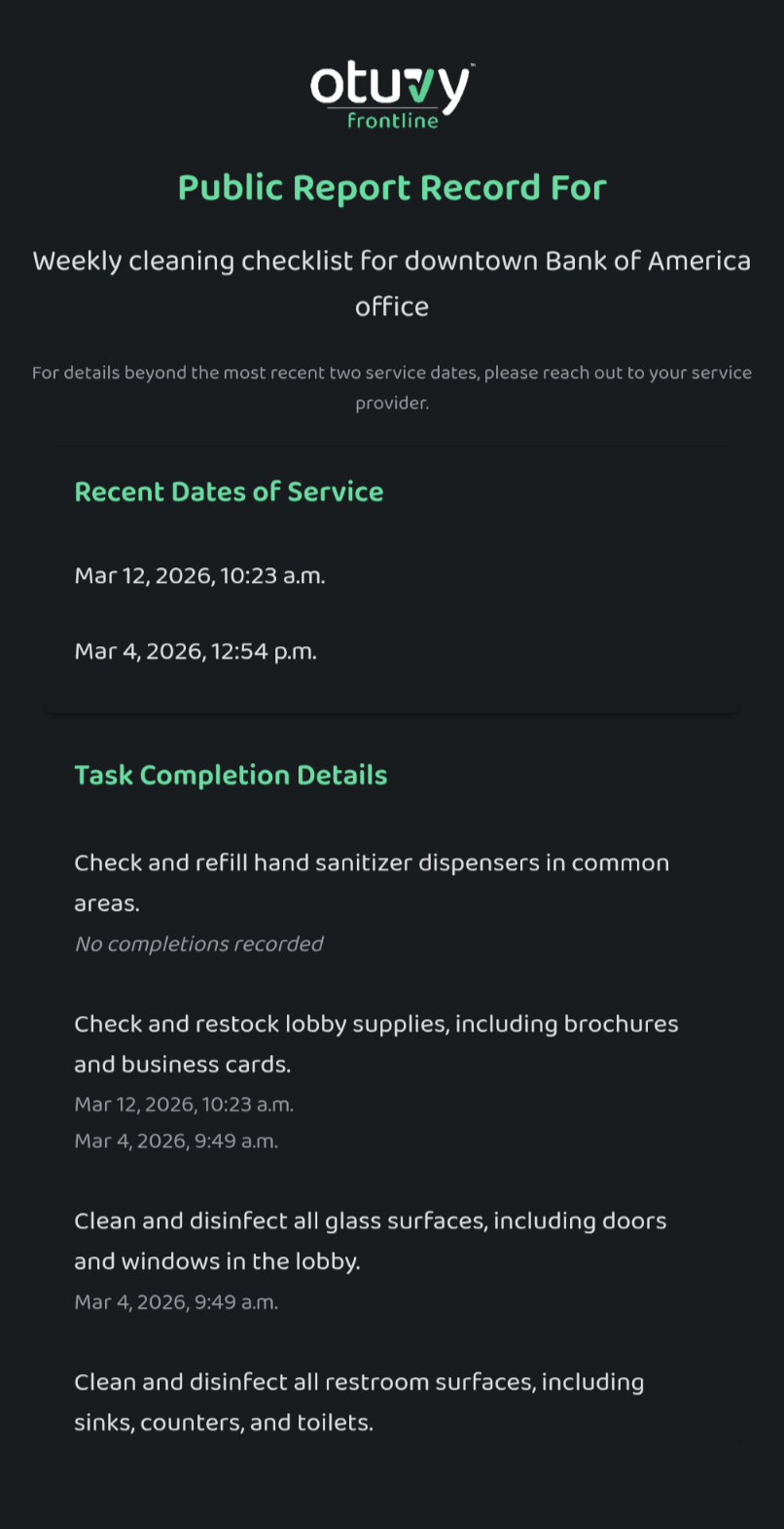
When enabled, scanning the QR code opens a page titled:
**Public Report Record For \[List Name\]**
The page includes the following information.
### List Information
- The **name of the checklist or list**
- A message explaining that only the **two most recent service records** are displayed
### Recent Dates of Service
Displays the most recent service run(s).
**Example:**
```
Recent Dates of Service
Mar 4, 2026, 12:54 p.m.
```
### Task Completion Details
Each task in the checklist appears along with its completion status during the service run.
If a task was completed, the report shows the **date and time it was completed**.
**Example:**
```
Clean and disinfect all glass surfaces, including doors and windows in the lobby.
Mar 4, 2026, 9:49 a.m.
```
If a task was **not completed**, the report displays:
```
No completions recorded
```
This allows visitors to see both completed and missed tasks.
### App Download Links
At the **bottom of the report page**, links are provided to download the **Otuvy Frontline mobile app** from the app stores.
This allows someone who scanned the QR code and wants to begin managing the list to quickly install the app.
## Try it Yourself and See
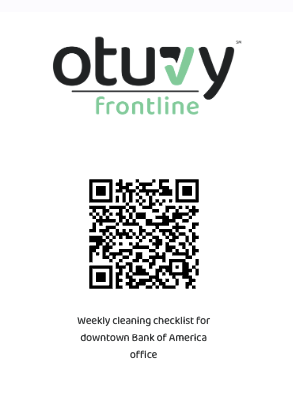
Go ahead and scan this QR Code to view the report yourself in real time
## How to Enable Public QR Reporting
Public QR Reporting must first be enabled **account-wide**, then enabled for the lists that should display public reports.
### Step 1 — Enable the Feature Account-Wide
1. Open the **Otuvy Frontline Admin Portal**
2. Go to the **Settings** page
[https://admin.otuvyfrontline.com/settings](https://admin.otuvyfrontline.com/settings)
1. Turn **Public QR Reporting** ON
2. Refresh the page
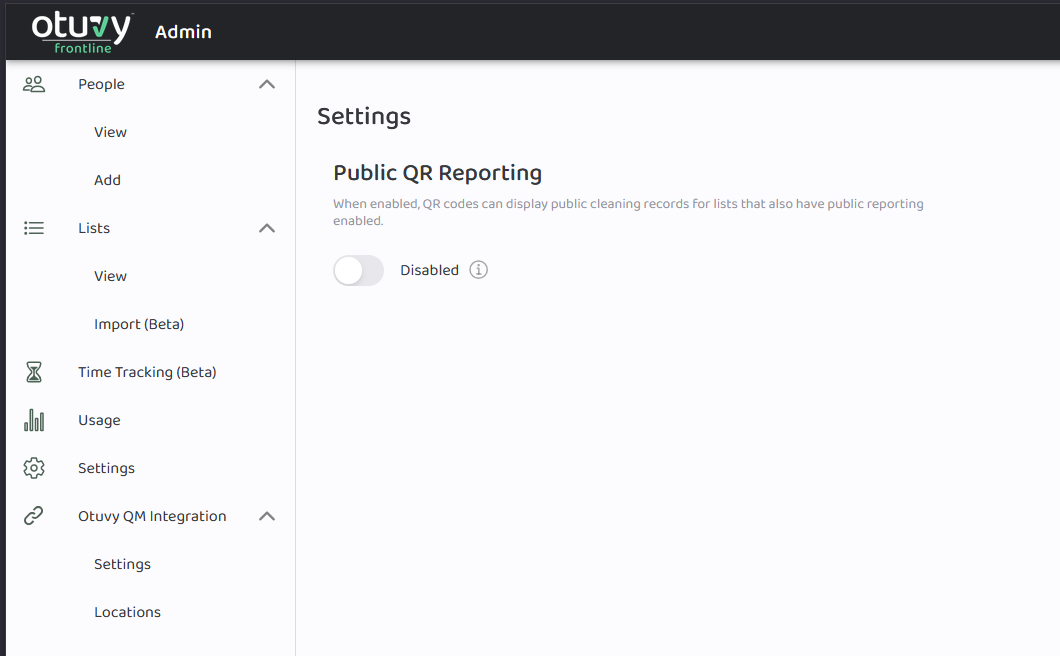
After refreshing, the Lists page will show new options for enabling public reports.
### Step 2 — Enable Public Reporting for Lists
Open the **Lists** page:
[https://admin.otuvyfrontline.com/lists/view](https://admin.otuvyfrontline.com/lists/view)
A new column labeled **Public Reports** will appear.
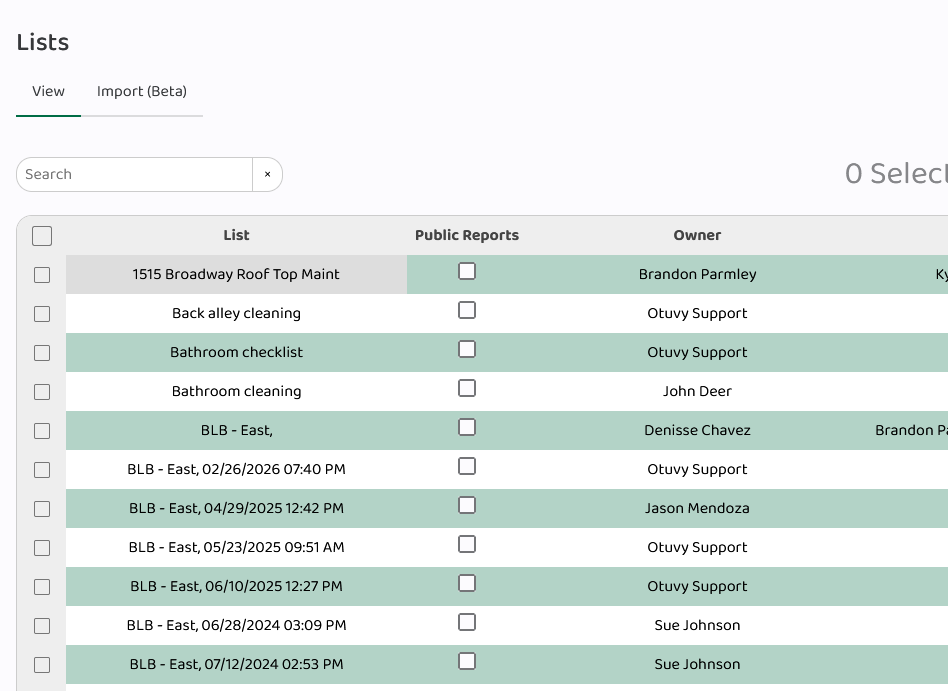
You can enable reporting in two ways.
### Enable Individually
Check the **Public Reports** checkbox next to the list.
### Enable Multiple Lists at Once
1. Select multiple lists
2. Click **Public Reporting** above the list
3. Toggle the feature **ON or OFF** for the selected lists
> 
>
> ## Configuration Notes
>
> There are **no additional settings to configure**.
>
> Public QR Reporting is simply:
>
> **Enabled for a list** or **Disabled for a list**
## How QR Code Scanning Works
The same QR code behaves differently depending on **how it is scanned**.
### When Scanned with a Phone Camera or Default QR Scanner
The QR code will attempt to open the **public reporting page**.
- If **Public QR Reporting is enabled for the list**, the public report page opens.
- If **Public QR Reporting is not enabled**, the user is shown a page with **links to download the Otuvy Frontline mobile app**.
### When Scanned from the Otuvy Frontline Mobile App
When a user scans the QR code **from inside the mobile app**, it does not open the public report.
Instead, the app will:
- Open or share the list
- Allow the user to **start managing tasks for that list**
This allows the same QR code to support both **public transparency** and **internal list management**.
> 
>
> ## Troubleshooting Tips
>
> ### I enabled Public QR Reporting but do not see the Public Reports column
>
> Refresh the page after enabling the feature in **Settings**.
>
> ### The QR code only shows app store download links
>
> Public QR Reporting is likely **not enabled for that list**.
>
> Enable the **Public Reports** checkbox for the list on the **Lists page**.
>
> ### The QR code opens the list in the app instead of the report
>
> This is expected behavior when scanning the QR code **from inside the Otuvy Frontline mobile app**.
>
> To view the public report, scan the QR code using the **phone’s camera or QR scanner**.
>
> ### Only one service record appears
>
> The report displays **up to the two most recent service records**. If the list has only been completed once, only one record will appear.
>
> ### Tasks show “No completions recorded”
>
> This means the task exists in the checklist but **was not marked complete during that service run**.
>
> ### I completed this list twice today but it's only showing once under Recent Dates of Service
>
> If the completions were more frequent than 12 hours apart, then the system only counts it as one completion for the list.
>
> All the tasks completed should still show up with the appropriate completion times under **Task Completion Details**
- [Otuvy QM - Getting Started](https://help.otuvy.com/kb/otuvy-qm-getting-started?hsLang=en)
- [Otuvy QM - Setup & Administration](https://help.otuvy.com/kb/otuvy-qm-setup-administration?hsLang=en)
- [Otuvy QM - Contact Access](https://help.otuvy.com/kb/otuvy-qm-contact-access?hsLang=en)
- [Otuvy QM - Inspections](https://help.otuvy.com/kb/otuvy-qm-inspections?hsLang=en)
- [Otuvy QM - Work Orders](https://help.otuvy.com/kb/otuvy-qm-work-orders?hsLang=en)
- [Otuvy QM - Mobile App](https://help.otuvy.com/kb/otuvy-qm-mobile-app?hsLang=en)
- [Otuvy QM - Reports & Dashboards](https://help.otuvy.com/kb/otuvy-qm-reports-dashboards?hsLang=en)
- [Otuvy QM - Advanced Features](https://help.otuvy.com/kb/otuvy-qm-advanced-features?hsLang=en)
- [Otuvy Frontline](https://help.otuvy.com/kb/otuvy-frontline?hsLang=en#main-content)
- [Getting Started](https://help.otuvy.com/kb/otuvy-frontline?hsLang=en#getting-started)
- [Mobile App](https://help.otuvy.com/kb/otuvy-frontline?hsLang=en#mobile-app)
- [Admin Portal](https://help.otuvy.com/kb/otuvy-frontline?hsLang=en#admin-portal)
- [Uncategorized](https://help.otuvy.com/kb/uncategorized?hsLang=en)
[](https://www.otuvy.com/)
[mailto:email@email.com](mailto:email@email.com)
Copyright © 2026, Otuvy, Inc.