Secondary Service Providers
What Are They?
Secondary Service Providers are a means of having multiple "Doing Business As" identities on one account. For example, if Joe's Cleaning Company does business as both Joe's Cleaning Company and as Cleaning++ then using Secondary Service Providers, Joe can manage the experience his employees and contacts have within CleanTelligent.

Secondary Service Providers are assigned to the people associated with them. Both Employee and Contact records can be given Secondary Service Provider assignments to customize their web login and reporting experience
What Do Secondary Service Providers Affect?
Secondary Service Providers affect the following for employee and/or contact records where assigned:
- Email Notification headers and footers
- Logo/Account name on the main navigation (after login)
- Website color scheme (after login)
- Service Provider Info page (Contact users only)
- Logos and names on reports run by those users where it is assigned
Setup a Secondary Service Provider
Create the Secondary Service Provider

Already have a secondary service provider? Skip down to the Assign section below
- Click Admin from the main navigation
- Scroll down to the Other section of the page
- Click on Secondary Service Providers (It should be the last link on the page)
- Above the Search Results box, click on New Secondary Service Provider
- Fill out all the information on the page
- If any of the information that is NOT required is different for this "Doing Business As" identity, be sure to fill it out.
- CleanTelligent will refer to the account default for any field that is not filled out at this time.
- Upload and/or chose the logo file to be used (if applicable)
- Do NOT select any Service Locations to attach the logo to.
- Chose your color scheme (the current color scheme for the account is pre-loaded)
- Enter your business address (if different from your main account business address)
- Click Save
Assign the Secondary Service Provider
Follow these steps for all Employee AND Contact records that should experience the Secondary Service Provider name/logo/colors etc.:
- Navigate to the intended record (Contact or Employee/Contractor)
- Click Edit next to Main Information
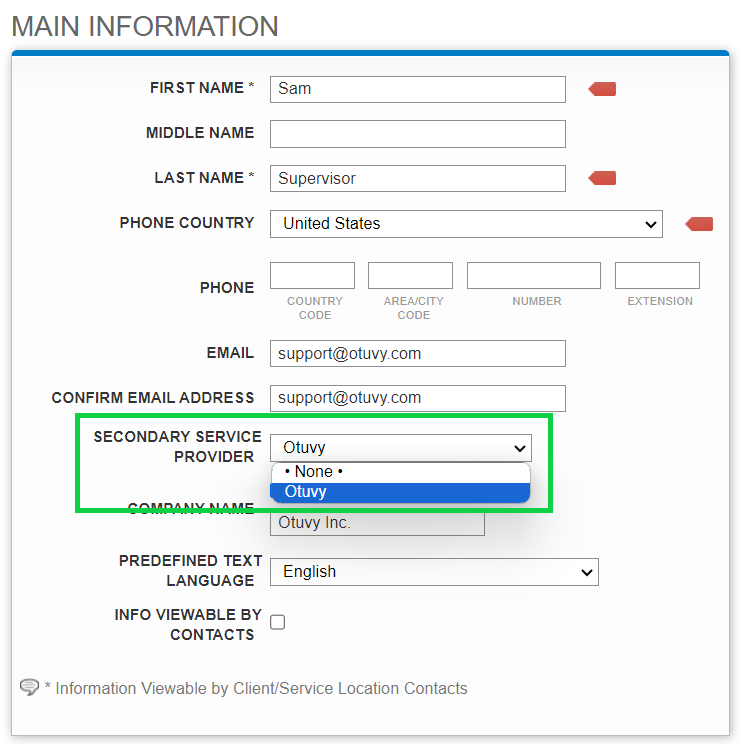
- In the Main Information box, select the Secondary Service Provider you wish that record to be associated with
- Click Save
Example
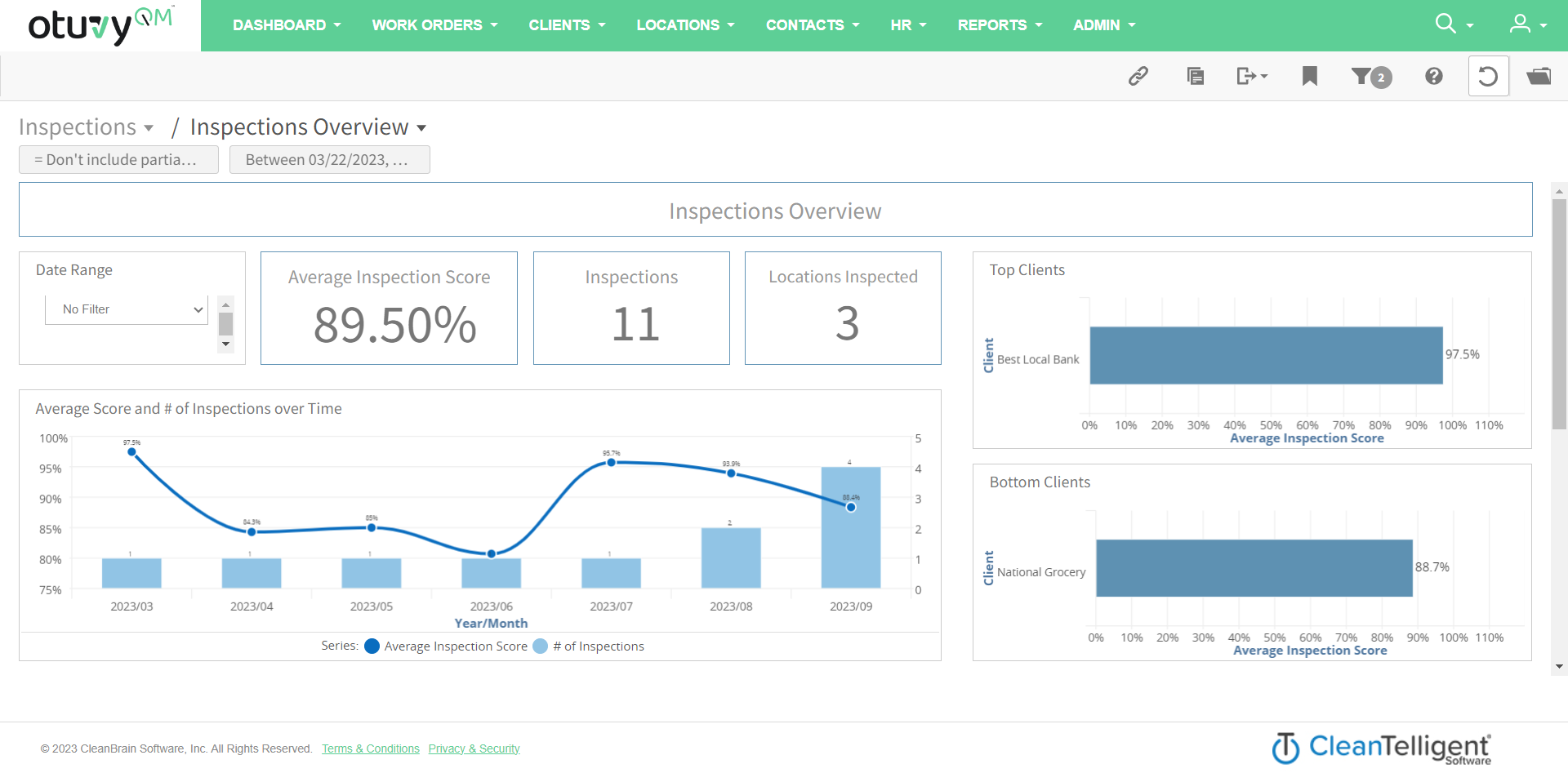
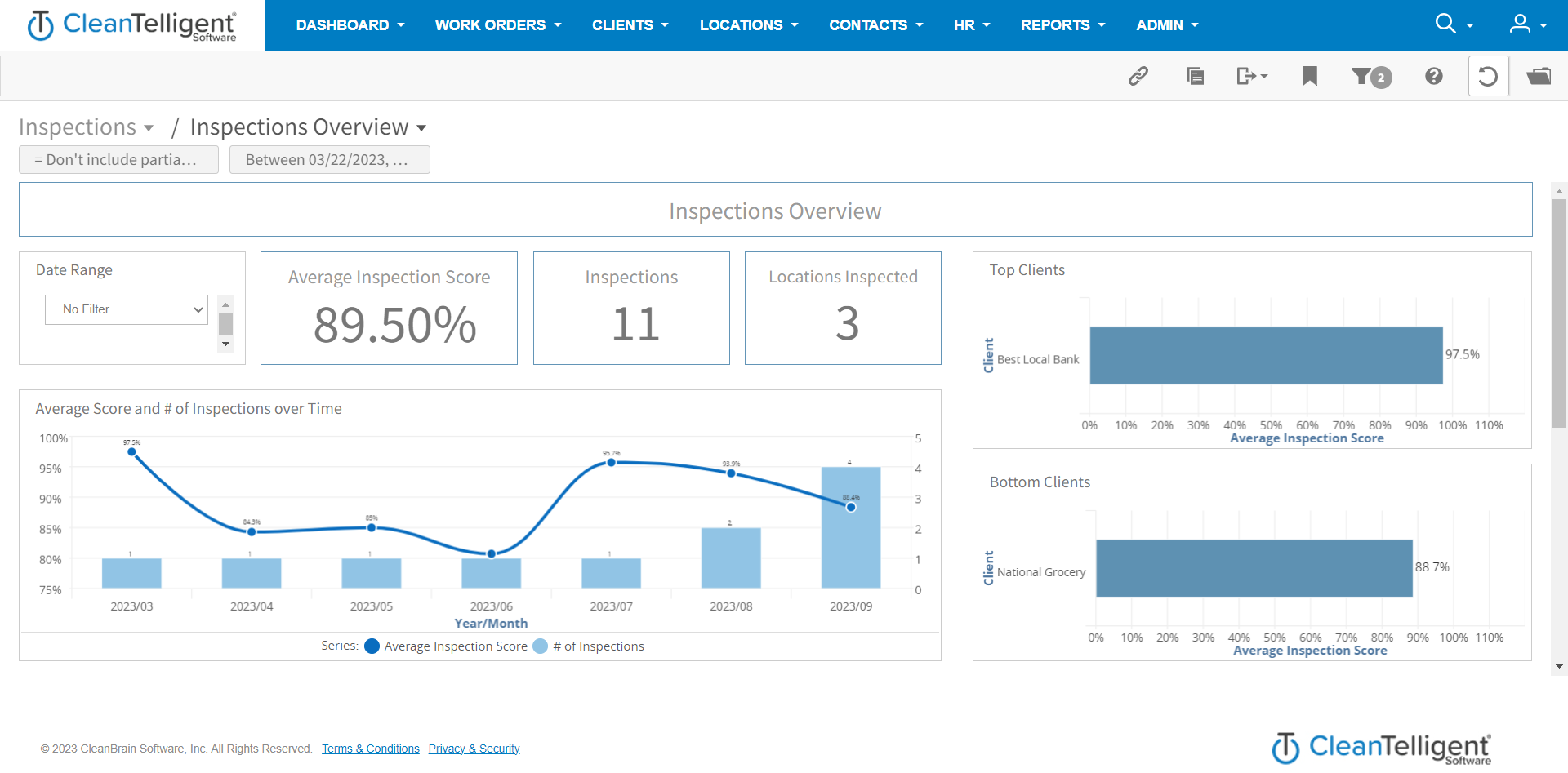
See the difference when logging into two different users on the same account. Even though they have access to the same information, they see differently branded interfaces.
And