---
title: Work Order Action Indicators in the Otuvy QM Mobile App
description: See how work order action indicators in the Otuvy QM mobile app use color-coded dots to show status, prioritize replies, and speed up field work.
---
[Skip to content](https://help.otuvy.com/kb/work-order-action-indicators-in-the-otuvy-qm-mobile-app#main-content)
[More support](https://help.otuvy.com/kb/kb-tickets/new?hsLang=en)

Open main navigation
Close main navigation
- [More support](https://help.otuvy.com/kb/kb-tickets/new)
- [Contact us](mailto:vip@otuvy.com)
[Contact us](mailto:vip@otuvy.com)
How can we help you?
- There are no suggestions because the search field is empty.
1. [Otuvy Knowledge Base](https://help.otuvy.com/kb?hsLang=en)
2. [Otuvy QM - Mobile App](https://help.otuvy.com/kb/otuvy-qm-mobile-app?hsLang=en)
# Work Order Action Indicators in the Otuvy QM Mobile App
# Work Order Action Indicators in the Otuvy QM Mobile App
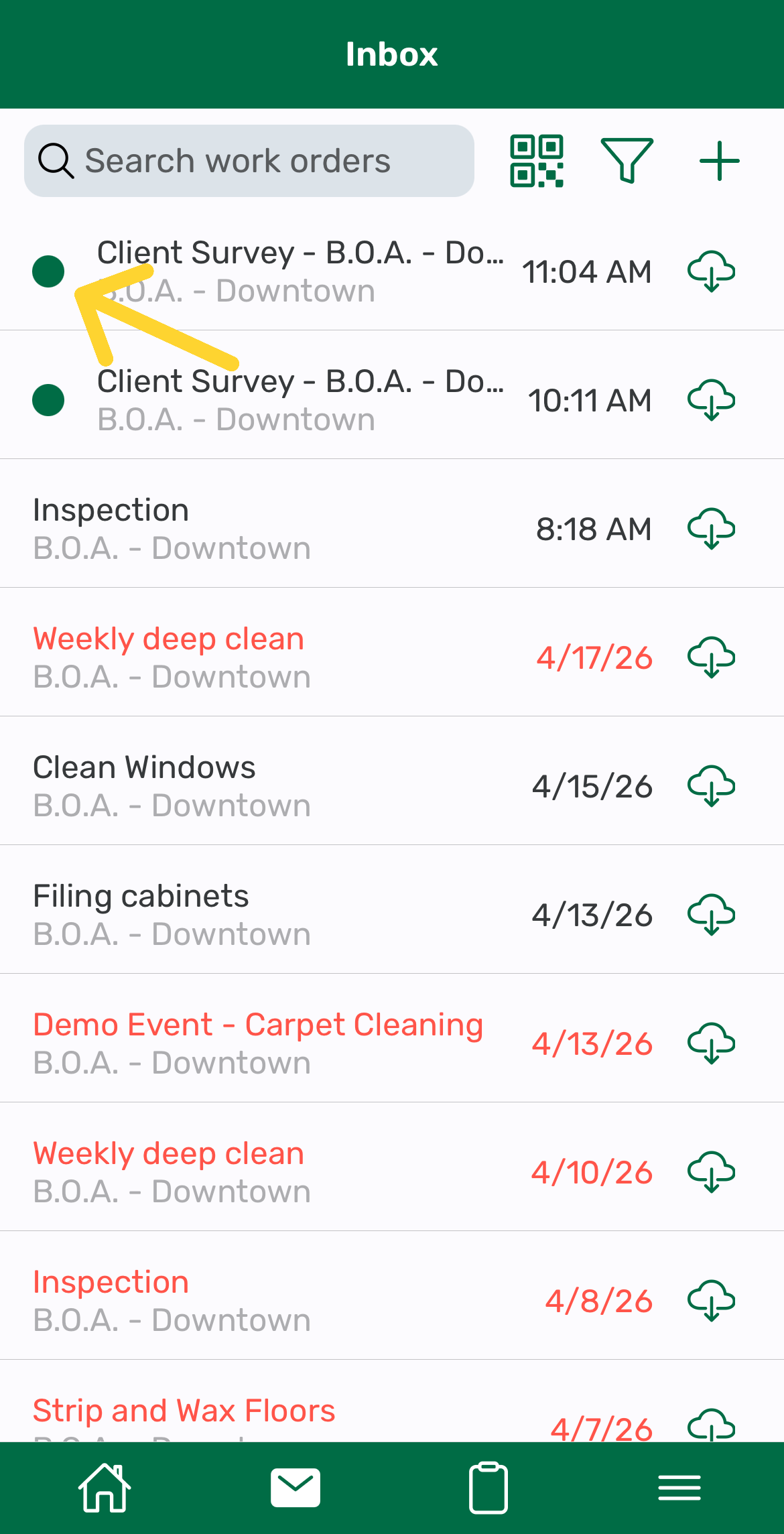
Work order action indicators help you quickly understand the status of a work order at a glance. These visual cues make it easier to prioritize your work and respond efficiently in the field.
You will see these indicators directly in your Work Order inbox, and they update automatically as activity occurs.
## What are Work Order Action Indicators?
Action indicators are visual cues, typically color-based, that show the current state of a work order.
They help you quickly answer questions like:
- Does this work order need a response?
- Has it been updated recently?
- Is it already completed?
Instead of opening each work order, you can scan your inbox and take action where it is needed most.
## Common Work Order Indicators
The work orders without a dot indicate one of 2 things:
1. An Employee User (possibly yourself) created the work order and nobody has responded to it yet **OR**
2. An Employee User was the person to respond to the work order, regardless of who created it
The work orders with a Green dot indicate that both:
1. The work order was created by a Contact User **AND**
2. No users have responded to the work order yet
The work orders with a Blue dot indicate that both:
1. A Contact User has recently replied to the work order **AND**
2. No Employee Users have replied to it more recently than the Contact User
Internal work orders will never have a dot next to them.
## Why These Indicators Matter
Work order action indicators are designed to improve speed and clarity in the field.
They help you:
- Prioritize urgent items quickly.
- Avoid missing updates or replies.
- Stay organized across multiple locations.
- Reduce time spent opening and reviewing each work order.
## How Indicators Update
Indicators update automatically based on activity, including:
- Opening a work order.
- Sending or receiving a reply.
- Changing the work order status.
- Completing or closing the work order.
Because work orders use on-demand data loading, some details load when opened, but the indicators remain visible in your inbox for quick scanning.
- [Otuvy QM - Getting Started](https://help.otuvy.com/kb/otuvy-qm-getting-started?hsLang=en)
- [Otuvy QM - Setup & Administration](https://help.otuvy.com/kb/otuvy-qm-setup-administration?hsLang=en)
- [Otuvy QM - Contact Access](https://help.otuvy.com/kb/otuvy-qm-contact-access?hsLang=en)
- [Otuvy QM - Inspections](https://help.otuvy.com/kb/otuvy-qm-inspections?hsLang=en)
- [Otuvy QM - Work Orders](https://help.otuvy.com/kb/otuvy-qm-work-orders?hsLang=en)
- [Otuvy QM - Mobile App](https://help.otuvy.com/kb/otuvy-qm-mobile-app?hsLang=en)
- [Otuvy QM - Reports & Dashboards](https://help.otuvy.com/kb/otuvy-qm-reports-dashboards?hsLang=en)
- [Otuvy QM - Advanced Features](https://help.otuvy.com/kb/otuvy-qm-advanced-features?hsLang=en)
- [Otuvy Frontline](https://help.otuvy.com/kb/otuvy-frontline?hsLang=en#main-content)
- [Getting Started](https://help.otuvy.com/kb/otuvy-frontline?hsLang=en#getting-started)
- [Mobile App](https://help.otuvy.com/kb/otuvy-frontline?hsLang=en#mobile-app)
- [Admin Portal](https://help.otuvy.com/kb/otuvy-frontline?hsLang=en#admin-portal)
- [Uncategorized](https://help.otuvy.com/kb/uncategorized?hsLang=en)
[](https://www.otuvy.com/)
[mailto:email@email.com](mailto:email@email.com)
Copyright © 2026, Otuvy, Inc.