---
title: Work Order Priorities
description: "Set up Work Order Priorities in Otuvy QM: configure Low, Medium, High, and Urgent levels for service providers and clients, and set their display order."
---
[Skip to content](https://help.otuvy.com/kb/work-order-priorities#main-content)
[More support](https://help.otuvy.com/kb/kb-tickets/new?hsLang=en)

Open main navigation
Close main navigation
- [More support](https://help.otuvy.com/kb/kb-tickets/new)
- [Contact us](mailto:vip@otuvy.com)
[Contact us](mailto:vip@otuvy.com)
How can we help you?
- There are no suggestions because the search field is empty.
1. [Otuvy Knowledge Base](https://help.otuvy.com/kb?hsLang=en)
2. [Otuvy QM - Work Orders](https://help.otuvy.com/kb/otuvy-qm-work-orders?hsLang=en)
# Work Order Priorities
# Work Order Priorities
When dealing with work orders you may want to prioritize your work and your Clients may also have priorities for their requests. You can have separate priorities from a Client side of things vs the Employee/Contractor side of things. A Contact from your client may think everything is Urgent priority whereas, if you are using Work Order Priorities, a supervisor may decide a given work order is Low, Medium, High, or Urgent priority based on work load and impact.
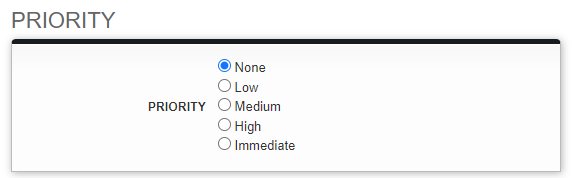
To set up priorities:
1. Click on the **Admin** tab
2. Scroll to the **Work Order Configuration** section of the page
3. Click on **Priorities** 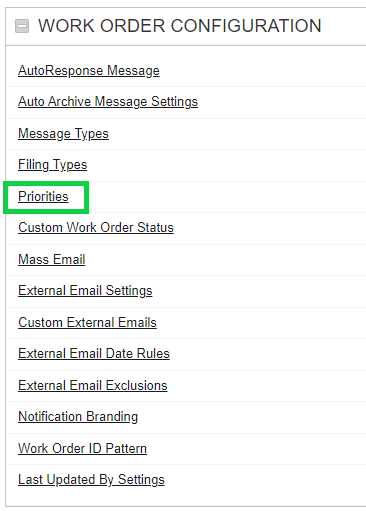
4. Either **Edit** an existing priority or click **New Priority** from the top of the Priority Search page 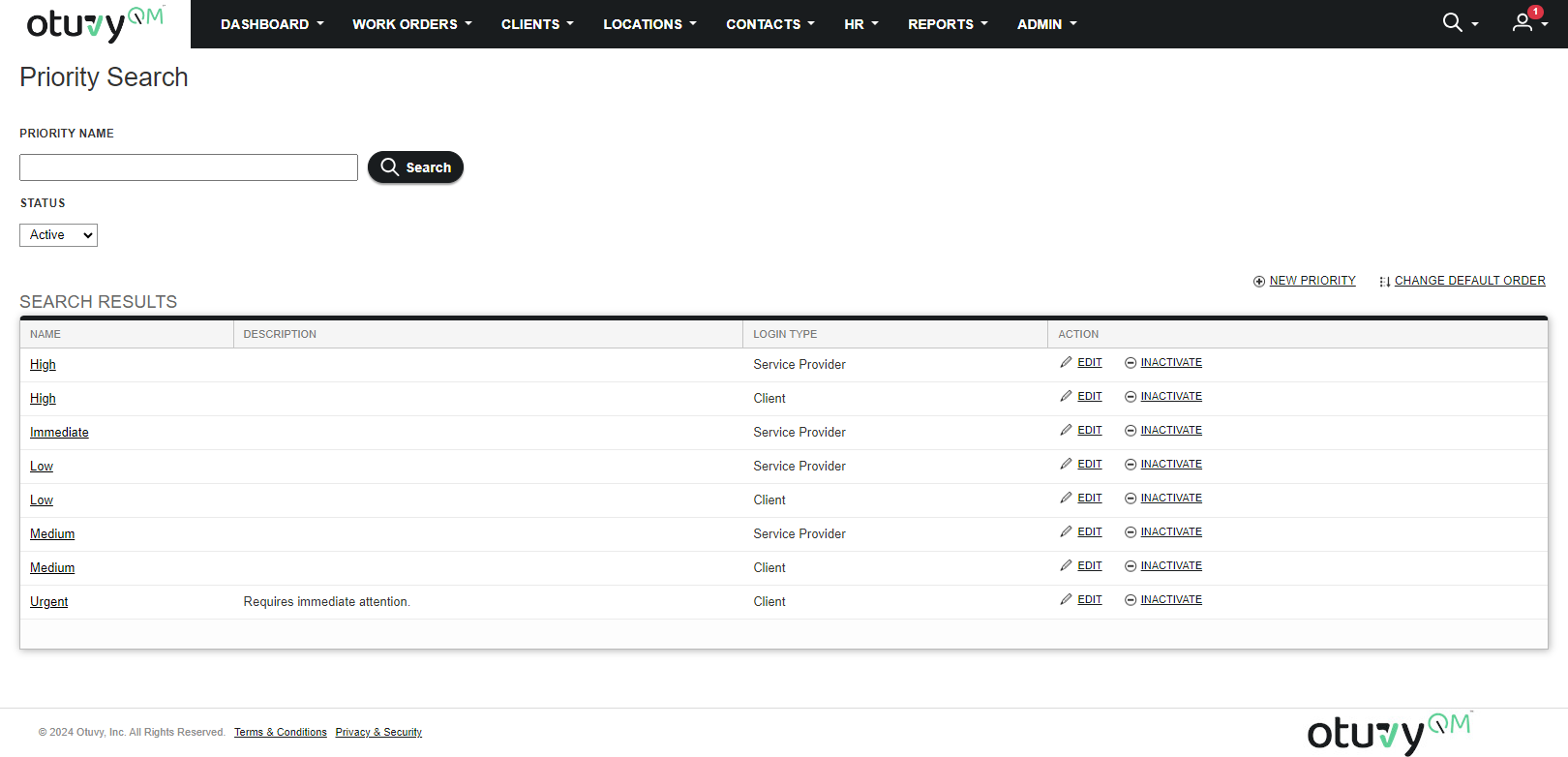
Each priority will have the following options:
1. **Name:** *Required*. This is what shows up in the Priority menu when creating or editing a work order
2. **Description**
3. **Login Type:**
4. **Service Provider:** Your Employees/Contractors will be able to chose this priority
5. **Client:** Your Contacts will be able to chose this priority
You can change the order that priorities show up in the W.O Priority selection screen:
1. Navigate to the **Priority Search** page
2. Click on **Change Default Order** above the search results
3. **Arrange** the order using the tool on screen
4. Click **Save**
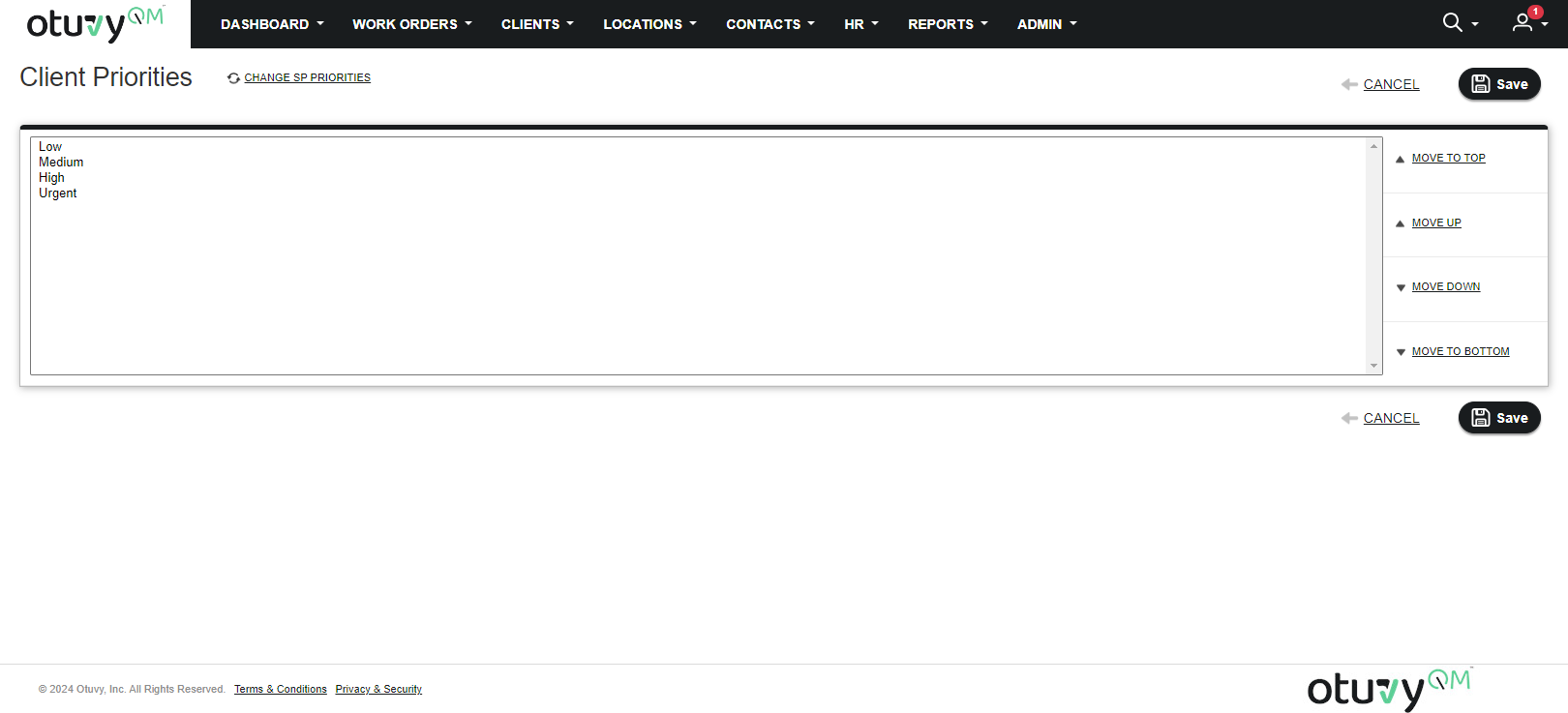
If needed you can click on **Change SP Priorities** or **Change Client Priorities** to switch between the two at the top of the page.

- [Otuvy QM - Getting Started](https://help.otuvy.com/kb/otuvy-qm-getting-started?hsLang=en)
- [Otuvy QM - Setup & Administration](https://help.otuvy.com/kb/otuvy-qm-setup-administration?hsLang=en)
- [Otuvy QM - Contact Access](https://help.otuvy.com/kb/otuvy-qm-contact-access?hsLang=en)
- [Otuvy QM - Inspections](https://help.otuvy.com/kb/otuvy-qm-inspections?hsLang=en)
- [Otuvy QM - Work Orders](https://help.otuvy.com/kb/otuvy-qm-work-orders?hsLang=en)
- [Otuvy QM - Mobile App](https://help.otuvy.com/kb/otuvy-qm-mobile-app?hsLang=en)
- [Otuvy QM - Reports & Dashboards](https://help.otuvy.com/kb/otuvy-qm-reports-dashboards?hsLang=en)
- [Otuvy QM - Advanced Features](https://help.otuvy.com/kb/otuvy-qm-advanced-features?hsLang=en)
- [Otuvy Frontline](https://help.otuvy.com/kb/otuvy-frontline?hsLang=en#main-content)
- [Getting Started](https://help.otuvy.com/kb/otuvy-frontline?hsLang=en#getting-started)
- [Mobile App](https://help.otuvy.com/kb/otuvy-frontline?hsLang=en#mobile-app)
- [Admin Portal](https://help.otuvy.com/kb/otuvy-frontline?hsLang=en#admin-portal)
- [Uncategorized](https://help.otuvy.com/kb/uncategorized?hsLang=en)
[](https://www.otuvy.com/)
[mailto:email@email.com](mailto:email@email.com)
Copyright © 2026, Otuvy, Inc.