
Record Cleanup
It’s really easy for things to get cluttered in Otuvy QM and occasionally you need to clean things up. Whether you’ve lost a client, one of your employees is no longer with your company, or if a location is no longer being serviced you will want to clean things up and declutter your Otuvy QM account. This is super easy to do and is completely reversible, so you don’t need to worry about losing any data.
The way we declutter an account is by Inactivating a Record or User.
What’s the difference between inactivating a User vs a Record you ask? Users, either Contacts or HR, should be inactivated when the individual is still with the company, theirs or yours, but no longer needs access to the Otuvy QM software. This allows you to keep a Contact or HR record’s information in the system so you can still search for them and see what they were assigned to in the org chart. A Contact or HR Record should be inactivated if the individual is no longer with the company. This will not only remove their access to Otuvy QM by automatically inactivating their user info but will also remove them from the org chart and they will only be searchable if you manually switch from the default Active record search to an Inactive record search.
Inactivating a User’s Login
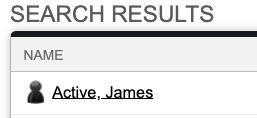
To inactivate a User’s login, navigate to the record in either the Contacts or HR search page and click the name. You will know that the User information is active because there is a silhouette icon to the left of their name like this,
From the record’s page click Edit next to the User Information title.

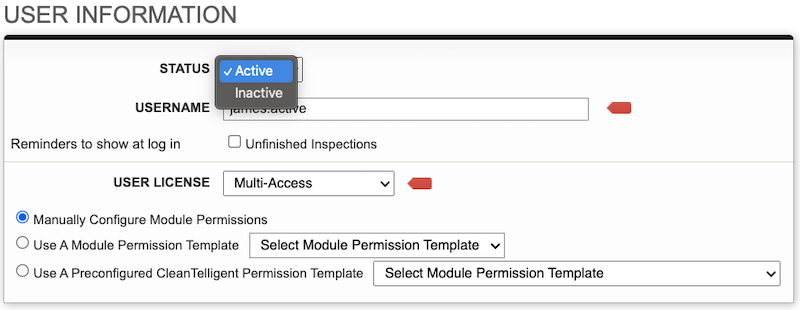
From the User Information page, change the Status from Active to Inactive then click the blue Save button in the top right of the page.
For a refresher on activating and inactivating users see our Knowledge Base article Giving an Employee or Contact Access to Otuvy QM
Inactivating a Contact or HR Record
Again, navigate to the record you want to inactivate through either the Contact or HR search page and click the name. This will take you to the record’s information page. To inactivate the entire record, click Edit next to the Main Information title.
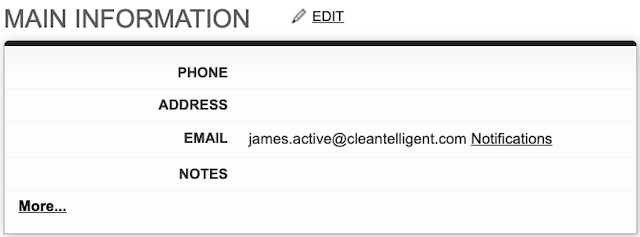
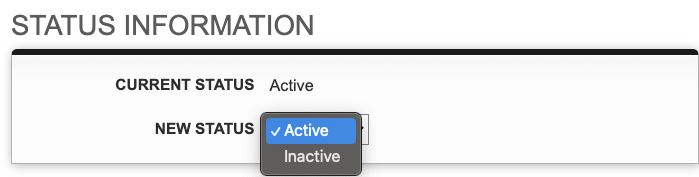
Then scroll down to the Status Information section of the page. Change the New Status dropdown from Active to Inactive. Scroll back up and click the Save button.
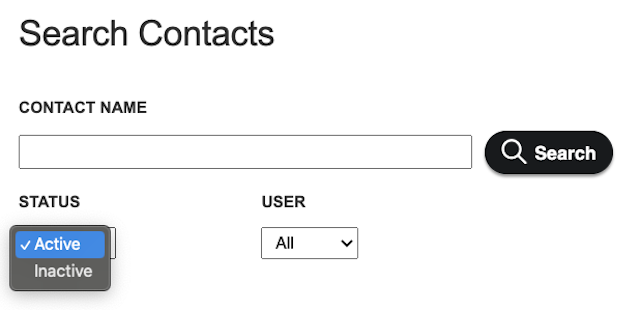
You will notice that when you search for that record it won’t show up in the results anymore unless you switch the status drop down from active to inactive.
Inactivating a Service Location
If you are no longer providing any services to a specific location you will want to inactivate that service location.
Inactivating a service location can be done from the service location’s record page. Just search for the service location and click on the name. From the service location’s record page click on Edit next to the Main Information title, scroll down to the status and switch it from Active to Inactive. Be sure to click on Save to make your changes.
Inactivating a Client
Inactivating a client is a high-level function that will not only inactivate the client record but all the records associated with it, so only use it if you no longer do business with that client. It will inactivate the client, including service location records, contact records and all user information associated with the client. Only use this if you are sure you are no longer doing business with that Client.
To inactivate the Client, go to the Clients search and navigate to the client record page. Click Edit next to the Main Information title, scroll to the status section and switch the status from Active to Inactive. As always, be sure to click on Save to make your changes.
Reactivating a record or user
Let’s face it, accidents happen. If you accidentally inactivate the wrong record or if you need to reactivate a record or user for any other reason, Otuvy QM has you covered. Inactivating a record or user doesn’t actually remove any of the information so you can easily navigate to and reactivate the relevant record or user.
To do this, first go to the search page for the record type you are trying to reactivate and switch the Status dropdown from Active to Inactive, type the name of the record you want to reactivate into the search field and click the Search button.
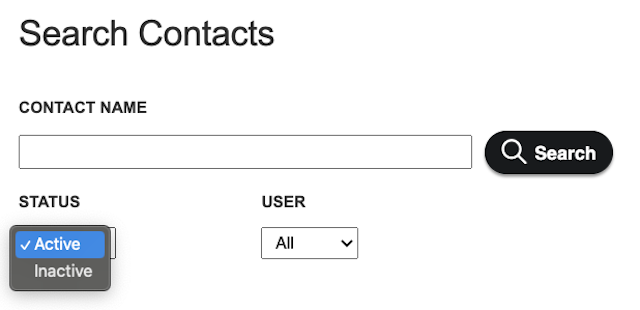
From here, if there are multiple results, click the name of the record you want to reactivate and it will take you to the record page. (If your search returns only one result then Otuvy QM will take you directly to the record page)
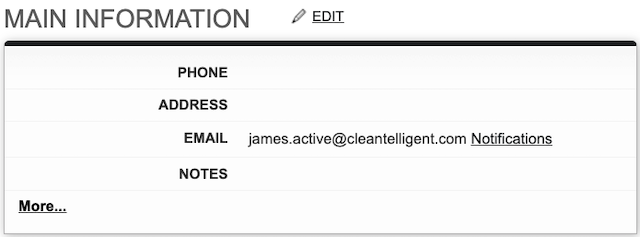
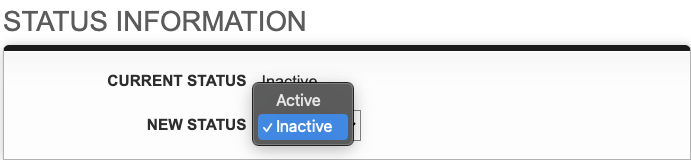
From here, to reactivate the record, just click Edit next to the Main Information title, scroll down to the Status section and switch the New Status from Inactive to Active and click the blue Save button at the top of the page.
To reactivate a User, meaning to give them access into Otuvy QM again, follow the steps outlined in our Knowledge Base article Giving an Employee or Contact Access to Otuvy QM